
How to Bookmark on iPad
Bookmarking a web page so you can quickly return to it later is a simple feature that all web browsers have, whether they run on computers or hand-held devices. The iPad has a bookmarking feature as well, but it’s not that conspicuous, which leaves many users wondering whether is it possible for them to bookmark a page or not. Find out below how to bookmark on iPad.
https://www.youtube.com/watch?v=0OLVoLrR2R4
- Open your Safari web browser and navigate to the web page you want to bookmark.
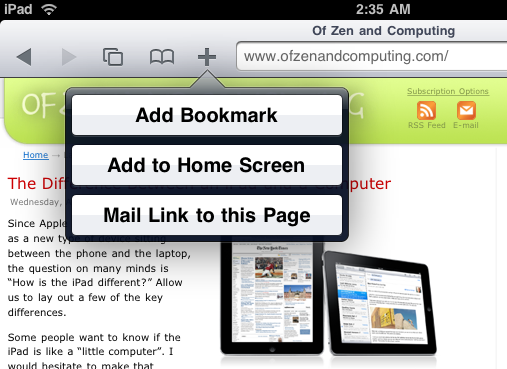
- Tap the Action button. You’ll find it at the top of the screen, in the shape of an arrow overlapping a rectangle.
- Tap Add Bookmark. Alternatively, you can tap Add to Home Screen to add an icon with the bookmark to your home screen, from where you can then conveniently access the bookmarked site without having first to open your web browser. You can also mail the link instead, if you want.
- A new window with the bookmark you’ve made opens. It includes the name, web address, and location of the bookmark. You can customize the name and location if you want, or leave them as they are.
- Tap Save to add the new bookmark.
- Customize the bookmark. Later, if you want to change the bookmark name, tap the X next to the name and enter a new name. To change the location, tap on the > symbol in the Bookmarks field, choose a folder where to move the bookmark, and then tap App Bookmark and Save.
- That’s it. Now you know how to bookmark on iPad.
Opening a bookmark later is easy. Find the Bookmarks icon in the upper-left portion of the screen and tap on it. Your bookmarks will appear, and you simply have to tap on the one you want to open. If you’ve organized your bookmarks in folders, you’ll first have to find the folder in which you’ve stored your bookmark and tap on it. Using folders for your bookmarks adds another step to the bookmark opening process, but helps you keep your favorite sites organized.
We hope you have enjoyed this how to bookmark on iPad tutorial.