
How to Remove Apps On iPad
Whether you want to de-clutter your screens or free up some HD space, removing apps on the iPad is a quick and easy process that doesn’t even require you to plug your device into iTunes. Below you’ll find out how to remove apps on iPad directly from your device.
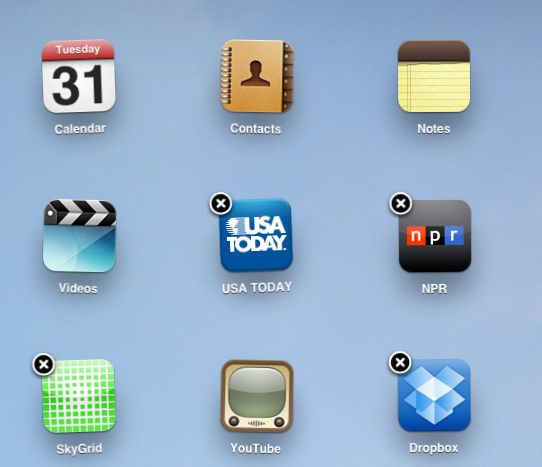
Remove Third Party Apps
- Go to Settings and locate the icon delete setting and turn it to on. To make sure that the new setting has been activated, restart your iPad. Then move on to the next step.
- Touch the app icon you want to delete until all the icons on the screen jiggle and a small black circle with the x sign in it appears above each of them.
- Tap on the x sign of the app you want removed.
- Confirm the deletion.
- Delete more apps if you want by tapping on the x signs above each of them. Beware: all data associated with the apps will also be deleted, including documents, settings, and high scores.
- Press the Home bottom. The icons will stop jiggling.
- That’s it. You’ve learned how to remove apps on iPad.
Reinstalling deleted apps later on is easy. Go to the App Store, locate the app, and tap Install. If the app is not free, you will be able to install it without having to pay for it again.
Hiding Native Apps
Not all apps on your iPad can be removed. Native iOS apps like Safari, Notes, iTunes, or Calendar cannot be deleted – the X sign won’t appear for them. You can, however, chose to hide these apps from display to save up screen space.
- Go to Settings
- Tap on General
- Tap on Restrictions
- Find the Allow area and turn OFF the apps you want hidden.
The apps will disappear from your home screen but will remain on your device. You will be able to reactivate them at a later time.
Knowing how to remove apps on iPad will make it easier for you to keep your tablet organized and to save up disk space.
https://www.youtube.com/watch?v=DLtM8xO2WD0