
How to Use 3D Touch on iPhone 6s

iPhone 6s has introduced another way of interacting with your phone and it’s revolutionary. The new 3D Touch helps you feel the pressure you apply to the display. While the multi-touch gestures comprise of Tapping, Swiping, and Pinching, you will be able to do a lot more with the 3D feature. For an enhanced experience with your new phone, learn how to use 3D Touch on iPhone 6s.
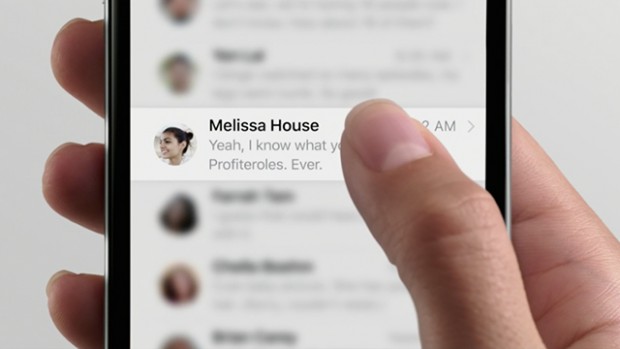 How to Use 3D Touch on iPhone 6s
There are a few ways the 3D Touch feature can help you navigate better on your phone. To enjoy it on multiple levels, you can start with Peeking and Popping.
How to Peek and Pop with 3D Touch on iPhone 6s
The new Peek and Pop gesture allows you to preview content without opening it, such as an email in your inbox, a website, photos you’ve taken while still taking new ones, or peek at a location just by pressing the address. Here’s how to use Peek and Pop:
- Press on the email, item, or link you wish to Peek at.
- The rest of the screen will blur and the item, email, or link will be highlighted.
- Press firmly for the message or link to Pop up in full view.
With 3D Touch, you can also access Quick Actions from the Home Screen and do the things you do most often faster, sometimes with a single press. For example, with Quick Actions, you can very easily initiate a phone call with one of your favorite contacts just by pressing the Phone icon. In other words, Quick Actions simply takes you where you want to go more quickly than ever.
The 3D Touch can also help you turn your keyboard into a trackpad, activate live photos, as well as achieve multitasking between apps and pressure-sensitive drawing. 3D Touch works to make you do things more naturally.
If you’ve enjoyed our guide on how to use 3D Touch on iPhone 6s, make sure you check the other tutorials we’ve put together for you.
https://www.youtube.com/watch?v=PmuVMPDV3KI