
Offload or Delete an iPhone App? Check What Actually Uses the Space
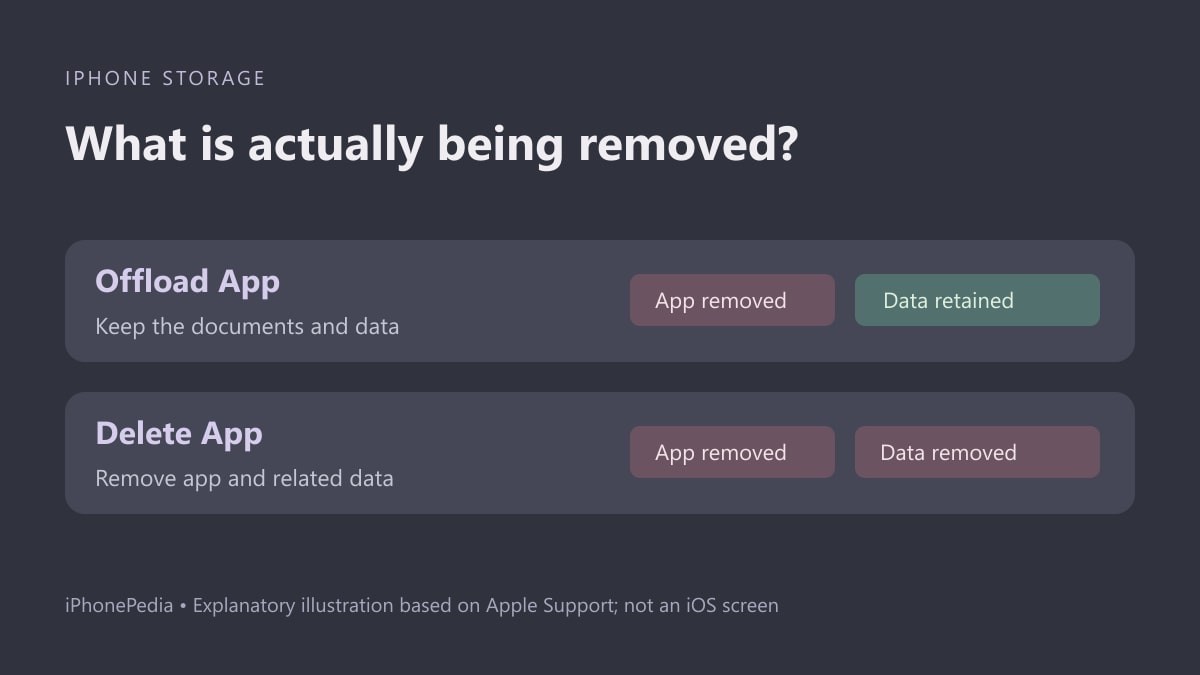
Offloading an iPhone app removes the application but keeps its documents and data. Deleting the app removes the application and its related data. Before choosing either option to free space, look at the two sizes separately: offloading a small app will not necessarily reclaim the much larger collection of files stored inside it.
Inspect one app before accepting a general recommendation
Apple's storage guide explains how to review usage on the device. Menu wording can vary with the device, but the iPhone path begins in Settings:
- Open Settings, then General, then iPhone Storage.
- Wait for the app list and recommendations to appear.
- Tap the app you are considering. Review the application size and the documents and data shown for it.
- If you want to retain that data, choose Offload App and read the confirmation before proceeding.
- Return to the storage view and check what space is now available.
The expected saving is the removable application, not a promise that every associated file disappears. Cached and temporary data may also be categorized differently, so the total is not always a simple sum of every visible line.
Keep a route back to the app
Before offloading something important, make sure you know which app and account you need and can obtain it again. Reinstallation depends on its continued availability. For an app holding work files, check its own export or backup options instead of treating retained local documents as a complete backup strategy.
When an app is offloaded, reinstall it to use it again. If it is no longer available to download, keeping its data does not provide the executable needed to open it. Avoid experimenting first with the only app that can access an important local file.
When Delete App answers a different question
Delete App also removes related data, according to Apple. Use it only after deciding that the local content can be removed or is safely recoverable through the app's own service or a verified copy. It is a larger decision than removing an icon from the Home Screen.
If documents and data dominate the storage entry, inspect the app's own download or file-management controls. Removing a replaceable offline download may be more appropriate than deleting an entire application and its working data. The right choice depends on what those files are, not merely the app's place in the size ranking.
Free storage also matters when preparing a software update. Our guide to a stalled iOS update includes the storage check and removal of a failed update download. Check which item is taking the space before removing an unrelated application, then verify the result in iPhone Storage.