
How to Open a USB Drive on iPhone and Check a Missing Disk
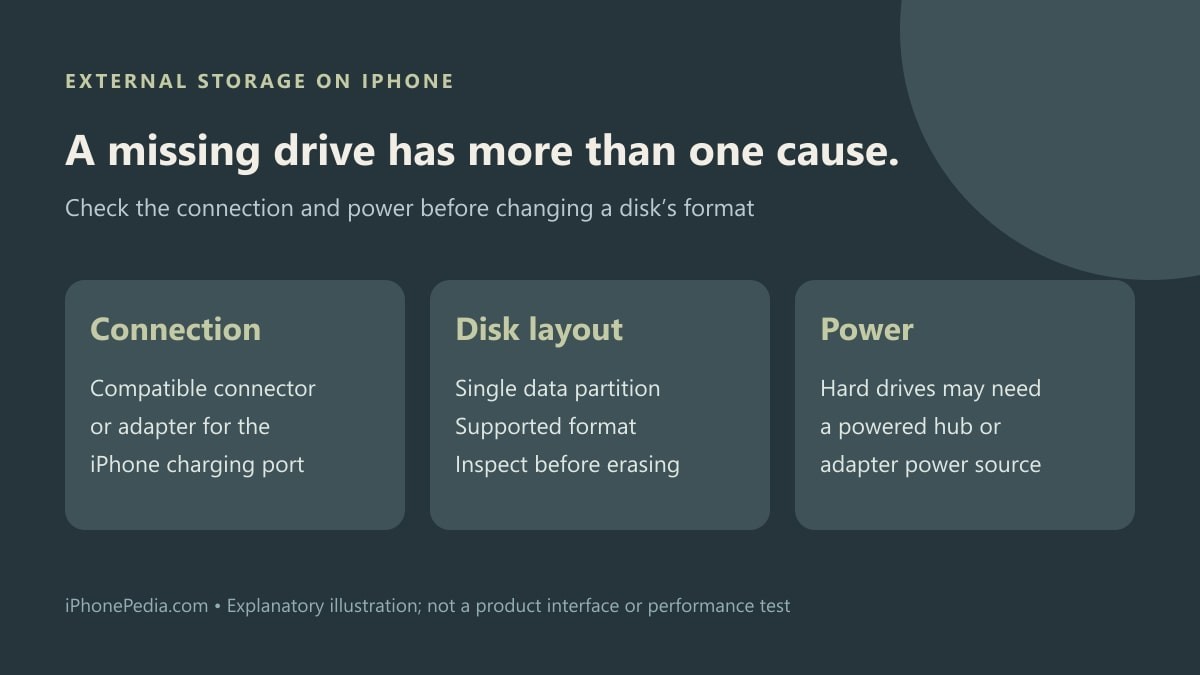
A USB drive connected to an iPhone should appear in Files under Locations, provided the connection, disk format and power requirements are met. If it is missing, start with those three checks. Formatting the drive immediately is a poor first test when it may contain the only copy of your files.
Connect, browse and open a harmless file
Apple's external-storage instructions for iPhone cover USB drives and SD card readers. Use a connector or adapter compatible with the phone's charging port. Lightning and USB-C devices can need different accessories; a plug fitting at one end does not establish that the whole connection is suitable.
- Connect the USB drive or card reader to the iPhone using the appropriate connector or adapter.
- Open Files and tap Browse.
- Look under Locations for the drive's name. If Locations is missing, tap Browse again.
- Open the drive and a small, non-sensitive file of a supported type. Check that it is readable before relying on the connection for a larger transfer.
The expected result is access to the drive's contents. Its appearance does not mean every app can use every file type on it. Files and other supported apps can access external storage, but the application still needs to understand the file being opened.
If the drive is absent, check power and layout
Apple says an external storage device must have a single data partition. Supported formats include APFS, encrypted APFS, macOS Extended (HFS+), exFAT, FAT32 and FAT. Inspect the existing disk layout on a computer if necessary. A drive containing several partitions needs closer attention than simply checking its product label.
External hard drives often need additional power. For a USB-C iPhone, Apple suggests a powered USB hub when the drive has no power source of its own. For Lightning, it describes a Lightning to USB 3 Camera Adapter connected to a USB power adapter. Check this before treating a disk that does not mount as damaged.
Preserve the contents before changing the format
Apple allows formatting through supported Files controls or a computer. Changing a format can erase data, so first verify a separate copy of anything important. Do not use an unverified transfer as the basis for deleting the original.
External storage also does not enlarge the phone's built-in app storage. If that is the actual shortage, our offload-versus-delete guide explains the relevant app controls. A readable USB drive can help move files, but the internal-space result still has to be checked on the iPhone itself.