
Stolen Device Protection on iPhone: When to Choose Always
Stolen Device Protection offers a choice that is easy to miss: should its extra checks apply only away from familiar places, or everywhere? Choosing Always means accepting those checks at home as well as on the move. It also removes the need to rely on familiar-location recognition for those protected actions.
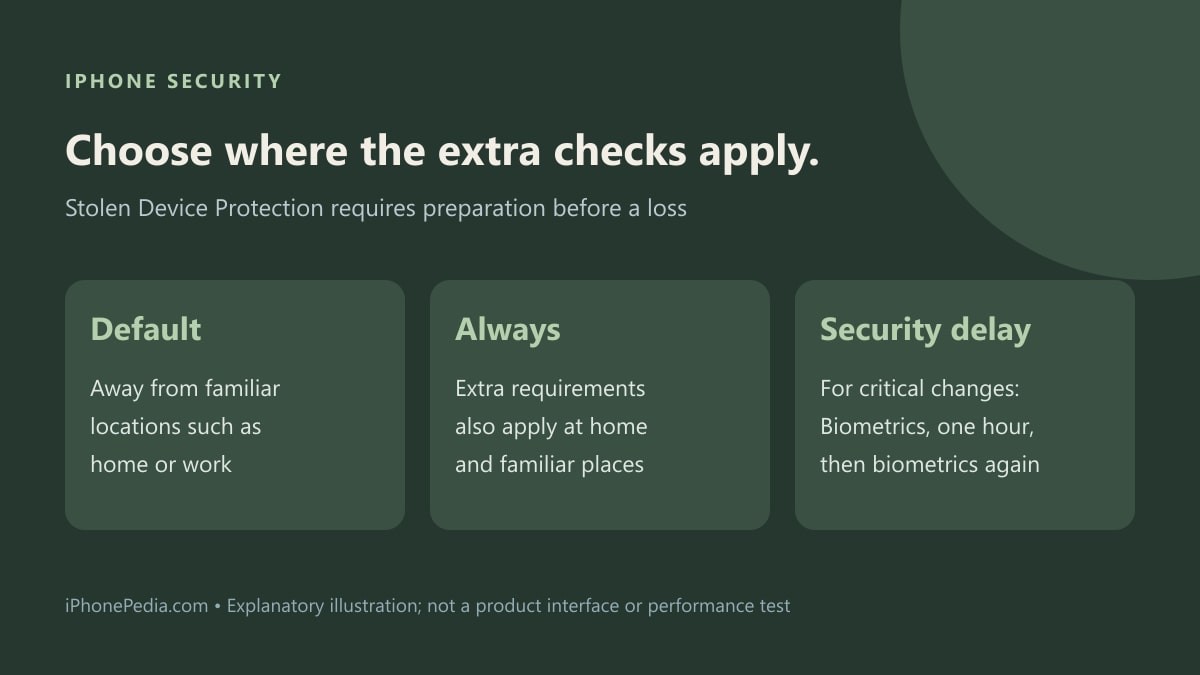
Decide what you want the location setting to do
Apple's Stolen Device Protection instructions describe two arrangements. The default adds security requirements away from familiar locations such as home and work. Always applies the additional measures regardless of location.
There is a convenience trade-off. At a familiar place, the default lets you use the passcode as usual for the actions concerned. With Always selected, actions requiring biometrics still need Face ID or Touch ID, without a passcode alternative. Critical account or device changes still require the security delay.
For those delayed changes, the sequence is biometric authentication, a one-hour wait, then another biometric authentication. Changing an Apple Account password, changing the device passcode and turning off the protection are examples. Accessing certain saved credentials instead requires a biometric check, without necessarily imposing that whole delay.
Set the option and verify the selection
Use an iPhone with iOS 17.3 or later. Before starting, check that the Apple Account uses two-factor authentication and the device has a passcode, Face ID or Touch ID, Significant Locations and Find My enabled.
- Open Settings and go to Face ID & Passcode, or the Touch ID equivalent.
- Enter the device passcode and open Stolen Device Protection.
- Turn the protection on if necessary. It may already be enabled.
- Under Require Security Delay, select Always if that is the behavior you want.
- Review the displayed selection. Do not change an account password just to test the delay.
Significant Locations & Routes is under Privacy & Security, Location Services, System Services in Apple's current guide. Check the prerequisites there if setup does not behave as expected.
Account for a new phone and a planned handover
Apple restores this setting with an iCloud backup or direct transfer. A new iPhone may take time to recognize familiar places. That explains why the default location-based setting can still produce an unexpected delay immediately after a move.
The protection must be enabled before a loss; it cannot be applied retroactively to a stolen phone. Apple also instructs owners to turn it off before a sale, gift or trade-in, allowing time for any required delay.
For an ordinary setup review, our App Privacy Report guide covers app access separately. Choose the account-protection behavior here first, then review what individual apps are permitted to access.