
How to Turn On Stolen Device Protection on Your iPhone
An iPhone passcode can become a weak point if someone watches you enter it and later steals the phone. Stolen Device Protection adds extra checks for sensitive actions, making it harder for a thief with that passcode to take control of your Apple Account. Set it up while the phone is still with you.
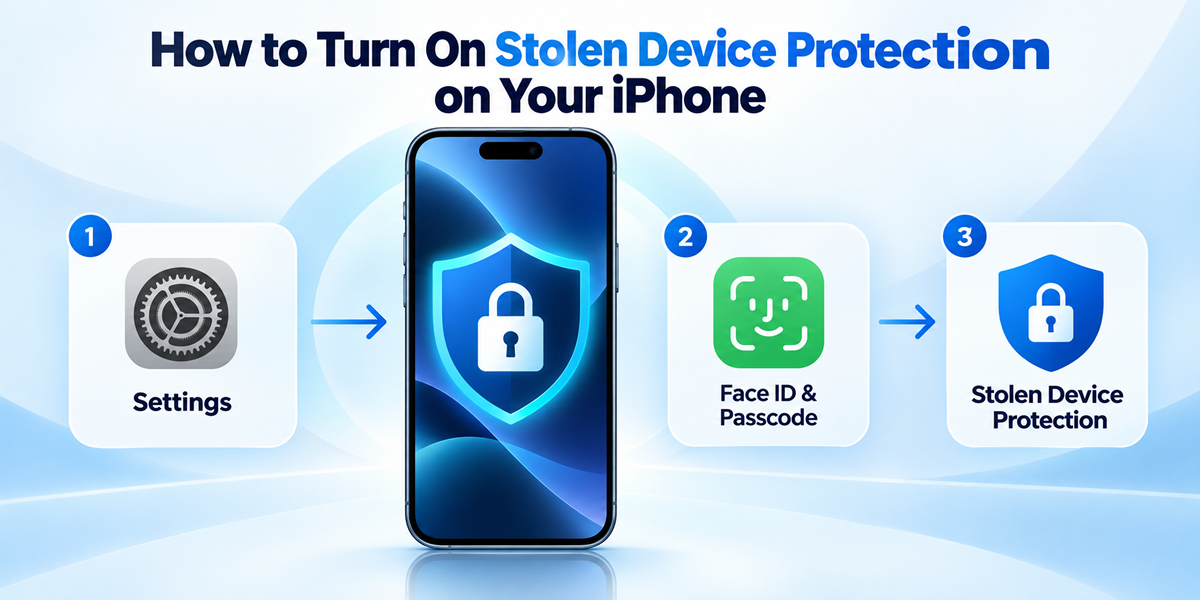
Check these requirements first
Apple’s Stolen Device Protection documentation says the feature requires iOS 17.3 or later. Your iPhone also needs a passcode, Face ID or Touch ID, Find My, and Significant Locations enabled. Your Apple Account must use two-factor authentication. Update to the latest compatible iOS version before following the steps if your settings look different.
Turn on Stolen Device Protection
Follow these steps in the iPhone User Guide:
1. Open Settings and choose Face ID & Passcode. On an iPhone with a Home button, choose Touch ID & Passcode instead.
2. Enter your device passcode, then scroll to Stolen Device Protection.
3. Open that setting and switch the feature on. If the option is missing, check that Face ID or Touch ID has been configured.
Choose when the extra protection applies
The location-based option applies the additional checks when you are away from places your iPhone recognizes, such as home or work. Choosing Always applies them even in familiar places.
That choice affects convenience too: with Always selected, you may face a delay for a sensitive change while sitting at home. Choose the setting with that trade-off in mind, then revisit this screen to confirm the feature is enabled.
Understand the security delay
Protected actions can require Face ID or Touch ID without a passcode fallback. For particularly sensitive changes, including changing the Apple Account password, the process can require biometric authentication, an hour-long wait, and another biometric check. The delay is intended to give you time to respond to a theft; it does not make the phone impossible to steal.
If your iPhone has already been stolen
Use iCloud Find Devices to select the iPhone and mark it as lost. Apple says this sign-in does not require a verification code, which helps when the missing phone was your trusted device. Do this even if Stolen Device Protection was enabled.
Keep the device in Find My: removing it also removes Activation Lock. Do not share your passcode or verification codes with anyone claiming the phone has been found, and do not try to retrieve it from an unfamiliar location yourself. Report the theft to local police and your carrier. Apple’s stolen iPhone checklist explains the next steps.
Once setup is complete, make a note of which protection option you chose. Knowing when a security delay applies can prevent confusion the next time you need to change account settings.