
Turn On Find My iPhone: The Two Extra Switches Worth Checking
Turning on Find My iPhone is the first check, but two switches beside it deserve attention: Find My network and Send Last Location. One helps with offline finding; the other sends a location to Apple when the battery runs low. They are not interchangeable ways of getting a live location.
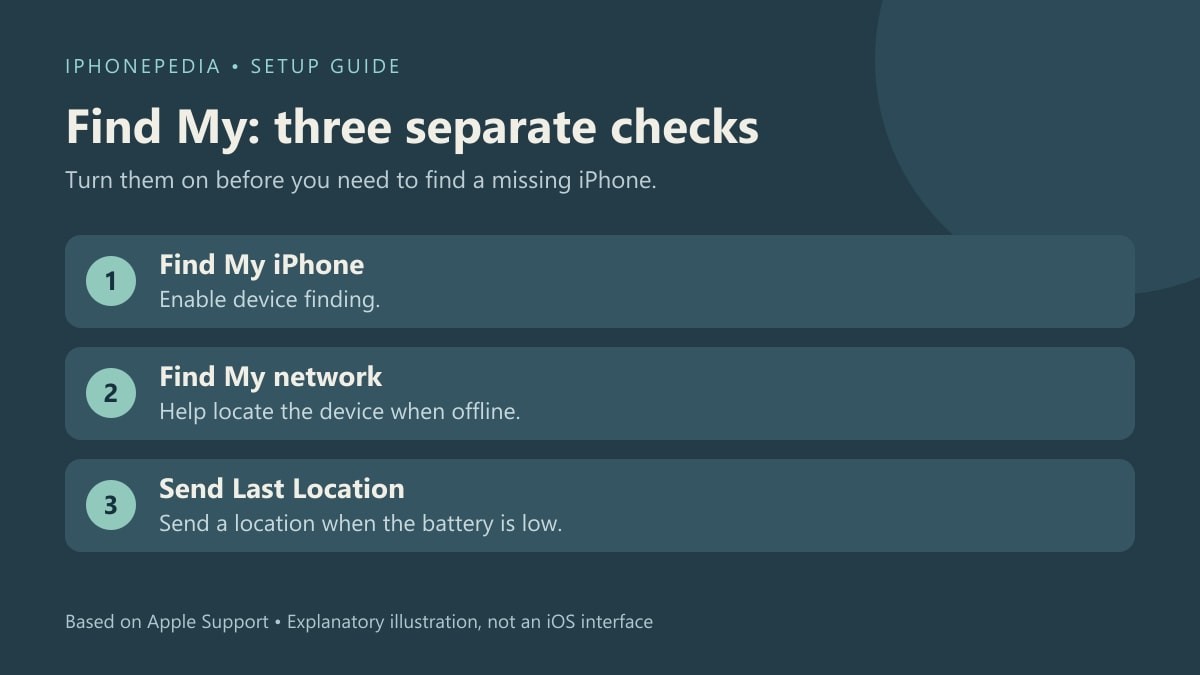
Start with the iPhone you still have
This is a setup guide for a device in your possession. Open Settings and check that your name appears at the top, under the Apple Account you intend to use. If the phone is not signed in, resolve that before looking for the account's Find My controls. Keep access to your account details somewhere other than only on that phone.
Apple's Find My setup instructions give this route for iPhone and iPad. On an iPhone, use these steps:
- Open Settings.
- Tap your name, then Find My.
- Tap Find My iPhone and turn on Find My iPhone.
- In that same area, turn on Find My network if you want the device to be findable when offline.
- Turn on Send Last Location to have its location sent to Apple when the battery is low.
Before leaving, look at the three controls again. The expected result is that the features you chose show as enabled. Checking only the first switch would leave the offline-network and low-battery choices unanswered.
Understand the location you may get
Apple describes the Find My network as a crowdsourced network of over a billion Apple devices. Those devices use Bluetooth to detect a supported device or accessory and report its approximate location to its owner. Apple says that process is anonymous and encrypted.
That makes offline finding useful, but an approximate reported location is not a promise of a continuous live feed. Send Last Location has a narrower trigger: a low battery. A location sent before a phone stops working may describe where it was at that time, rather than where it is now.
If the controls do not look as expected
Return to Settings, your name, Find My, then Find My iPhone and confirm which switch is off. The Share My Location choice shown nearby is not a substitute for the device-finding controls in this procedure. Apple also notes that Find My availability and features vary by country or region.
Once finding is set up, review our Stolen Device Protection guide. That feature concerns extra security checks for sensitive actions, including its familiar-location setting. It complements preparation for a missing phone; it does not replace turning on Find My or checking these two additional switches.