







An iPhone frozen on the Apple logo is a relatively common issue that can occur when you power on or restart your device. This problem can leave you feeling stuck and uncertain about how to proceed. However, there are several troubleshooting steps you can follow to resolve the issue and get your iPhone back to normal. In this guide, we will explore effective solutions for how to fix an iPhone frozen on the Apple logo.

Perform a Hard Reset
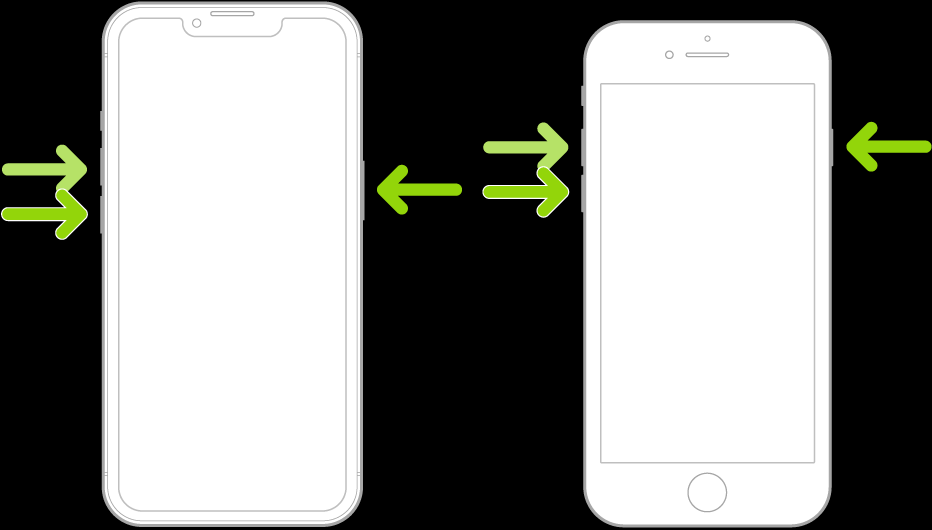
A hard reset is a simple yet powerful method to address many software-related glitches. To perform a hard reset on your iPhone, follow these steps based on your model:
- For iPhone 8 and later: Quickly press and release the Volume Up button, then do the same with the Volume Down button. Finally, hold down the Side (Power) button until the Apple logo appears.
- For iPhone 7 and 7 Plus: Press and hold the Volume Down and Sleep/Wake (Power) buttons simultaneously until the Apple logo appears.
- For iPhone 6s and earlier: Press and hold both the Home and Sleep/Wake (Power) buttons together until the Apple logo appears.
Charge Your iPhone
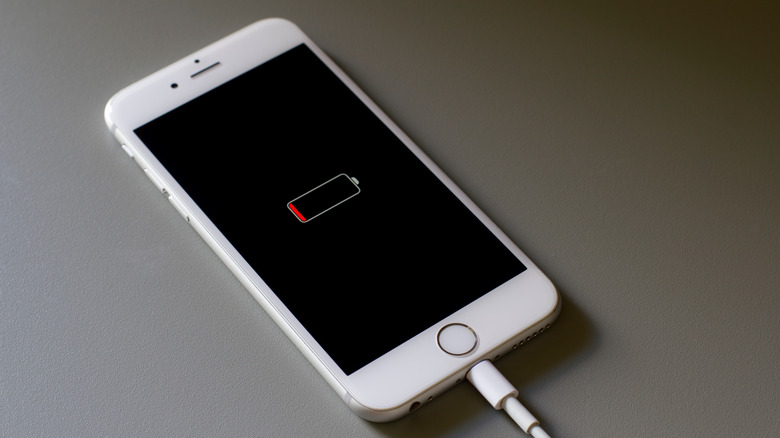
An insufficient battery charge can sometimes cause your iPhone to get stuck on the Apple logo screen. Connect your device to a known working charger and let it charge for at least 15-30 minutes before attempting another hard reset.
Check for Software Updates
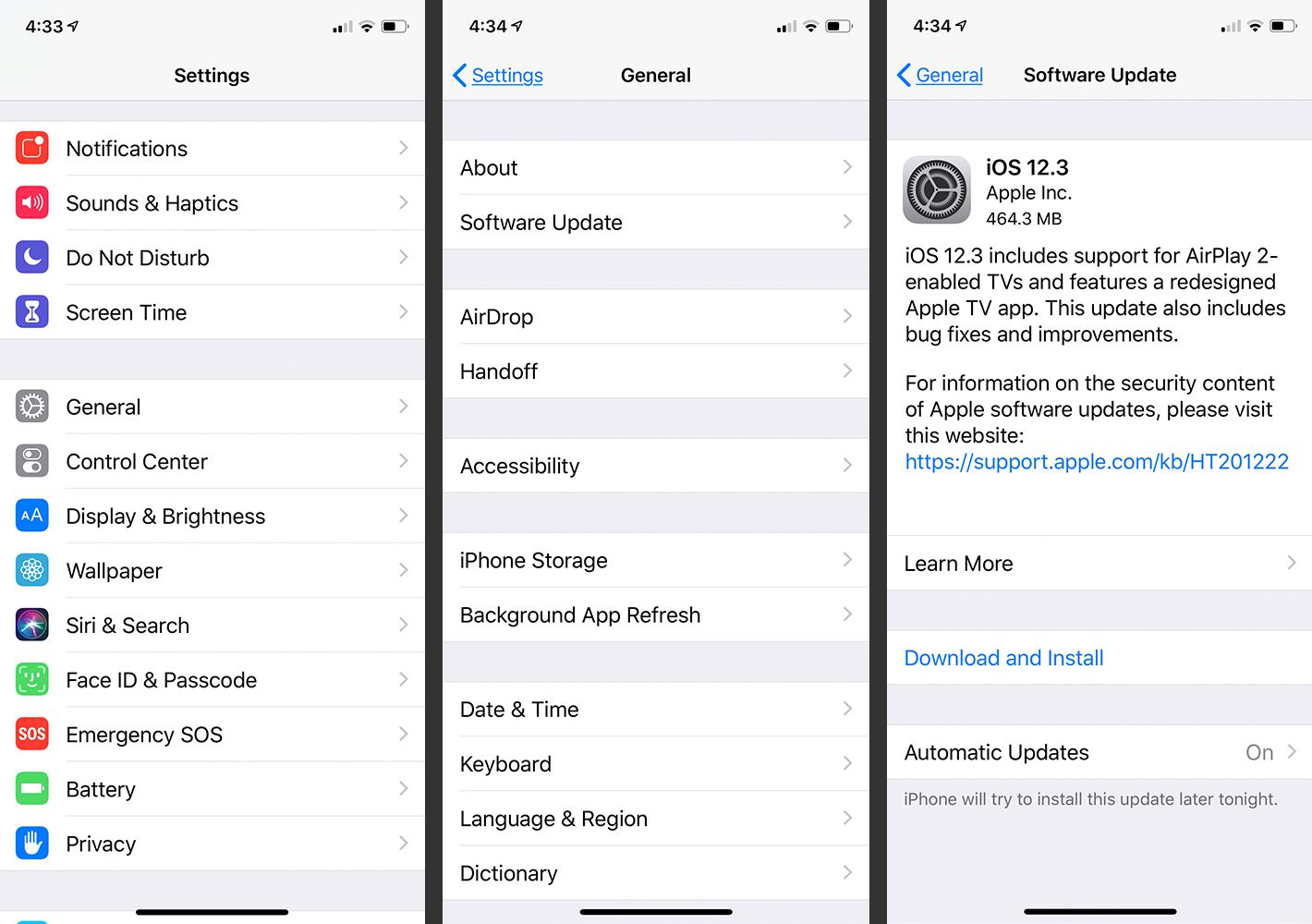
Outdated software can lead to unexpected issues. Ensure your iPhone is running the latest version of iOS by going to Settings > General > Software Update. If an update is available, install it and see if it resolves the problem.
Connect to a Computer and Use iTunes
If the hard reset doesn’t work, connect your iPhone to a computer with iTunes installed. Launch iTunes, and if your device is detected, you’ll be prompted to restore or update your iPhone. Choose the “Update” option to install the latest iOS version without erasing your data.

Use Recovery Mode
If your iPhone still won’t progress past the Apple logo, you can try using Recovery Mode to restore it. Follow these steps:
- Connect your iPhone to the computer and open iTunes.
- Force restart your iPhone as described in Step 1.
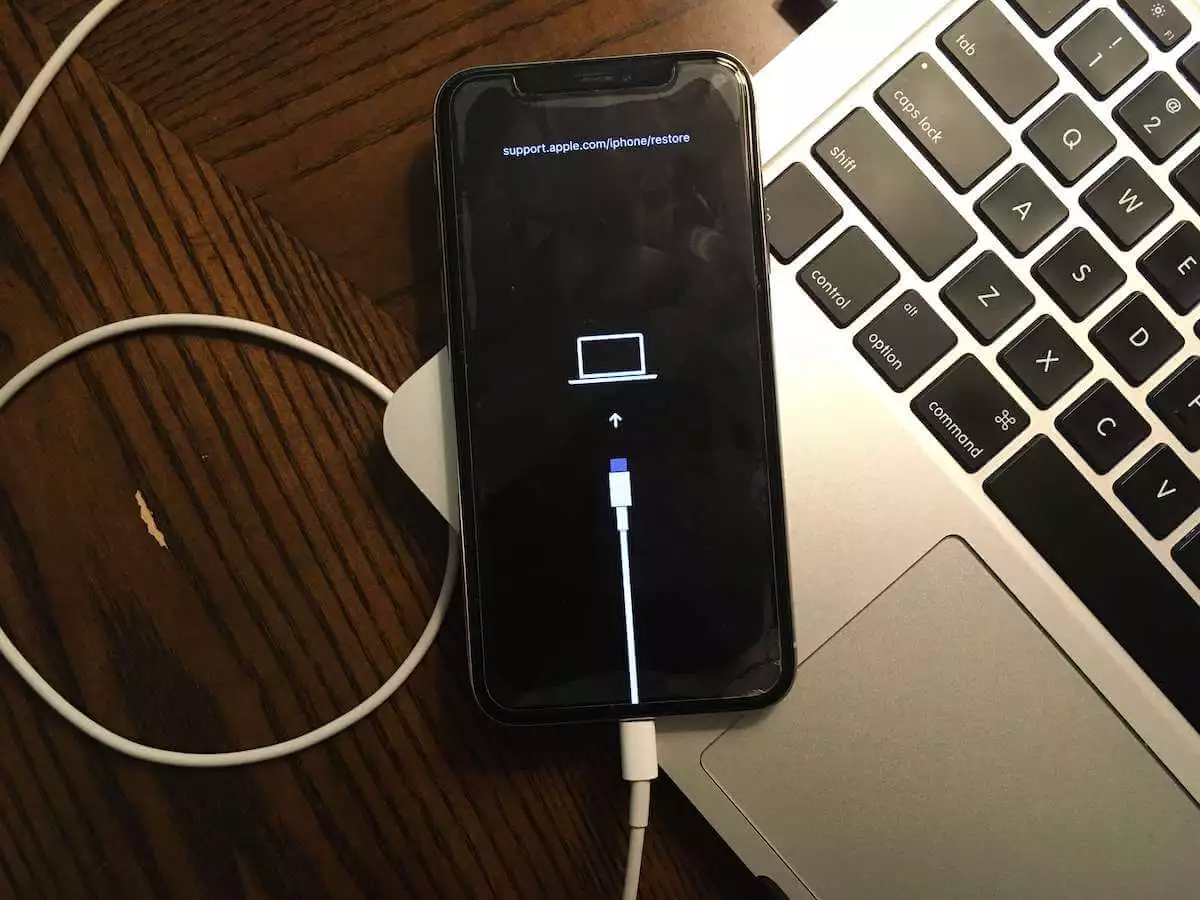
- Continue holding the Side (Power) button even after the Apple logo appears, and when the “Connect to iTunes” screen shows, release the button.
- iTunes should prompt you to restore or update your iPhone. Choose “Restore” to begin the process. Note that this will erase all data on your device, so ensure you have a recent backup.
Use DFU (Device Firmware Update) Mode
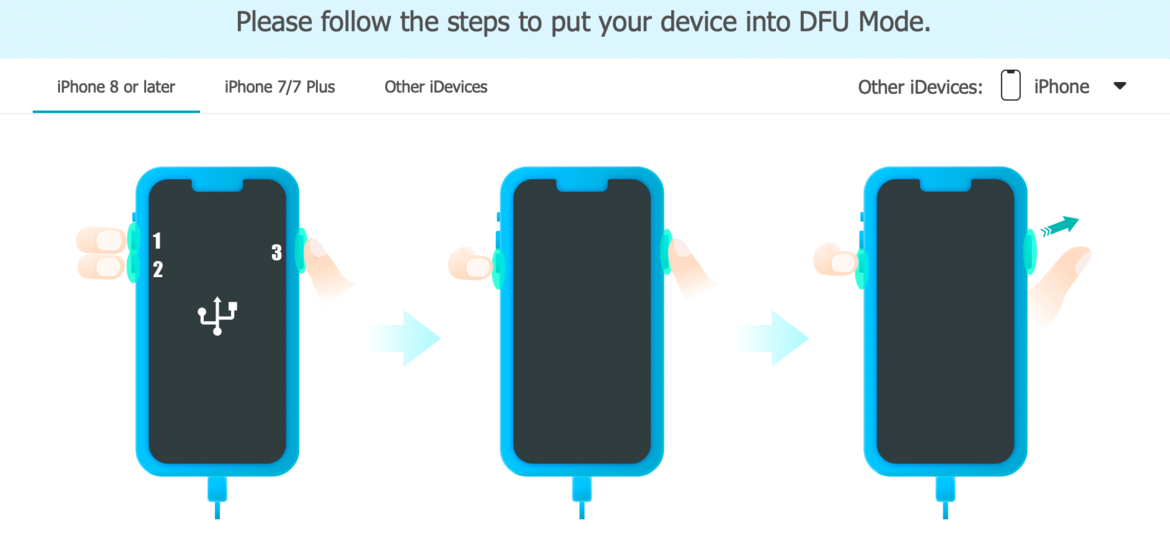
If Recovery Mode doesn’t work, you can try DFU Mode, which allows your iPhone to communicate with iTunes without activating the bootloader. This process is more advanced and should be used with caution:
- Connect your iPhone to the computer and open iTunes.
- Force restart your iPhone as described in Step 1.
- While holding the Side (Power) button, also hold the Volume Down button for 5 seconds, then release the Side button while continuing to hold the Volume Down button for about 10 seconds.
- If the screen remains black, your iPhone is in DFU Mode. iTunes should detect a device in Recovery Mode and offer the option to restore it. Choose “Restore” to proceed. This will erase all data on your device, so ensure you have a recent backup.
Seek Professional Help
If none of the above steps work, and your iPhone remains frozen on the Apple logo, there might be a more significant hardware issue. In such cases, it’s best to contact Apple Support or visit an Apple Store for professional assistance. They can diagnose the problem accurately and recommend the appropriate solution.
In Summary
Experiencing an iPhone frozen on the Apple logo can be disconcerting, but there are effective ways to address the issue. Following the troubleshooting steps outlined above, you can often resolve the problem and bring your iPhone back to its fully functional state. Start with simple solutions like hard resets and software updates, and then proceed to more advanced methods like Recovery Mode or DFU Mode if necessary. Remember to back up your data regularly to avoid data loss during troubleshooting, and always keep your iPhone’s software up to date to prevent potential glitches.
Expand Your Knowledge:
 How to Fix an iPhone That Won’t Turn On
 How to Fix iPhone Battery Drain
 How to Fix an Unresponsive iPhone Screen
 How to Fix an iPhone That Won’t Charge
 How to Fix iPhone Touchscreen Not Responding
 How to Fix iPhone Not Syncing with iTunes
 How to Fix iPhone Wi-Fi Not Working
 iPhone Stuck in Recovery Mode? Here’s How to Fix It
 How to Fix That iPhone Battery Drain After the iOS 26 Update
 How to Fix iPhone Overheating