



iOS 27 adds a practical way to keep an event ticket, membership card, or loyalty pass in one place—even when the issuer never provided an Apple Wallet button. A guide published today, explains the new iOS 27 Wallet custom pass tool. Here is how to build a pass and what to check before relying on it at the door.
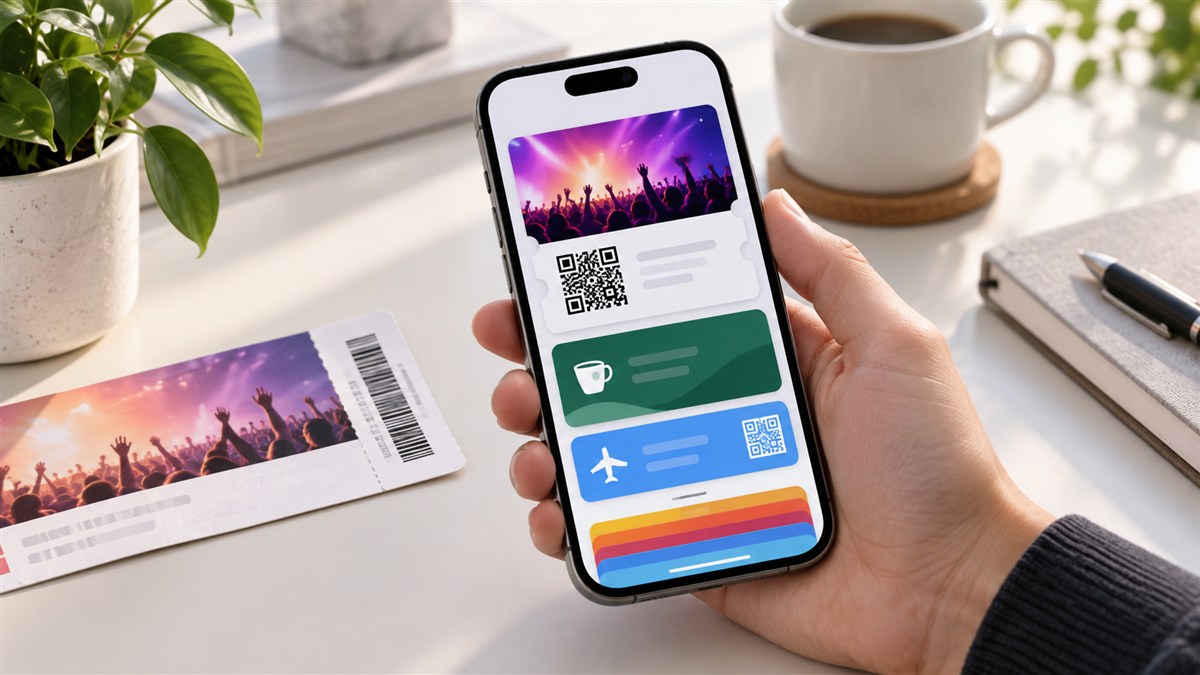
Create an iOS 27 Wallet custom pass from a card
Before starting, make sure the card or ticket carries a barcode or QR code that staff can scan. Keep the original until you have tested the Wallet copy. A photograph or recreated code cannot replace a ticket that uses a changing code or requires an ID check.
- Open Wallet on your iPhone and tap the plus sign.
- Choose Create a Pass, then tap Continue to let Visual Intelligence examine the physical pass.
- Photograph the ticket or card in good light, with its code and printed details visible.
- Review the suggested template. Tap Edit Pass to correct the name, date, venue, or other fields.
- Adjust the appearance if it helps you identify the pass. Tap the blue checkmark to add it to Wallet.
The scan can save time, but do not assume every field is correct. Check admission dates and membership numbers closely. If the card has fine print or a code on the reverse, compare the finished pass with the original before you leave home.
Make a pass manually when scanning misses details
The new tool also offers Membership, Event, and Custom templates. Choose the closest match, add the relevant fields, and scan the printed QR or barcode. You can select a background color or category artwork. A plain, high-contrast design often works best when you need to find a ticket quickly in a queue.
Apple Wallet already supports other digital items, including car keys. Our guide to iPhone car-key compatibility covers that separate feature. Custom passes are for tickets and cards; they do not turn a paper pass into a secure car key or payment card.
Check the pass before you rely on it
Know when a custom copy may not work
Some venues use rotating barcodes, app-only check-in, or identity checks. In those cases, a manually recreated pass may fail even if it looks convincing. Keep the issuer’s app, email, or paper original available until you know the Wallet version is accepted.
Edit a pass later
Open the pass in Wallet, tap the three-dot menu, and choose Edit Pass if a field needs correction. The September 25 MacRumors walkthrough documents these controls in iOS 27. The feature makes older paper cards easier to carry, but the issuer still decides what counts as a valid ticket.
Expand Your Knowledge:
 iOS 27 Battery Drain: What to Do When It Does Not Settle
 iOS 27.2 Public Beta Arrives With a Preview of Apple’s New Health App
 iOS 27 Battery Life Upgrade: Apple’s Quiet Cleanup Could Make iPhone Feel Faster
 How to Create Folders on iPhone
 How to Fix iPhone Overheating After an iOS Update
 How to Pin Locations in Google Maps on iOS Devices
 How to Fix That iPhone Battery Drain After the iOS 26 Update
 How to stop iOS from sending more iCloud promotion messages on your iPhone or iPad
What Can You Expect From iOS 7?
How to stop iOS from sending more iCloud promotion messages on your iPhone or iPad
What Can You Expect From iOS 7?
 iOS 9.1 Jailbreak