
Scan Text or Scan Documents? Choose the Right iPhone Notes Tool
Notes can take the wording from a page or keep a scanned copy of the page itself. The first route is Scan Text; the second is Scan Documents. Both sit behind Attachments in Apple's iOS 27 guide. Choosing between them determines whether you insert selected words into the note or attach a PDF.
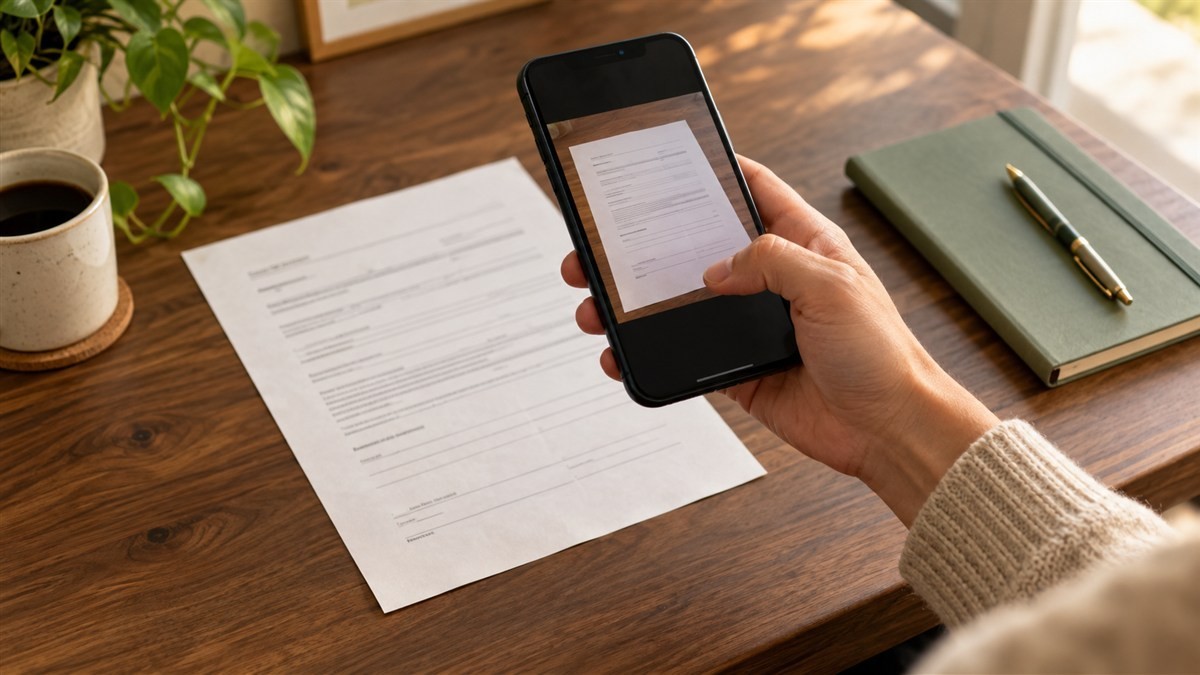
A paragraph you want to reuse calls for a different result from a whole form you want to retain. Have that source page ready, open the intended note and choose the route below. For Scan Text, check that the language is supported before starting.
For words you want inside the note
- Open Notes and the intended note.
- Tap Attachments, then Scan Text.
- Position the iPhone so the words appear in the camera frame.
- Drag or use the grab points to select the text you need, then tap Insert.
Read the inserted text against the paper, including names and figures. The selection step lets you take the relevant passage instead of the whole page. If the wrong passage is selected, adjust the selection before inserting it. Apple's language-availability list is the place to check when the text is in an unsupported language; repeatedly aiming the camera will not add language support.
For a page you want to preserve
- In the note, tap Attachments and choose Scan Documents.
- Position the page on screen and adjust Flash or Filters if needed.
- For automatic capture, hold the iPhone steady while it detects the page boundaries.
- Add the remaining pages, then tap Done.
Apple says the finished document is saved as a PDF in the note. Open it, count the pages and inspect the edges before relying on the capture. A good thumbnail of the first page does not establish that the final page was included.
The iOS 27 guide also describes manual capture. Tap the control for automatic document capture, then Take Picture. Adjust the corners and choose Retake or Keep. For an automatic capture that needs correction, open its thumbnail, choose an option such as Adjust, make the change and use Back. These are two correction routes within the document scanner, not the text-selection controls from Scan Text.
Where to find the result
Return to the note used for capture. Scanned words were inserted there, while the scanned PDF is attached there. Neither is a Safari download sent to the browser's chosen Downloads folder. Our Safari downloads guide covers that separate workflow and its iCloud Drive or local-storage choices.
Leave the paper beside you until you have read the inserted passage or inspected the PDF. Check what arrived in the note, rather than assuming that pointing a camera at the page produced the result you intended.