
How to Identify Something in an Existing iPhone Photo With Visual Look Up
You have a picture of a flower and no idea what to call it. If it’s already in Photos, start there. Apple’s Visual Look Up can identify subjects in an existing photo or a paused video frame. You don’t have to find the flower again or point the camera at it. Look for stars on the Info button. Those stars tell you whether the iPhone has a result to offer for what’s on screen.
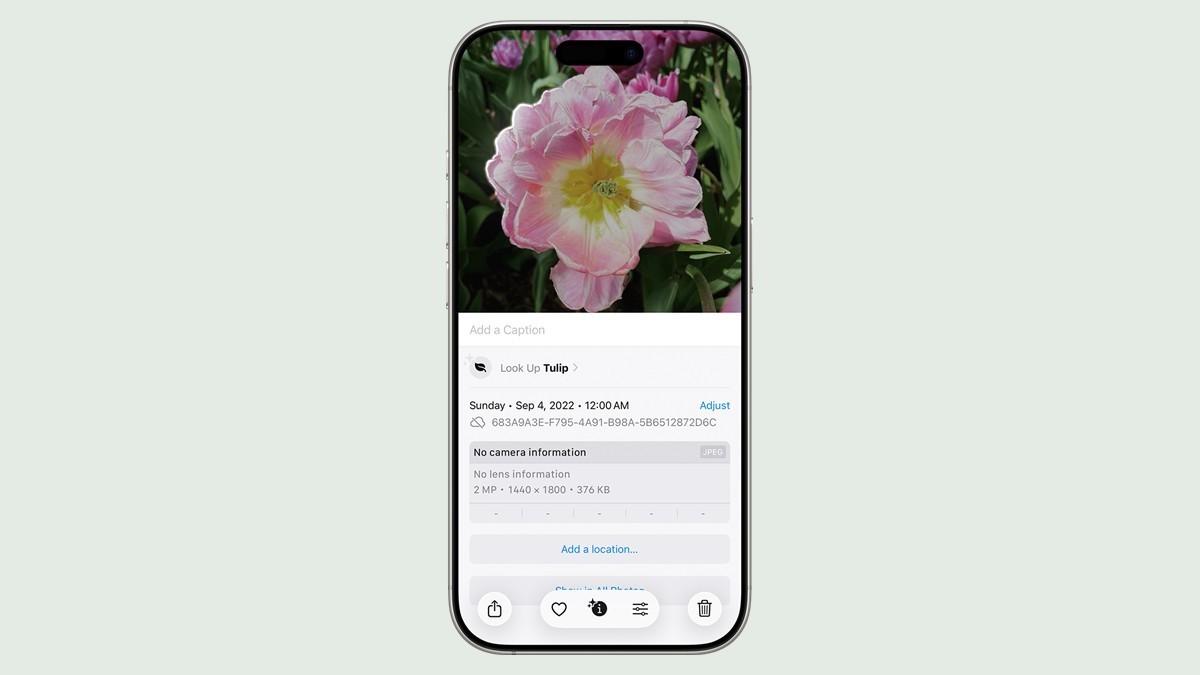
Open the photo and look for the stars
You need an iPhone with Visual Look Up available for your device, language and region. For this walk-through, use an image you can open in Photos. Try a clear picture of a common plant, a pet or a recognizable landmark if you just want to see how the control works. Apple documents the steps in its iPhone User Guide.
- Open Photos and tap the photo to view it full screen. For a video, pause on a frame where the subject is visible.
- Check the Info button. Apple shows a starred symbol when Visual Look Up is available for that photo or frame. A plain Info button still opens the photo’s information, but it does not indicate a match.
- Tap the starred Info button, then tap Look Up at the top of the photo information. The results open above the photo.
- Tap the close button on the results. Swipe down on the photo or video frame to close the photo information and return to the picture.
When the Info button looks ordinary
For a video, move a little earlier or later and try a frame where the subject is larger and clearer. For a photo, try another picture of the same thing, or open a clear shot of a different subject to see whether the stars show up at all. Apple lists landmarks, art, plants, pets, books and food among the things Visual Look Up can identify. That is a list of supported subjects, not a guarantee for every image. Apple’s feature availability page is the next place to check if you never see the control, since language and region affect availability.
Which tool to reach for next time
The distinction is where the image already is. Visual Look Up gives you a route from a picture you have. Visual Intelligence can help when you are pointing a supported iPhone at something in front of you. Our guide to opening Visual Intelligence explains its camera entry points. If you’re looking through a holiday album or reviewing a paused clip, the starred Info button is the shorter route. Treat an identification as a lead to check, especially if the result will affect what you do with a plant or animal.