
Use iPhone USB Tethering on Windows Without Leaving Hotspot Running
Charging an iPhone from a Windows PC can also give that computer a route onto the phone’s cellular connection if Personal Hotspot has been left enabled. Apple specifically warns about this possibility in its USB instructions. Setting up the connection includes deciding how to end it.
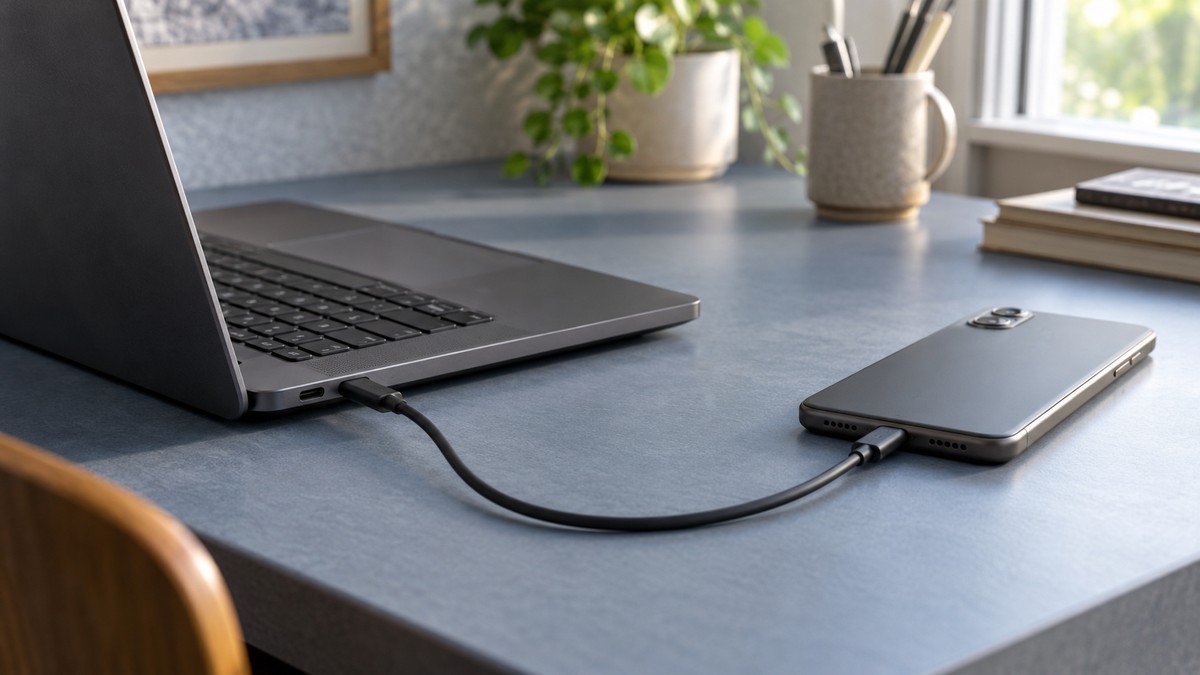
USB tethering is useful when you want the laptop connected by cable. The phone still supplies the internet through its mobile service, so this is not a way around missing coverage or a plan that excludes hotspot use. Check the carrier’s terms before depending on it for a long download.
What to have ready
Apple’s Personal Hotspot guide tells Windows users to install the latest Apple Devices app or iTunes for Windows. Have that software in place and use a USB cable suitable for connecting the phone to the computer.
On the iPhone, Cellular Data must be on. Apple says hotspot support, possible additional fees and the number of devices allowed vary with the carrier and model. If the mobile line already shows No Service, follow our carrier settings troubleshooting guide before working through the laptop connection.
Connect the Windows PC by USB
- Install or update Apple Devices or iTunes for Windows on the PC.
- On the iPhone, open Settings and tap Personal Hotspot. If necessary, open Cellular first, then Personal Hotspot.
- Turn on Allow Others to Join.
- Connect the iPhone to the PC with the USB cable.
- If an accessory permission appears on the computer, allow the connection after checking that it concerns the phone you attached.
- If the iPhone asks whether to trust this computer, confirm only after checking that this is the PC you intend to connect.
- Open a webpage on the PC and check that internet access is working.
Apple’s instructions place the permission and trust prompts after the cable connection; they may not appear every time. A phone charging successfully is not, by itself, evidence that internet sharing is working. Keep the browser check as part of the setup.
Stop sharing when the session ends
Unplugging either end of the USB cable disconnects the computer from that USB hotspot connection. You can also turn off Allow Others to Join on the iPhone. Apple recommends turning Personal Hotspot off when it is unnecessary to avoid unwanted data charges.
This matters when the same cable will later be used just for charging. If the hotspot stays enabled, Apple says the computer might connect again whenever the phone is plugged in. Switch it off before leaving the setup unattended or handing the PC to someone else.
If the connection does not work
Check the Windows software requirement and Allow Others to Join first. Apple’s general recovery steps are to update both devices, restart them and try again. If the phone itself cannot load a page over cellular data, a different USB connection will not repair the mobile service.
Wi-Fi remains another option in the same Apple guide. For that route, keep the hotspot settings screen open until the other device joins and use the password shown there. Changing connection methods can help isolate a problem, but both methods still use the same phone and mobile plan.