
Schedule an iPhone Message, Then Find It Again Before It Sends
A scheduled message stays at the bottom of its conversation with a dashed border. That is the detail to look for after using Send Later on an iPhone. If you change your mind before the delivery time, you can still change the words, move the time or cancel it. Closing Messages and turning off the phone will not cancel the message for you.
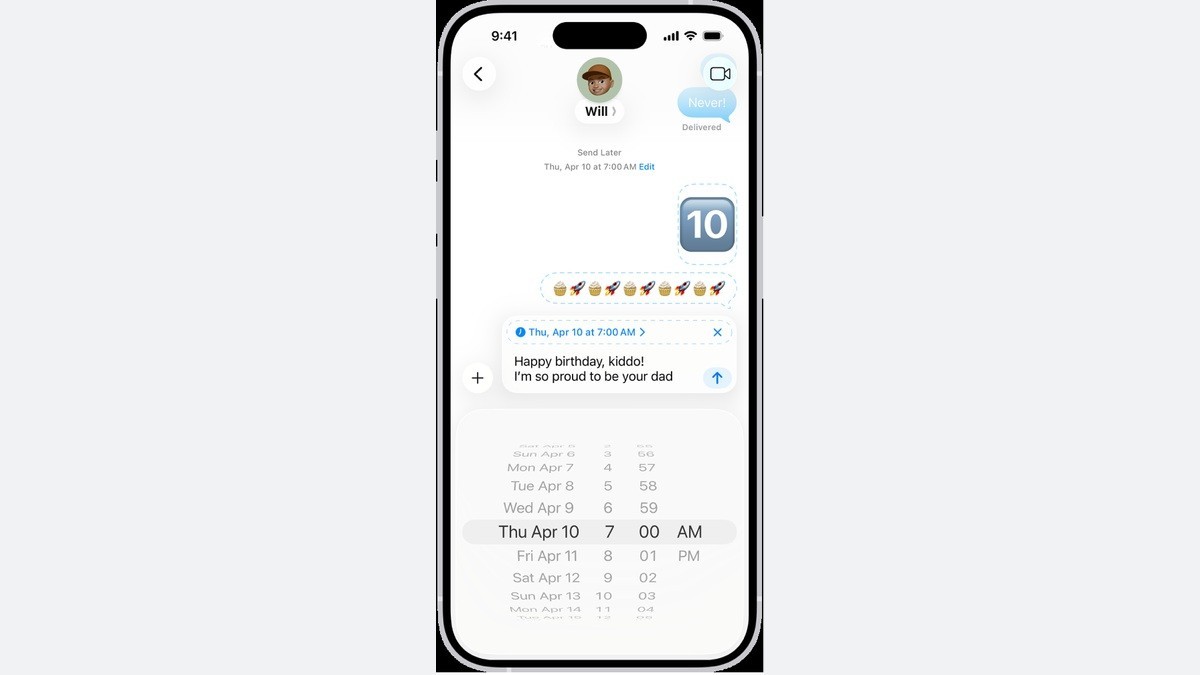
Set the time before you type
You must be using iMessage to schedule a message, and Apple’s current iPhone User Guide allows a date up to 14 days ahead. You also need a connection when you edit, delete or reschedule a message that is already queued. Open the conversation with the person you mean to contact before starting. Checking the name at the top is easier than dealing with a carefully written message in the wrong thread.
- Open Messages on the iPhone, then open an existing conversation or start a new one.
- Tap the Add button beside the text field, then choose Send Later.
- Tap the time to open the scheduler and choose the date and time you want.
- Look for the dashed border around the text field and the scheduled time above it. Type the message and tap Send.
Your queued message should now appear in the conversation with a dashed line. Apple says it can be delivered even if all your devices are offline at the scheduled time. The message is encrypted and held on Apple’s servers until sending, then removed from those servers. Once sent, the bubble becomes solid and the dashed line goes away.
Change it while there is still time
Return to that conversation and scroll to the bottom if you cannot find the queued message. To change the text, touch and hold the bubble, tap Edit, change the words and tap the control to resend with your edits. To cancel it, touch and hold the bubble and choose Delete before the delivery time. Deleting the queued message cancels delivery.
The Edit control beside the date does a different job. Tap it and choose Edit Time to reschedule, then tap away from the scheduler to commit the change. The same menu offers Send Message if you want it to go immediately. Keep an eye on which Edit control you opened: one belongs to the text and the other to the date.
If an edit or cancellation will not go through, restore the connection and try again while the message is still pending. Hiding or locking Messages is a separate privacy choice. As our guide to hidden apps explains, that changes access to the app on the phone. Use the queued message’s Delete command when the thing you want to stop is delivery.