
How to Share an iCloud Calendar Privately on iPhone
To share an iCloud calendar with a few people on iPhone, invite them by name or email address instead of switching on Public Calendar. The public option creates a read-only subscription link; read-only does not mean private. For a household schedule or a small team's appointments, named invitations give you a clearer way to manage access.
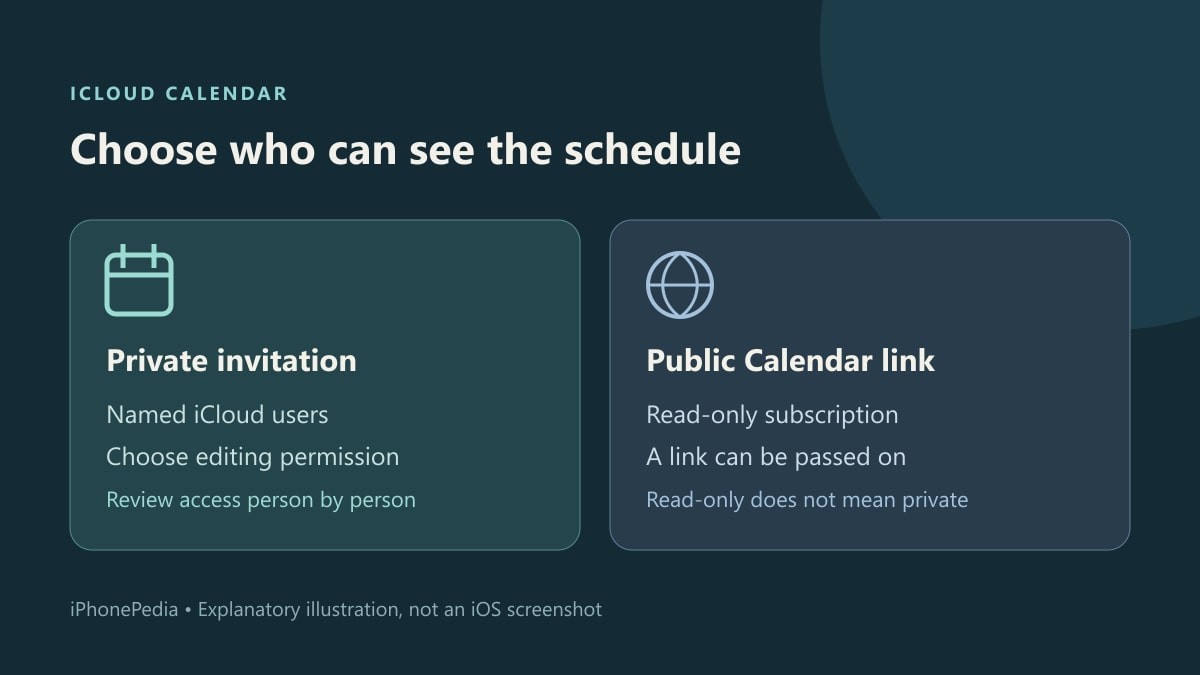
Use an iCloud calendar, not just any calendar in the app
These steps follow Apple's iPhone Calendar guide for iOS 27. You need a calendar stored in iCloud. A calendar from another account can appear in the same app without using the same sharing controls. The people invited to a private iCloud calendar also need to use iCloud with their Apple Accounts.
If necessary, create a separate calendar for the events you want to share. That avoids opening an existing personal calendar just to let someone see a few appointments. Check which calendar an event belongs to before adding private details.
Send the invitation and set its permissions
- Open Calendar on the iPhone and tap the Calendars button to see the list.
- Find the intended calendar under iCloud. Tap its information button.
- Tap Add Person. Enter the person's name or email address, or choose a contact. A contact needs an email address for calendar sharing.
- Send the invitation using the confirmation button. Ask the recipient to accept it in the account they intend to use.
- Return to the calendar's information screen and tap the person's name. Turn Allow Editing on only if they should add or change events.
The expected result is a shared calendar that the recipient can see after accepting. Turning off Allow Editing lets that person view the calendar without changing its events. It is different from removing them from the calendar altogether.
Check a harmless event before relying on the schedule
Add a plainly labeled test appointment without private information. Confirm that it appears for the recipient. If they should be an editor, have them make an agreed change and check that it returns to your device. This tests the intended arrangement without exposing a real appointment while troubleshooting.
If Add Person is missing, first check that you selected an iCloud calendar. If the invitation is not reaching the right account, check the recipient's address rather than making the calendar public as a workaround. Our explanation of iCloud Mail aliases is useful here: another mailbox address does not create another Apple Account.
To stop one person's access, open the same calendar information screen, tap their name and choose Delete. That removes the participant; do not choose Delete Calendar at the bottom of the calendar's settings. If you only want fewer alerts, Shared Calendar Changes can be disabled under Settings, Notifications, Calendar, Customize Notifications without changing who has access.