


If a clinic is about to call back, this is not the moment to choose an unfamiliar call setting and hope for the best. iPhone Call Screening can ask an unsaved caller for a reason before your phone rings. Try it with a second phone first. The procedure below follows Apple’s current iOS 27 Phone guide.
Prepare a call you can observe
You need an iPhone that offers the screening settings, an active mobile line and a second phone with an unsaved number. Note your existing choice in Settings before changing it. Save any important callback number you already know.
The unsaved number matters. A call from a saved contact does not test how the phone handles an unfamiliar caller.
Enable iPhone Call Screening
- Open Settings > Apps > Phone.
- Find the options for unknown numbers and choose Ask Reason for Calling.
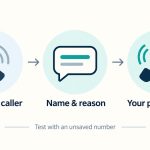
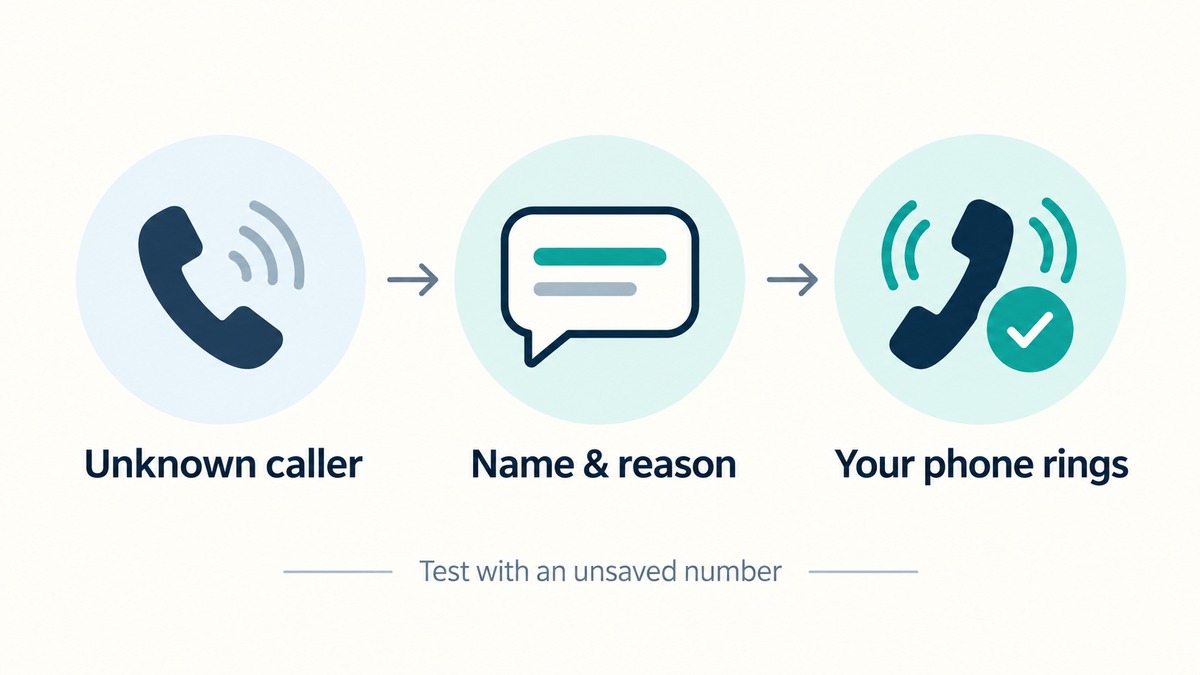
- Call your iPhone from the second phone.
- On that phone, respond to the prompt with a name and a short reason for calling.
- Check that your iPhone then rings and shows the response.
Keep both phones nearby for the test. If the caller hangs up at the prompt, you have not tested the whole process. Try again with the caller answering it.
Ask Reason for Calling differs from Silence. Apple describes Silence as sending unsaved numbers to voicemail. Never turns screening off. Choose between them with the calls you expect in mind.
Recover a call from the filtered list
Check both lists
- Open Phone and select Calls in the Unified layout, or Recents in the Classic layout.
- Tap Filter, then Unknown Callers.
- For a legitimate number, tap Mark as Known and confirm Mark as Known.
- Go back to Filter and inspect Spam too.
Screening and filtering are separate. Unknown Callers sorts unfamiliar calls into its list. Spam uses your carrier’s identification of possible fraud or spam, so reviewing only one list can leave you looking in the wrong place.
Compare with ordinary ringing
Return to Settings > Apps > Phone and select Never. Repeat the call from the same unsaved number. Review the separate Unknown Callers and Spam filters as well if a call record remains hard to find.
Saved contacts failing to reach you points toward a broader calling problem. Use our iPhone carrier-settings and No Service guide to check the mobile connection before repeatedly changing these filters.
After the comparison, restore the setting you want to use. An expected caller should now have a route you understand, and you will know where to look if a record seems to be missing. Treat the reason shown on screen as something the caller said; it does not establish that they are who they claim to be.
Expand Your Knowledge:
 How to Record a Phone Call on an iPhone
 How to Use Hold Assist in iOS 27: Setup and Call Steps
 How to Conference Call on iPhone
 How to View Call History on iPhone
 How to Transfer Data from Old iPhone to New iPhone
 How to Keep your iPhone Battery Healthy
 How to Download a Ringtone on iPhone
 How to Disable Find My iPhone
 How to Deactivate SharePlay on Your iPhone
 How to Reset Your iPhone: The Complete Manual