
Optimized iPhone Charging After Travel: Check the Routine and Settings
An iPhone may skip optimized charging while you travel, even though the switch is still on. The feature is meant for familiar places and predictable, extended charging sessions. A hotel stay or a string of short top-ups gives it a different pattern from an ordinary night at home.
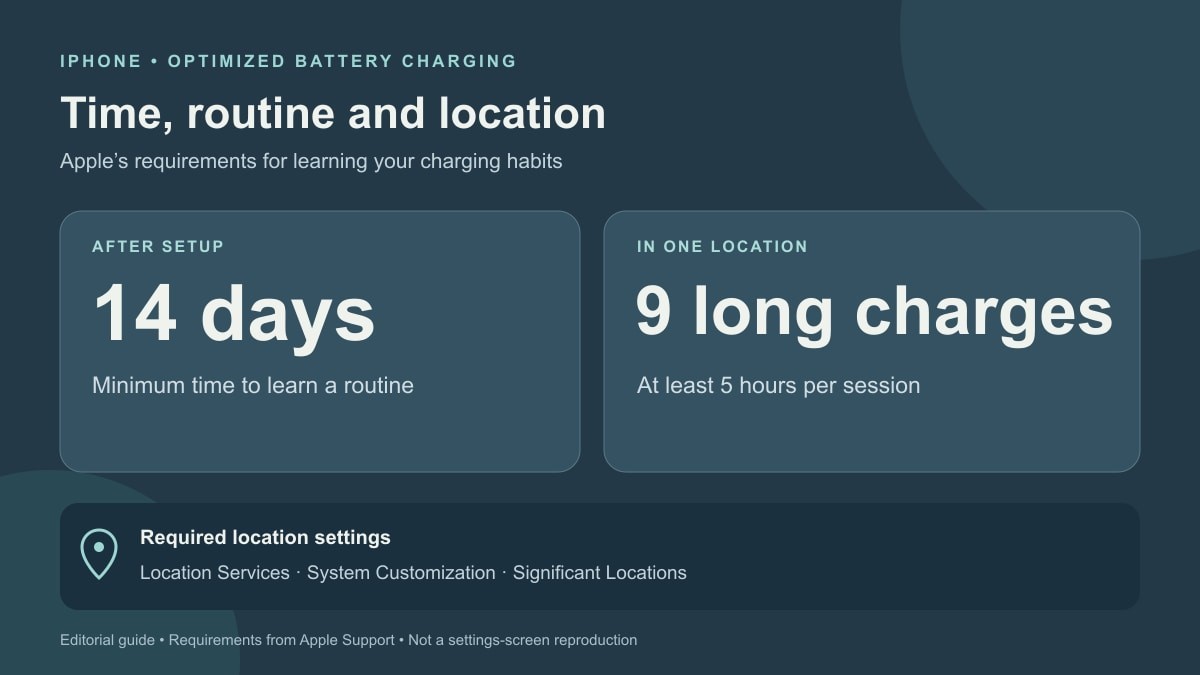
Apple explains the conditions for this behaviour. After setup, the phone needs at least 14 days to learn your habits. It also needs at least nine charges lasting five hours or longer in a given location. Check those requirements before treating the missing pause as a hardware fault.
First, find the option for your model
With the phone in hand, follow Apple's charging-settings instructions:
- On iPhone 15 or later, open Settings, then Battery, then Charging.
- Read Charge Limit. Optimized Battery Charging is available at 100%; a lower limit sets a different charging behaviour.
- Check that Optimized Battery Charging is enabled.
For iPhone 14 and earlier, use Settings, Battery, then Battery Health & Charging to find the switch. There is no need to search for the newer adjustable-limit menu on those models.
Then check what location access you have chosen
Apple lists three controls that must be enabled for optimized charging to activate. Review them in this order:
- Go to Settings > Privacy & Security > Location Services and check Location Services.
- Open System Services within Location Services and check System Customization.
- Open Significant Locations in System Services and check that setting too.
The feature uses these settings to recognise locations such as home or work. Apple says location information used for this purpose is not sent to it. You can decide whether to enable those controls; keeping them off also affects whether this charging feature can work.
Watch the next familiar charging session
When optimized charging is active, it can delay charging beyond 80%. The Lock Screen notification tells you when the phone expects to finish. If departure is earlier than usual, touch and hold the notification and tap Charge Now.
That notification is the useful result to look for after checking settings. The feature will not necessarily appear on every charge, particularly with variable routines, travel or short connections. Apple does not specify a fixed waiting period after every trip, so there is no supported countdown to promise here.
Rapid battery loss after unplugging needs other checks. Our battery-drain guide deals with that symptom. Use this procedure when the question is why an expected optimized-charging pause did not happen.