
Use iPhone Check In for a Journey, Then Know How to Add Time
A delayed train does not have to end an iPhone Check In. You can give the current session more time from its message in the conversation. Finding that message is also how you cancel a Check In yourself, so it is worth knowing the route before sending one.
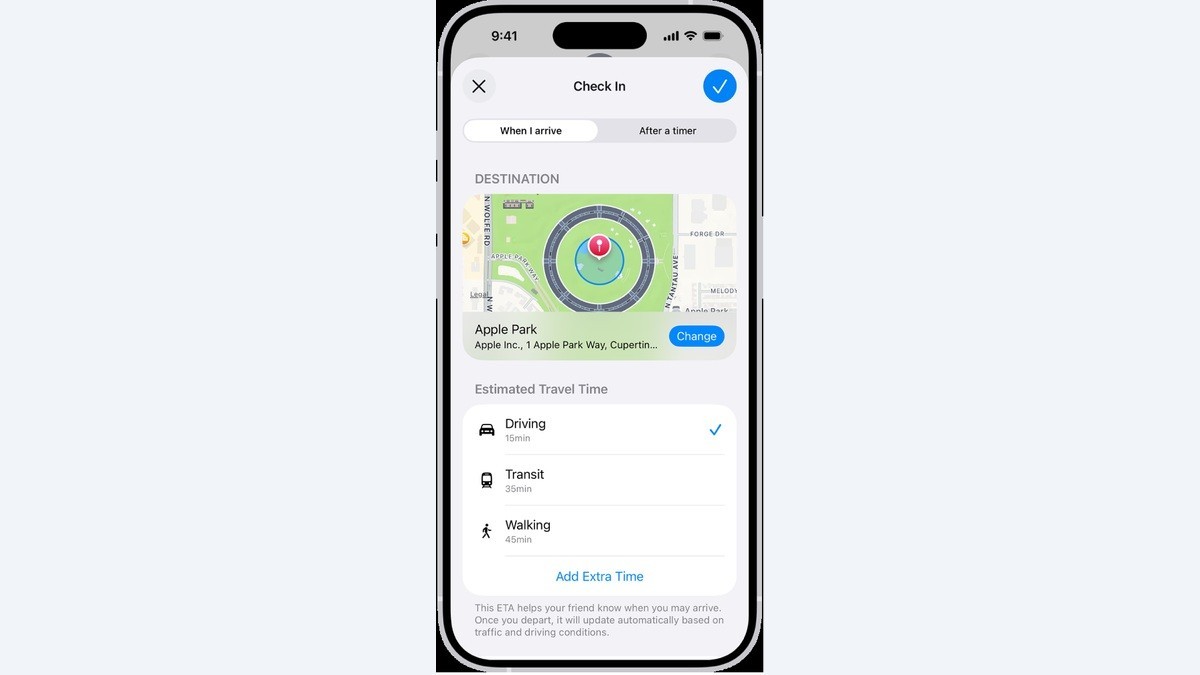
Check In can automatically tell a friend when your iPhone reaches a destination. Both devices need iOS 17 or later, according to Apple. The steps here follow the current iOS 27 User Guide. Agree on the plan with your recipient first, including what they should expect if the phone stops making progress or you do not answer a prompt.
Set what your friend could receive
Go to Settings > Apps > Messages and scroll to Check In Data. There are two choices. Limited shares the current location plus network signal and battery details for your iPhone and Apple Watch if the session does not finish as expected.
Full includes those details and adds your travelled route, the last iPhone unlock and the last time you removed your Apple Watch. Choose deliberately. A route history may help explain a delay, but it shares more than a current position.
Start a journey session
- Open Messages and choose the conversation with your friend, or compose a message to them.
- Tap the Apps button beside the message field, then More, Check In and Edit.
- Choose When I Arrive. Enter your destination, select driving, transit or walking, and add extra time if needed.
- Tap Send. Look for the Check In message in the correct conversation before leaving.
On successful arrival, the session completes and notifies your friend automatically. Apple says Check In watches for an extended lack of progress or a failure to arrive as expected. If you do not respond to its prompts, it can send the journey details you chose to share.
The alternative in Edit is After a timer. That measures a period of time, such as a meeting, rather than a trip to a destination. You must end it before that period expires to avoid notifying your friend. Choose When I Arrive if you want the arrival to complete the session.
Give the existing session more time
Open the same conversation in Messages. Tap Details on the Check In message, tap Add Time, then select an option. This is the control to use when a journey takes longer. An ordinary text explaining a delay does not itself change the Check In’s time.
If you want to end the session, return to Details, choose Cancel Check In and confirm. Apple describes this as a way to let your friend know that the session has ended. Keep the session and the conversation together in mind: there is no need to start a second Check In just to find these controls.
When the result is unexpected
If Check In is missing, look under More in the Apps menu and verify the software requirement on both devices. Apple also warns that lost service or a powered-off iPhone can cause a delayed or early notification. Such a notification alone does not prove the phone arrived successfully.
For a text sent at a specific time, use the separate Send Later feature. Our Send Later guide covers that scheduling tool; it does not monitor the progress of a journey.