




Checking iPhone carrier settings is a useful first step when calls or data fail after switching phones or activating a new eSIM. It is a small network-settings update, separate from an iOS upgrade. This guide follows Apple’s current support instructions and shows how to check the version, test service and narrow down a connection problem without immediately resetting the phone.
Before you check iPhone carrier settings
Connect to a working Wi-Fi network and keep your carrier account details available. Also note whether the status bar says SOS, No Service or Searching. If you have two lines, identify which number has the problem. These details help you test the right connection instead of changing both lines at once.
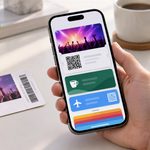
For recent iPhone buyers, cellular service is only one part of setup. Once the connection works, our Wallet transfer guide for a new iPhone explains how to check payment cards and passes before clearing the old device.
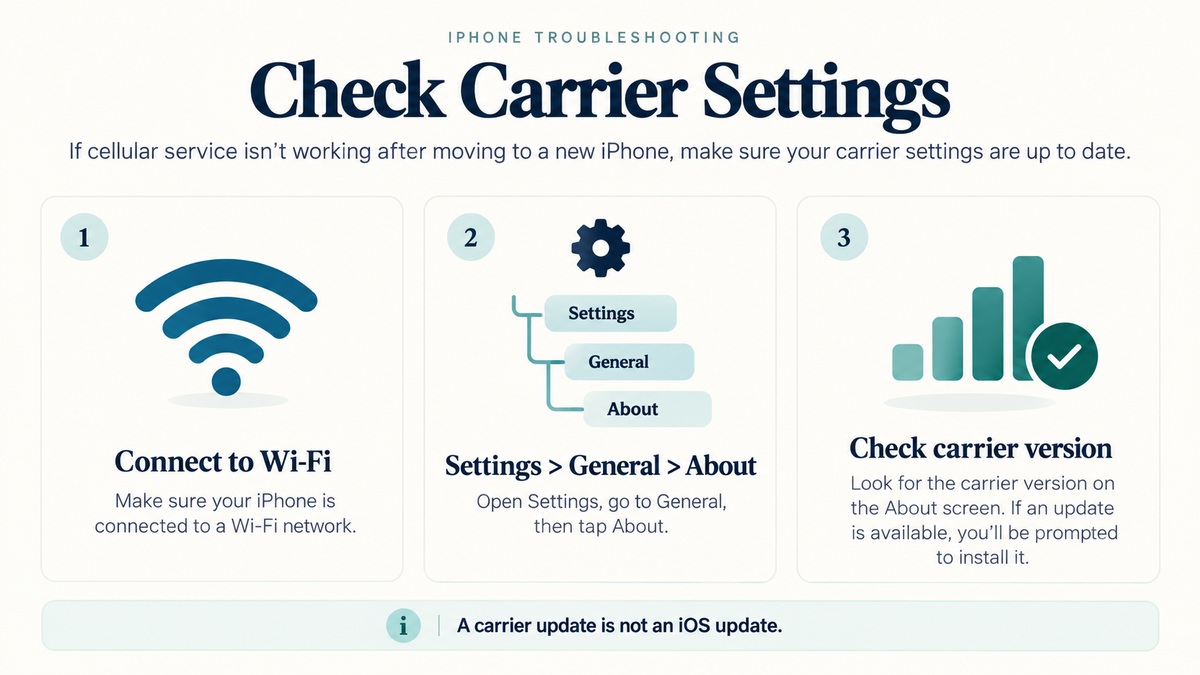
Update iPhone carrier settings step by step
- First, open Settings and tap General.
- Next, tap About. Keep the phone connected to Wi-Fi or cellular data.
- If an update prompt appears, follow its instructions. Tap Update when offered. A mandatory update may instead show OK, because the system already installed it.
- On the same About screen, look for the version beside Carrier. Apple’s No Service guide places it under the eSIM information.
- Finally, note the carrier name and version. Contact the carrier if you need confirmation that this is its latest release.
Apple’s carrier-update instructions say installation normally takes less than a minute. A new SIM or eSIM may need settings for the new network. However, there is no single version number that every carrier uses, so do not compare yours with an unrelated network.
Check whether cellular service has returned
Afterward, look for your network connection and try an ordinary call. Then turn off Wi-Fi briefly and load a webpage to test cellular data. Restore Wi-Fi when finished. This separates a working internet connection over Wi-Fi from a working mobile line.
If No Service or SOS remains
- Open Settings, turn Airplane Mode on for at least 15 seconds, then turn it off.
- If necessary, restart the iPhone and check again.
- With Dual SIM, open Settings > Cellular, tap the affected line and check that it is on. If it is off, tap Turn On This Line.
These steps come from Apple’s No Service troubleshooting guide. If the line is missing, ask the carrier to set up the eSIM or confirm the physical SIM. Also ask it to check activation, coverage, local outages and account restrictions.
An iPhone carrier settings update cannot fix every network or hardware fault. If the carrier confirms the account and network are working, Apple may need to inspect the device. Keep your recorded version and test results handy; they make the next support conversation more precise.
Expand Your Knowledge:
 Which Carrier to Use With iPhone
How to Check if an iPhone is Factory Unlocked or not
Which Carrier to Use With iPhone
How to Check if an iPhone is Factory Unlocked or not
 Mastering iPhone’s “Check In” Feature: Your Comprehensive Guide
 Achieving Impressive Moon Photos with iPhone: Optimal Settings and Techniques
 How to Fix iPhone Overheating After an iOS Update
 How to Fix That iPhone Battery Drain After the iOS 26 Update
Understanding the iPad’s Airplane Mode Settings
How to Fix That iPhone Battery Drain After the iOS 26 Update
Understanding the iPad’s Airplane Mode Settings
 Apple Founders’ Signed Check Hits Auction: A Peek into Apple’s Historic Past
 iOS 27.0.1 Update Stuck? How to Get It Installed
iPhone Software Update
iOS 27.0.1 Update Stuck? How to Get It Installed
iPhone Software Update