
How to Set an iPhone Charge Limit—and Understand Why Charging Pauses
An iPhone that stops charging around 80 percent is not necessarily faulty. It may be following a charge limit, waiting to finish charging closer to your usual wake-up time, or responding to temperature. The percentage alone does not tell you which one is happening.
Before replacing a cable or disabling battery features, open the charging settings and read any message on the Lock Screen. That quick check can explain why the phone is behaving differently from what you expected.
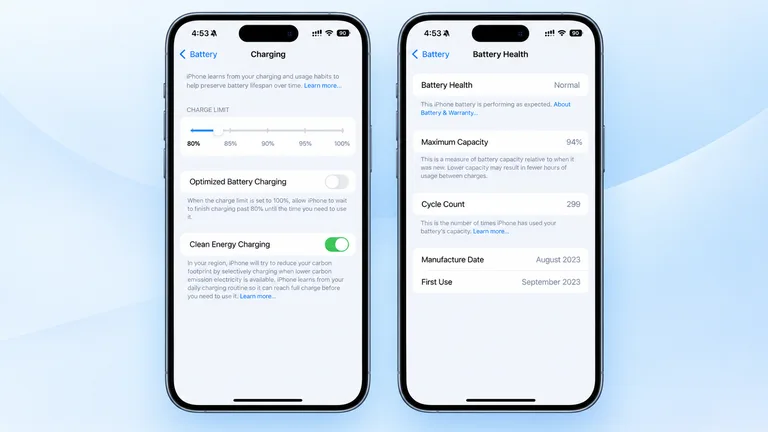
Choose a charge limit on iPhone 15 or later
Go to Settings → Battery → Charging. Apple’s charging-options guide says supported models offer limits from 80 to 100 percent in five-point steps. Choose a level that leaves enough charge for your usual day.
A lower limit makes more sense when a charger is usually nearby. If you regularly finish the day with very little battery left, sacrificing more usable charge may be inconvenient. Try an ordinary working day before deciding whether your chosen setting fits.
On iPhone 14 and earlier, look under Settings → Battery → Battery Health & Charging for Optimized Battery Charging instead. The adjustable charge-limit control described above is for iPhone 15 and later.
Understand what optimized charging does differently
With the limit at 100 percent, Optimized Battery Charging can delay charging beyond 80 percent until closer to the time you normally unplug. It learns your routine rather than imposing a permanent 80 percent ceiling. If its Lock Screen notification appears and you need the full charge sooner, press and hold it, then choose Charge Now.
A lower charge limit can occasionally be exceeded: Apple says the phone may charge to 100 percent to maintain accurate charge estimates. One full charge does not necessarily mean the setting has stopped working.
Check temperature before changing the limit
Apple’s temperature guidance describes a Charging On Hold message when the device is temporarily too hot or too cold. Raising the limit will not address that condition. Charging can slow or stop while the phone regulates its temperature.
Initial setup, restoring a backup and a major software update can also make a phone warm. If a temperature warning screen appears, Apple advises turning the device off, moving it away from direct sunlight to a cooler environment and allowing it to cool. Follow the warning rather than repeatedly reconnecting the charger.
Build a routine you can live with
There is no need to run the battery down before plugging in. Apple’s battery-maintenance advice says nightly charging is possible even when the battery is not depleted. It also emphasizes avoiding charging or using the phone in ambient temperatures above 35°C, which can permanently shorten battery lifespan.
For a day of travel, the useful priority may be having enough charge when you leave. At a desk with easy access to power, a lower limit may be a comfortable choice. Revisit the setting when your routine changes rather than treating one percentage as a rule for every situation.
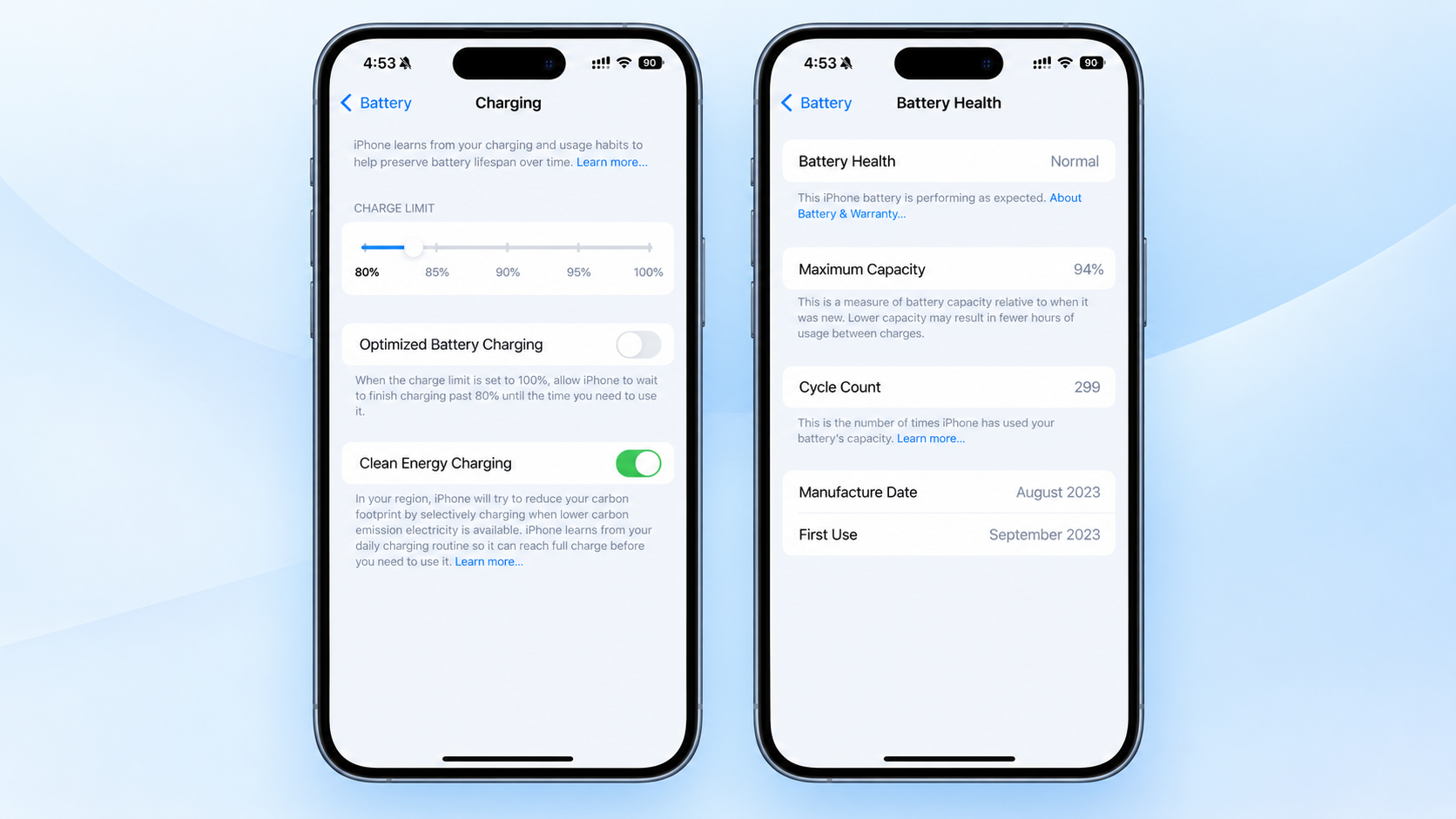
Finally, keep charging behavior separate from battery drain. A deliberate charging pause explains why the battery did not reach 100 percent; it does not explain unusually rapid discharge after unplugging. Those are different problems and deserve different checks.