
Why iPhone Magnifier Can Detect a Door Without Speaking
An outline on the screen is already a useful diagnostic. It tells you Magnifier has found a door, so the next place to look is the door’s feedback options. If there is no Doors choice at all, check the iPhone model and the Detection Mode control first. Apple’s iOS 27 instructions treat detection and feedback as separate settings.
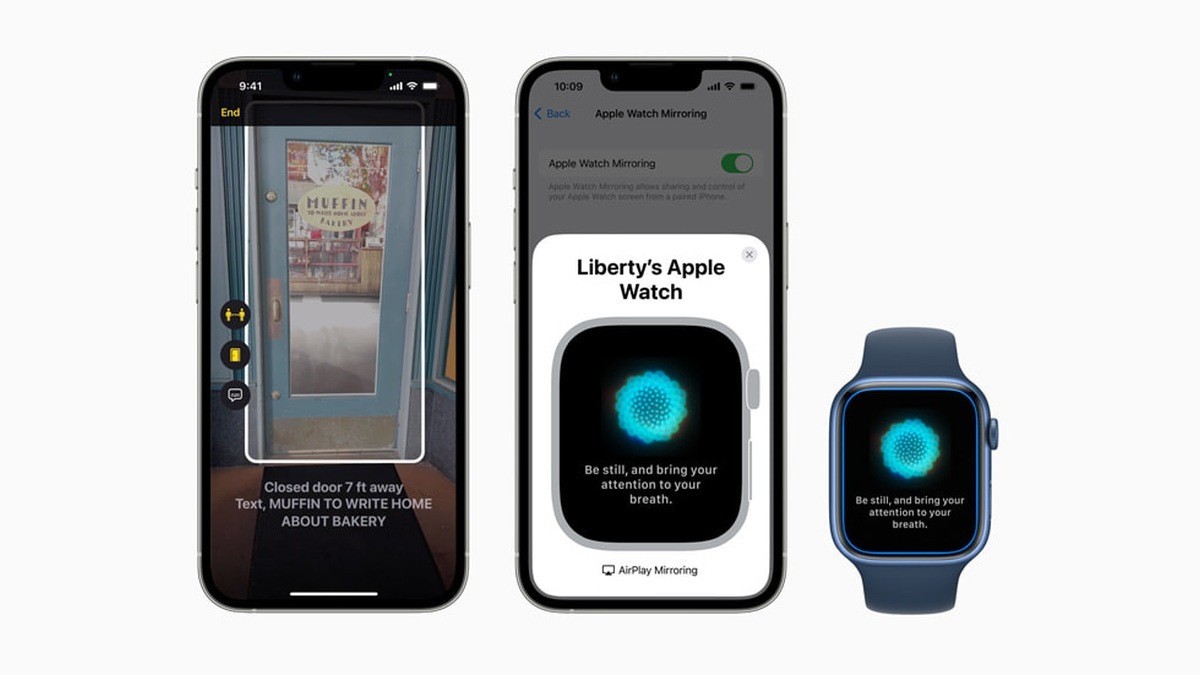
When you get an outline or a vibration
- Open Magnifier and tap Settings.
- Tap Detect, then Doors.
- Under Feedback, turn on Speech. This is the setting that makes the iPhone speak the distance. You can leave Labels, Sounds and Haptics on as well.
- Turn on the details you want in Door Attributes. Apple lists the way a door opens and whether it is open among the available details. In the same settings, you can choose feet or metres and ask for information about nearby signs with Door Decorations.
- Tap Back twice, then Done. If you still hear no speech after testing, check Silent mode and the volume.
When the control is missing
Apple’s hardware list covers LiDAR-equipped models from iPhone 12 Pro and Pro Max through iPhone 18 Pro and Pro Max. Check the name of the model you own. A phone can run iOS 27 and still lack the hardware for detecting doors, people and furniture.
- In Magnifier, open Settings and tap Detect.
- Turn on Show in Control Panel. Only two controls can occupy the primary positions. Swipe up on the control panel to look among the secondary controls.
- Tap Detection Mode. Then touch and hold its button and choose Doors.
What to expect at a familiar door
Hold the screen towards you and aim the rear camera at a door you already know. Listen for the distance and check whether the open-or-closed detail agrees with what you know. Apple says the feedback becomes more frequent as you get closer. Double-tap the screen with two fingers to pause it, and repeat to resume. Tap Detection Mode when finished.
If your starting point is a picture you took earlier, use our Visual Look Up guide for saved photos. Detection Mode is for the live camera view. Apple warns against using it for navigation, emergencies or any situation in which a mistake could lead to injury. Keep your usual method of getting around in use when trying the feature.