
Give Your iPhone Its Own Screen Time Settings Without Switching Off Reports
You do not have to turn off Screen Time to keep an iPhone’s settings separate from an iPad’s. The switch to check is Share Across Devices, inside Manage Screen Time. It changes whether the devices share their settings and usage. Activity reports can stay on, which leaves you something useful to inspect after the change.
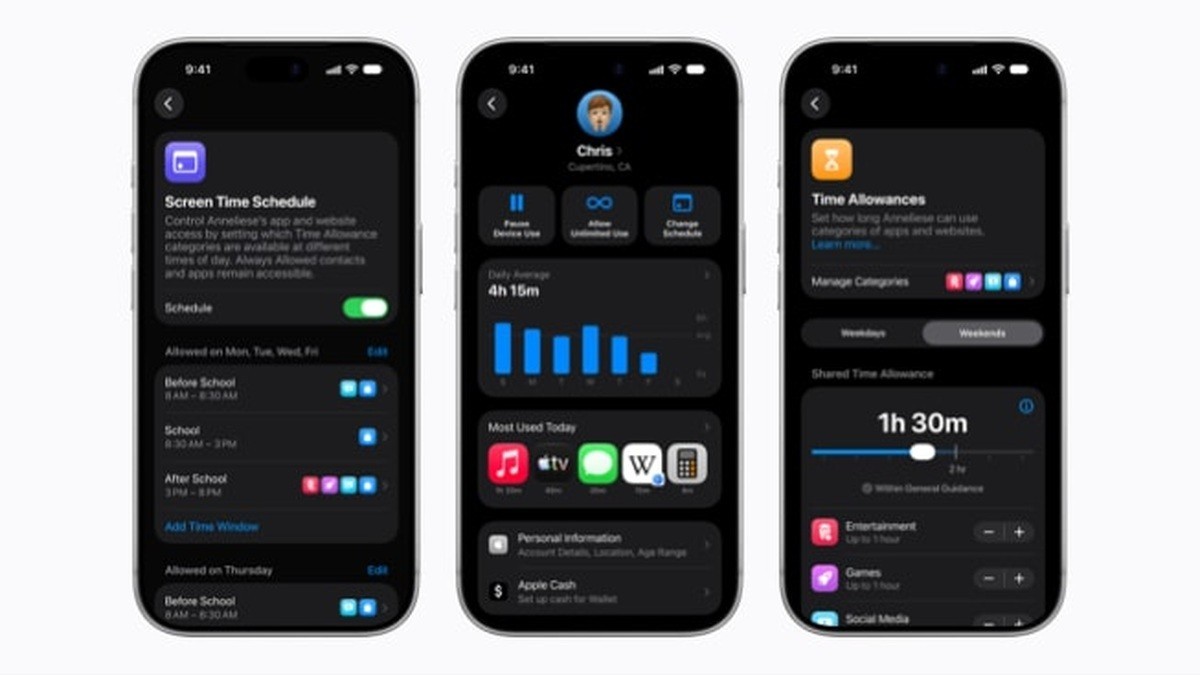
Check the devices before changing an allowance
Apple’s iOS 27 guide puts an important condition ahead of these controls: all your Apple devices need version 27 or later of their respective operating systems for the latest features. The guide gives that condition for Family Sharing too. These steps concern your own Apple Account; Apple directs parents setting up a child’s controls to its separate family instructions.
- On the iPhone, open Settings and tap Screen Time.
- Tap Manage Screen Time. Look at Share Across Devices.
- Leave Share Across Devices on if you want settings and usage shared across your iPhone, iPad and Mac using the same Apple Account. Turn it off if you want each device to have its own Screen Time settings.
- Return to Screen Time and tap Daily Average. Choose Day or Week to review usage, and swipe through the summaries to inspect the history.
When that switch is off, each device has its own Screen Time settings. When it is on, schedules, allowances and usage are shared across the iPhone, iPad and Mac signed into the account. The Day and Week summaries give you a way to inspect the activity without discarding reporting altogether.
Now inspect the category and total
Suppose, as an example, that Games has a longer allowance than the daily total. The category does not guarantee you its full amount: the daily total can run out first. To inspect the actual amounts, return to Settings, Screen Time, Time Allowances. Use the main slider for the total, then tap Games under Time Allowances for that category’s slider.
If you use scheduled windows, Match Screen Time Schedule ties allowances to that schedule. Tap a window’s name to see the amounts attached to it. The schedule controls when categories are available; the allowance controls how long they can be used.
If the result still looks wrong
Check Always Allowed under Screen Time. Apps and contacts on that list remain available regardless of schedules and allowances; Add Apps and Add People are its addition controls. An app still opening can be explained by an exception rather than by changing the daily total again.
Keep one detail with any problem you are investigating: which device was used and which control you changed. Sharing, a category allowance and a scheduled window can all affect the outcome. If the task is instead to keep an app private, our guide to locking or hiding an iPhone app covers that separate set of controls.
Our guide to locking or hiding an iPhone app deals with who can open or find an app. For a usage-time problem, keep the shared-device setting, category amount, total and schedule in view. They answer different parts of the same question.