
Make iPhone Camera Control’s Light Press Easier to Use
A light press on Camera Control is meant to reveal controls, while a click can take the picture. If those two actions keep getting mixed up, Apple provides a firmness adjustment and a place to practise it. Changing the pressure is a more direct response than repeatedly changing which app the button opens.
The settings live under Accessibility, separately from the Camera page used to choose the launch shortcut. You need an iPhone with the physical Camera Control. These steps follow Apple’s current iOS 27 instructions; the control is not present on every iPhone.
Adjust the gesture and try it there
- Open Settings > Accessibility > Camera Control. Check that Camera Control is on. This page can turn the hardware control off entirely, so that is the first setting to check if it has stopped responding.
- Find Light-Press and leave it on if you want to use that gesture to reach camera controls. Turning it off disables the gesture. Apple also provides a separate Swipe setting here.
- Under Light-Press Force, choose a firmness option. Use the practice gesture on this page to feel the pressure you have selected. Work toward a deliberate light press that you can distinguish from a capture click.
- If the problem is a light double press, look below Double Light-Press Speed. Choose how quickly the two presses must occur for the iPhone to recognise them. This changes the timing of the gesture; firmness and timing are separate adjustments.
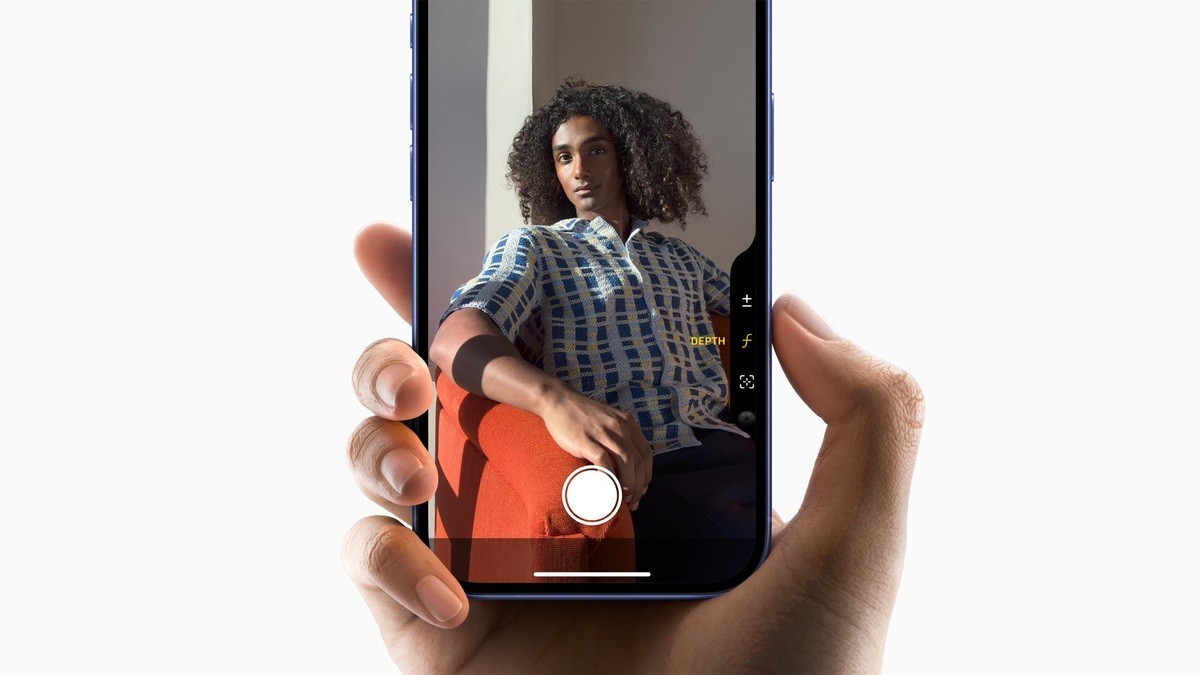
- Open Camera and try the gesture in the context of a shot. Apple’s Camera Control guide says a light double press opens the settings overlay. Slide to a setting, lightly press to select it, then slide to adjust it. The available choices depend on the camera mode.
Keep launch, adjustment and capture separate
Settings > Camera > Camera Control contains the Single Click and Double Click choices for opening Camera. Those are launch settings. The light double press described above is for reaching the overlay after Camera is open. Changing one should not be mistaken for adjusting the other.
For focus and exposure lock, Apple describes another use of a light press: enable Lock Focus and Exposure in the Camera settings, then lightly press and hold until AE/AF Lock appears above the frame. Keep touching the control to maintain it. Releasing turns the lock off.
The Visual Intelligence entry points use this same physical area for another task. When troubleshooting, identify which action you are trying to perform first. A launch choice, a light-press adjustment and the shutter click each have their own job.