
Set an Early Reminder on iPhone for the Work Before the Deadline
Think of a reminder that says “Submit the form at noon.” At eleven, you may still have to locate a document, fill in a field and check the attachment. Set noon as the due time. On that same item, use Early Reminder to give yourself the hour you need to do the work.
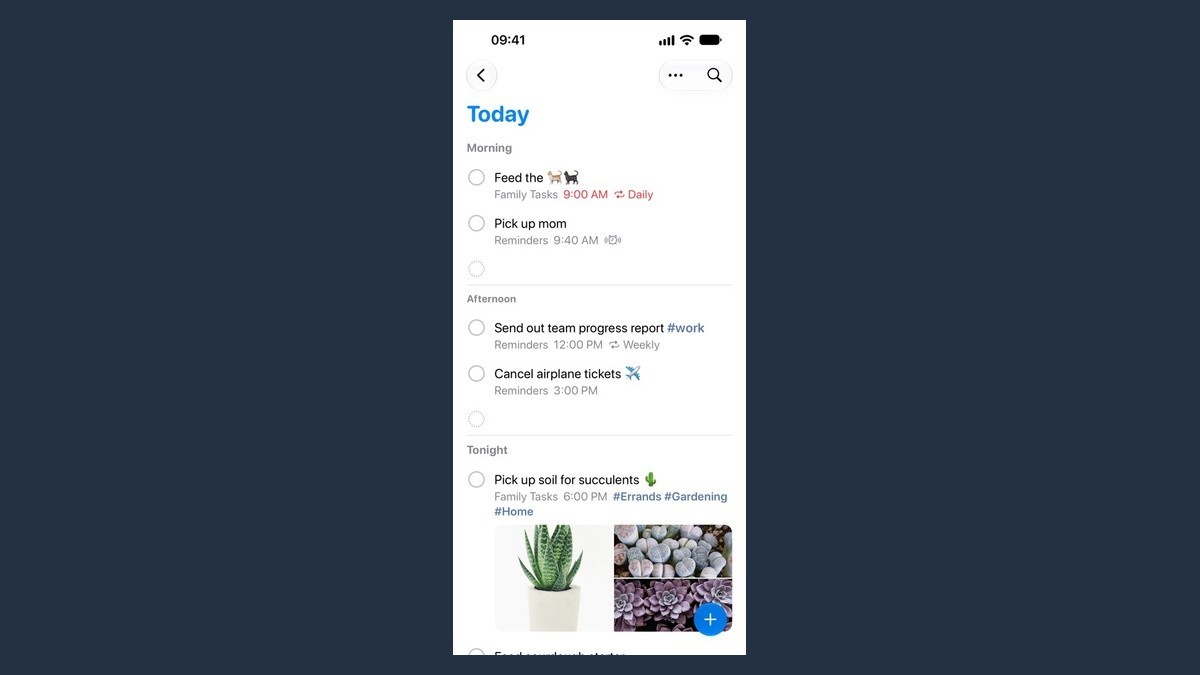
For the full set of controls, Apple’s Reminders guide calls for updated reminders in iCloud. Choose an item in an iCloud list on your iPhone. These labels are from Apple’s iOS 27 guide.
Put the deadline in the item first
- Open Reminders and tap the item. Open its details with the Edit Details button that appears.
- Turn on Date and choose the deadline’s day. Turn on Time and enter noon, or whatever time the task really is due.
- Tap Early Reminder and choose how much notice you need. Apple lists options such as five minutes before or two days before.
- Tap Done. To check what you set, tap the item again and open its details. Look for your due date and time and the interval under Early Reminder.
Noon stays on the task. The selected interval places the heads-up earlier. That is particularly handy when a deadline changes. If it moves to tomorrow, edit the due date and then look at the saved interval again. The advance setting is a distance from the due time, so the clock time you expect for the warning will move too.
When the alert is missing
A date on its own is a different setup. The Today Notification setting sets an alert time for reminders assigned a day without a time. Apple’s Reminders settings guide puts it under Settings, Apps, Reminders. If the task has a real deadline during the day, go back to the item and give it a time.
For a warning that still does not appear, check that the list uses iCloud and that the item has both Date and Time turned on. Then check Notifications in the Reminders settings. Try a harmless reminder with a nearby due time to see what your phone displays. As when changing a scheduled iPhone message, reopening the saved item after an edit can uncover the difference between a time you intended to set and the one you actually saved. Check that test while you can see the screen, then mark it complete when you are done.