
Missing AirTag Link? How to Use Share Item Location in Find My
The easiest time to try a luggage tracker is usually before the trip. There’s one Find My feature you won’t see in that test if the bag is next to you. Share Item Location is for an item that’s away from the device creating the link. If your bag is missing, the option lets you send an airline a temporary map page for the tracker in that bag.
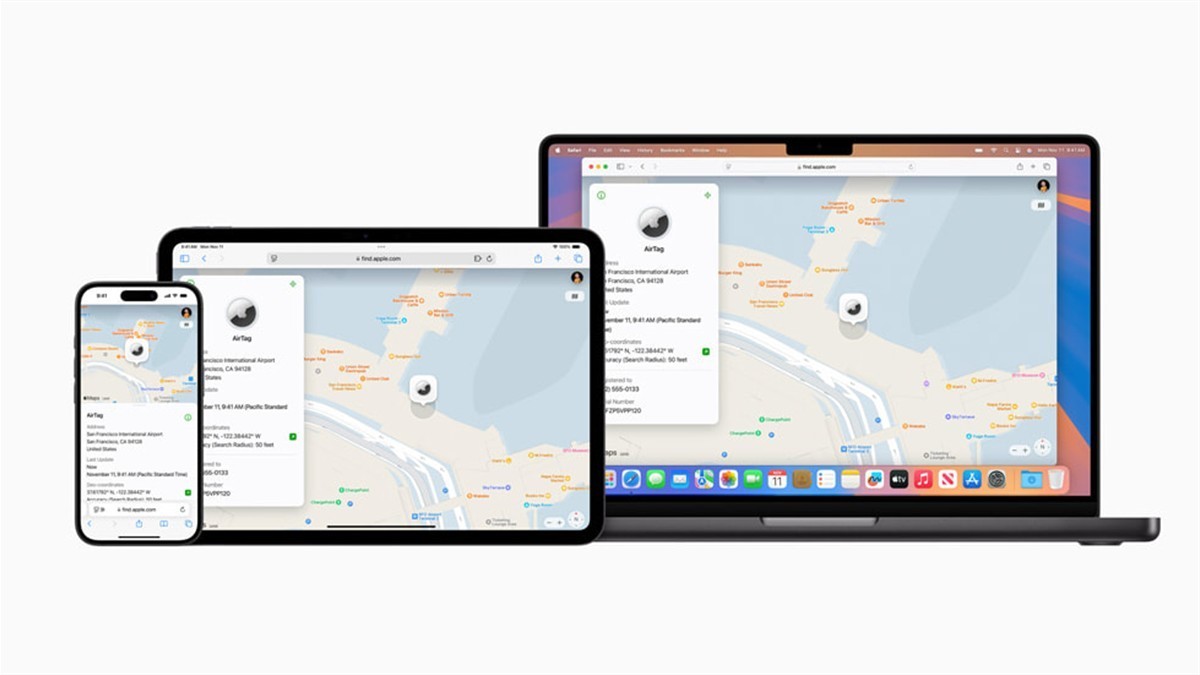
Check the item before you send anything
Open Find My and go to Items. You should see the AirTag, or another compatible tracker you’ve added to your Apple Account. If you’ve named several tags “Luggage,” identify which one is in the missing bag before sharing it. Apple’s Find My guide also says at least one of your devices signed in to your Apple Account needs to be online for location updates. You can share the page even if the position on it is older than you’d like. A link can make a new position easier to find when it comes in.
Send the baggage team a page it can reopen
- Open Find My on your iPhone.
- Tap Items. Select the AirTag or other item that’s missing and tap More.
- Tap Share Item Location. Follow the instructions to create the webpage and choose how to share it.
- Send the link through the airline’s baggage channel if it accepts these links. Include the baggage case number where the airline asks for it. Tap Done in Find My.
From then on you can use that page to help someone look for the bag. Take a moment to check what Apple says is being shared: it’s a location for the selected item. The link gives a baggage agent something to check while the airline works through its own records. If the airline asks you to send it again, use its remote support channel. AirDrop, as our guide to sharing files by AirDrop explains, requires a recipient in range.
See when it expires and clear it after pickup
- In Find My, tap Items and select the tracker with the shared page.
- Tap More, then Share Item Location. Check Visited By and Expiration, or tap the URL field at the top to copy the link again.
- To send the page to another recipient, tap Share Location Link and choose a sharing option. To end access, go to the item’s More menu and tap Stop Sharing Item Location.
The sharing session ends after seven days or when the tracker is back with you. If you haven’t recovered the bag before expiry and the baggage team still wants the location, check whether you can create a new page for the item. Keep the existing baggage case number so the team can connect that page with the search it’s already doing.