
Find Which Account Holds a Missing iPhone Contact
A contact can disappear from an iCloud view while still being saved on your iPhone through another account. Start in Contacts and check the account lists before changing your sync settings. Apple lets you view iCloud, Google and other configured accounts separately. Once you know where the card is stored, you can decide whether you want future contacts to go to the same account.
Find the saved contact first
These steps use the Contacts app on an iPhone with at least one contacts account configured. You need a second account with Contacts enabled to compare two lists. If you are checking iCloud across devices, verify that the other device uses the same Apple Account and has iCloud Contacts turned on.
- Open Contacts on the iPhone. If you are looking at a list of names, tap Lists or the back arrow in the upper corner.
- Tap All iCloud if that list appears. Look for the contact in that view. Seeing it there identifies the iCloud account as a place where the card is stored.
- If the contact is missing, go back to Lists. Open All followed by the name of another account shown on the phone. Check each account separately until you find the card.
- If you expect an account to appear and it is absent, go to Settings, Apps, Contacts, then Contacts Accounts. Open that account and see whether its Contacts switch is on. Return to the list and check again.
Choose where the next contact goes
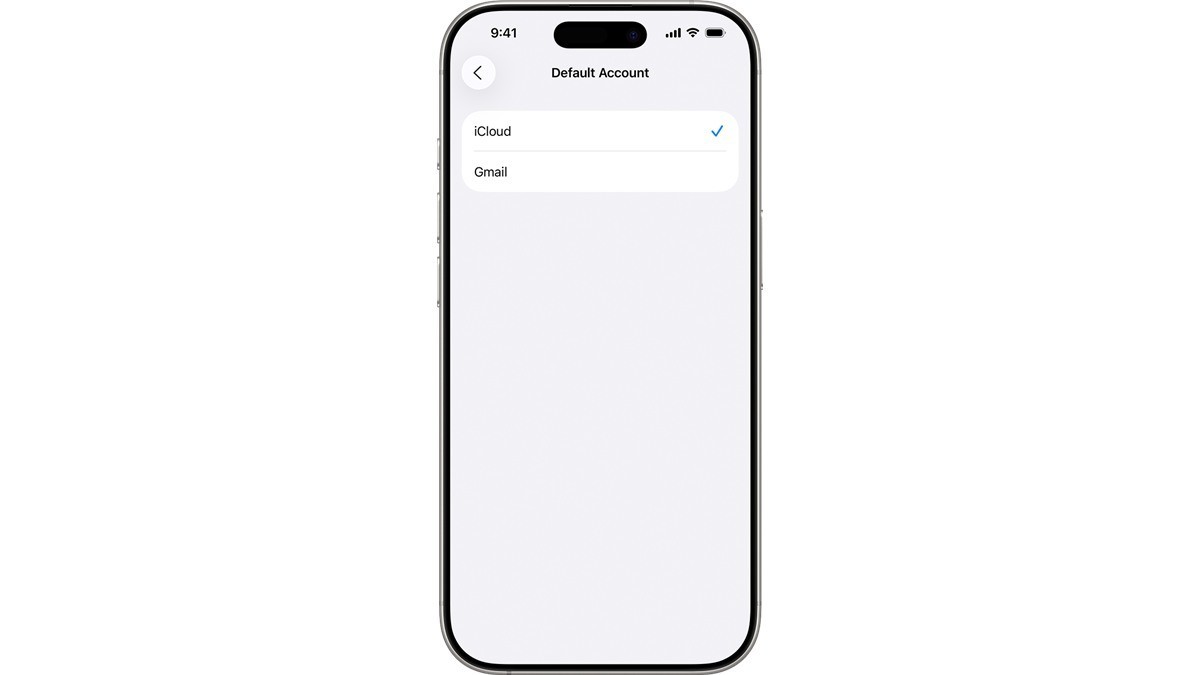
In Settings, go to Apps, then Contacts and tap Default Account. Choose the account you want for new contacts, such as iCloud. If that option is missing, first check whether more than one contacts account is enabled. You can add a test contact and find it in the selected account’s list. The selection applies to new contacts, so an older card will still show in the account you found it in earlier.
If an iCloud card appears on one device and is missing on another, Apple suggests refreshing Contacts by swiping down on the list. If the card still does not appear, check that Contacts is enabled under Saved to iCloud on both devices and that both use the same account. Our iCloud settings walkthrough shows where to find the service switches. Leave a card in place while you identify the mismatch. Turning an account off or deleting the contact before you know where it was stored can make the search harder.