
Keep iPhone Background Sounds Quiet While a Podcast Plays
Put on a podcast. If the rain you set up on the iPhone disappears as soon as the host starts talking, open Background Sounds before reaching for the side buttons. The feature has its own switch for playing along with other audio. It also gives the rain a volume slider of its own, so you can hear the voices clearly.
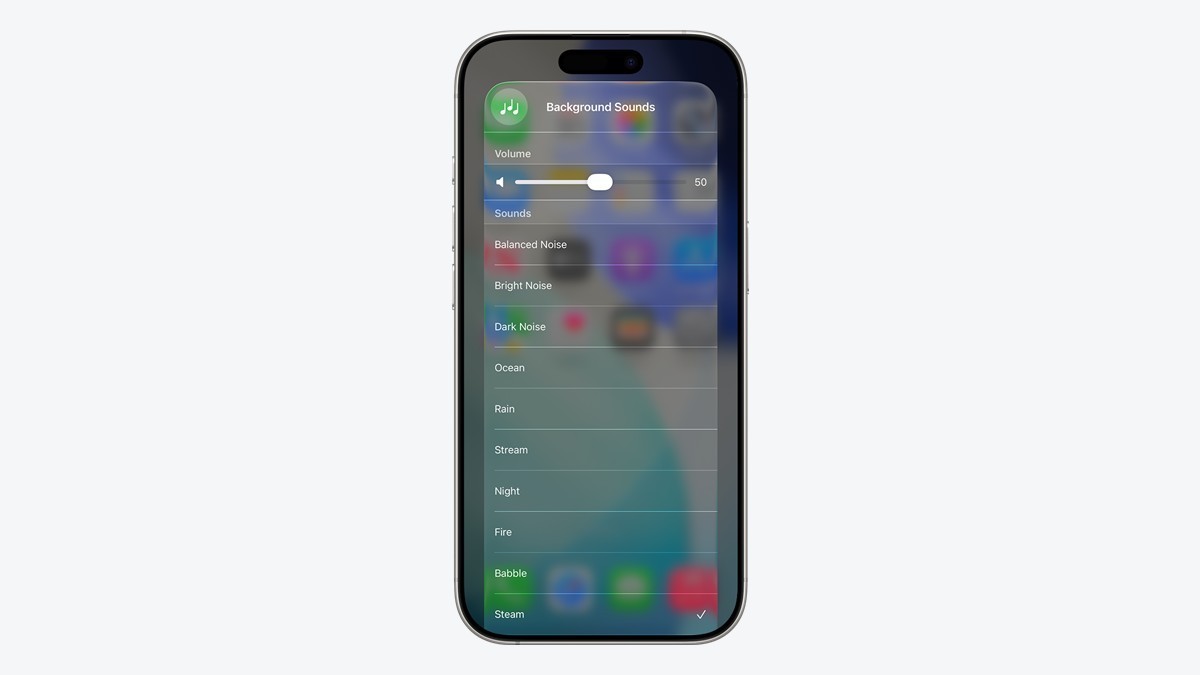
Get the rain and the podcast playing together
You need at least iOS 15 for iPhone Background Sounds. Choose an episode with a talking section you can play while you set this up. Apple’s current iPhone User Guide puts both of the relevant volume controls on the same Settings screen.
- In Settings, tap Accessibility, then Audio & Visual.
- Tap Background Sounds and switch it on. Tap a sound to pick one, such as Rain or Ocean.
- Turn on Use When Media is Playing.
- Start the podcast. Return to Background Sounds and drag Volume with Media until you can follow the conversation with the rain behind it.
Leave the podcast playing and move Volume with Media a little at a time. Once the balance sounds right, hit pause. If the rain gets louder, lower the regular Background Sounds volume. Resume the episode to check the other slider again. The two settings let you keep quite different levels for reading in silence and following a conversation.
If the sound vanishes when you lock the phone
Lock the iPhone while the rain is playing. If it goes quiet immediately, reopen Accessibility, Audio & Visual, and Background Sounds. Check Stop Sounds When Locked. Turn it off if you want playback to continue with the screen off. On iOS 26 or later, Apple also offers a timer in these settings. The timer gives you a way to end playback even with the lock switch off.
Keep the control handy
To finish, touch and hold Background Sounds in Control Center and tap Background Sounds in the panel. If you come back later and can hear rain in the pause between episodes but never over the episode itself, start with Use When Media is Playing. Apple’s Background Sounds guide shows the control. The iPhone User Guide lists the two volume settings together.
When you’re done, tap Background Sounds in that panel to switch it off. Apple’s Background Sounds guide shows the control and its settings. If you still can’t hear the ambient sound while the podcast plays, first pause the episode and see whether the rain comes back. That tells you which of the two controls to revisit.