
Capture a Full Safari Page on iPhone and Check What Was Saved
A screenshot of a long Safari page usually captures just the part you can see. If you need the instructions below the fold as well, open the screenshot preview and choose Full Page. Apple’s iPhone User Guide uses a Safari webpage as its example. Before you send the capture to someone else, look at the bottom of the preview to make sure the part you needed made it into the file.
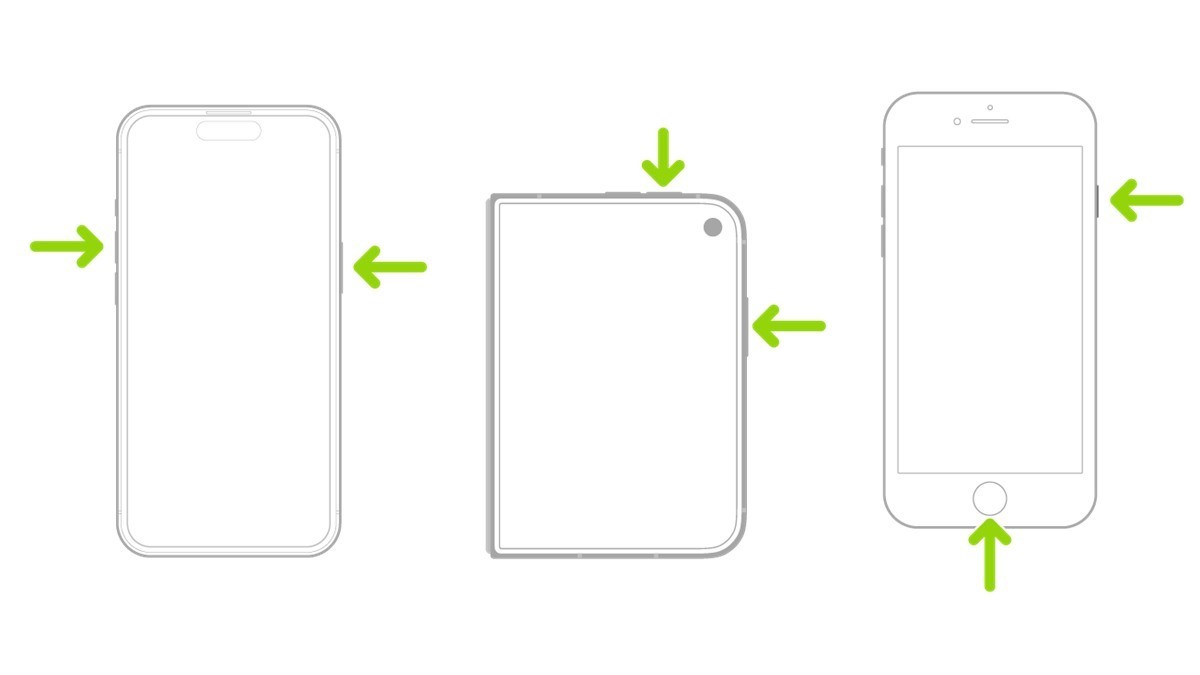
Capture the page in Safari
Start with the webpage open in Safari. Try the steps on a public page first if you want to see how the controls work. On current iPhone software, the screenshot can open in a large preview or appear as a thumbnail, depending on your Screen Capture setting.
- On an iPhone with Face ID, quickly press and release the side button and volume up button together. On an iPhone SE, use the Home and side buttons together.
- If a thumbnail appears in the lower-left corner, tap it. If the screenshot already opens in a large preview, work from that preview.
- Tap Full Page. Drag your finger down the small preview on the right to inspect content beyond the area that was on the screen.
- If you need only part of the page, tap the Crop button and drag the handles. Use the preview’s save control and choose an offered destination, then open the saved item there.
If the preview or the saved result looks wrong
The thumbnail can disappear before you tap it. Take a fresh screenshot with the page still open and tap the preview immediately, or set the phone to open screenshots full screen. Go to Settings, General, Screen Capture, then turn on Full-Screen Previews. Apple’s screen capture settings guide also explains how to return to the thumbnail view.
If you only see the visible portion, return to Safari and check for Full Page in a new capture. The option depends on what the iPhone can capture in that context. Testing with a long Safari webpage helps you tell a problem with a particular app or page from a missed tap in the preview.
If you saved an image to Photos, open Photos, tap Collections and find Screenshots under Media Types. If you chose a file destination, open that location instead. Check the last section you wanted to keep before sharing. Our AirDrop walkthrough covers what travels when you send a file from the phone, which is a separate check from what the screenshot contains.