
Share Your iPhone’s Wi-Fi Network With a QR Code
Before a visitor starts typing a long password into their phone, look up your network on yours. Passwords can put a QR code for that network on the screen. If the visitor can scan it, both of you can skip the part where you read off every letter and number.
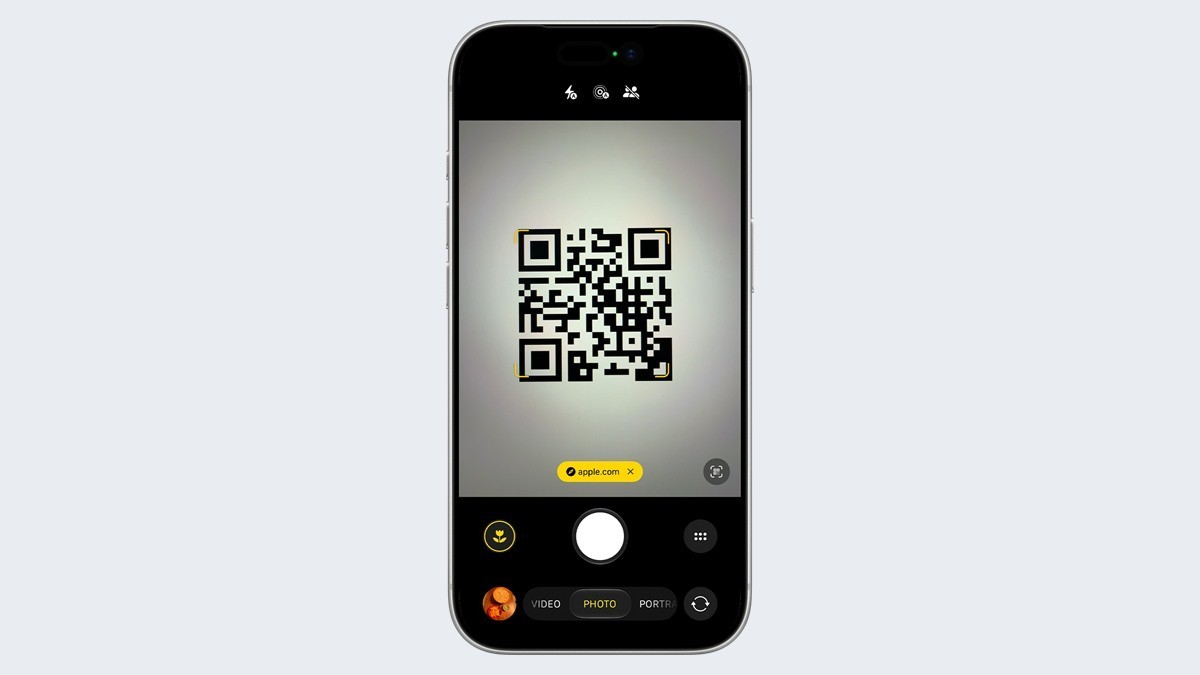
Show the code from the host iPhone
Use an iPhone with the Passwords app and choose a network you’re allowed to share. If your router has a guest network, check its name first so you don’t accidentally hand out access to the main one. Apple’s iPhone User Guide describes both the nearby sharing prompt and the QR option.
- Open Passwords on your iPhone and tap Wi-Fi. If you’re inside an item, go back to the categories.
- Tap the network you want to share. If you’re connected to it, Apple lists its name at the top.
- Tap Show Network QR Code. Hold the phone steady with the full code facing your guest.
- On the guest’s iPhone or iPad, open Camera or Code Scanner. Hold it so that the QR code fits in view and tap the prompt that appears. Follow the prompt to join the network.
Look at the network name on the visitor’s phone after it joins. That last check matters if you save both a guest network and a household network on your iPhone. Each has its own code, and a working scan on its own won’t tell you which one you shared.
If the camera sees the code but the phone won’t join
Bring the screens closer and tilt the host phone a little if glare hides part of the code. If the Wi-Fi prompt appears but joining fails, check that the selected network is in range and confirm the password still works. A router password changed since the iPhone saved it is a reason to recheck the saved entry. You can also open the network in Passwords and tap the password field to copy it for use where appropriate.
A nearby iPhone, iPad or Mac can use Apple’s other sharing route. The host iPhone needs to be unlocked and connected, the devices need to be close with Wi-Fi and Bluetooth on, and each person needs the other in their contacts. Leave Personal Hotspot off. The guest selects the network and the host taps Share Password on the prompt. AirDrop’s acceptance step looks a little similar, but that is for sending a file. Check the Wi-Fi network name before you accept this one.