




You know the exact feeling. You finally cave and hit “Install” on that pesky software notification that’s been haunting your lock screen for days. The familiar Apple logo appears, the progress bar slowly crawls to the end, and your phone reboots. But when you pick it up a few minutes later? It feels like you’re holding a freshly baked potato.
Don’t panic. Seriously. An iPhone overheating after an iOS update is probably one of the most common—and annoying—complaints on tech forums. It happens to the best of us, and usually, your device isn’t broken.
Let’s walk through exactly why your phone is suddenly running so hot, what you can do to cool it down right now, and how to fix the issue if it decides to stick around.
Why Does My iPhone Get So Hot After an Update?
Before we start aggressively flipping switches in your settings menu, it helps to understand what your device is actually doing.
When you install a new iOS version, your iPhone doesn’t just go to sleep once the home screen pops back up. Under the hood, it is working completely in overdrive. The operating system has to re-index all your files, scan your massive photo library for new machine-learning features, and recalibrate your battery data.
Think of it like moving into a new apartment. You might have all your boxes inside, but you still have to unpack, organize the kitchen, and build that IKEA bookshelf. That takes a massive amount of energy. In smartphone terms, heavy processing energy directly translates to heat.
Usually, this background indexing takes anywhere from 24 to 48 hours. If your phone is running a bit warm during that initial window, it is entirely normal. Just give it some time to settle in. But if it’s been three days and your phone is still hot enough to fry an egg on? We need to intervene.
Triage: Immediate Steps to Cool Your Phone Down
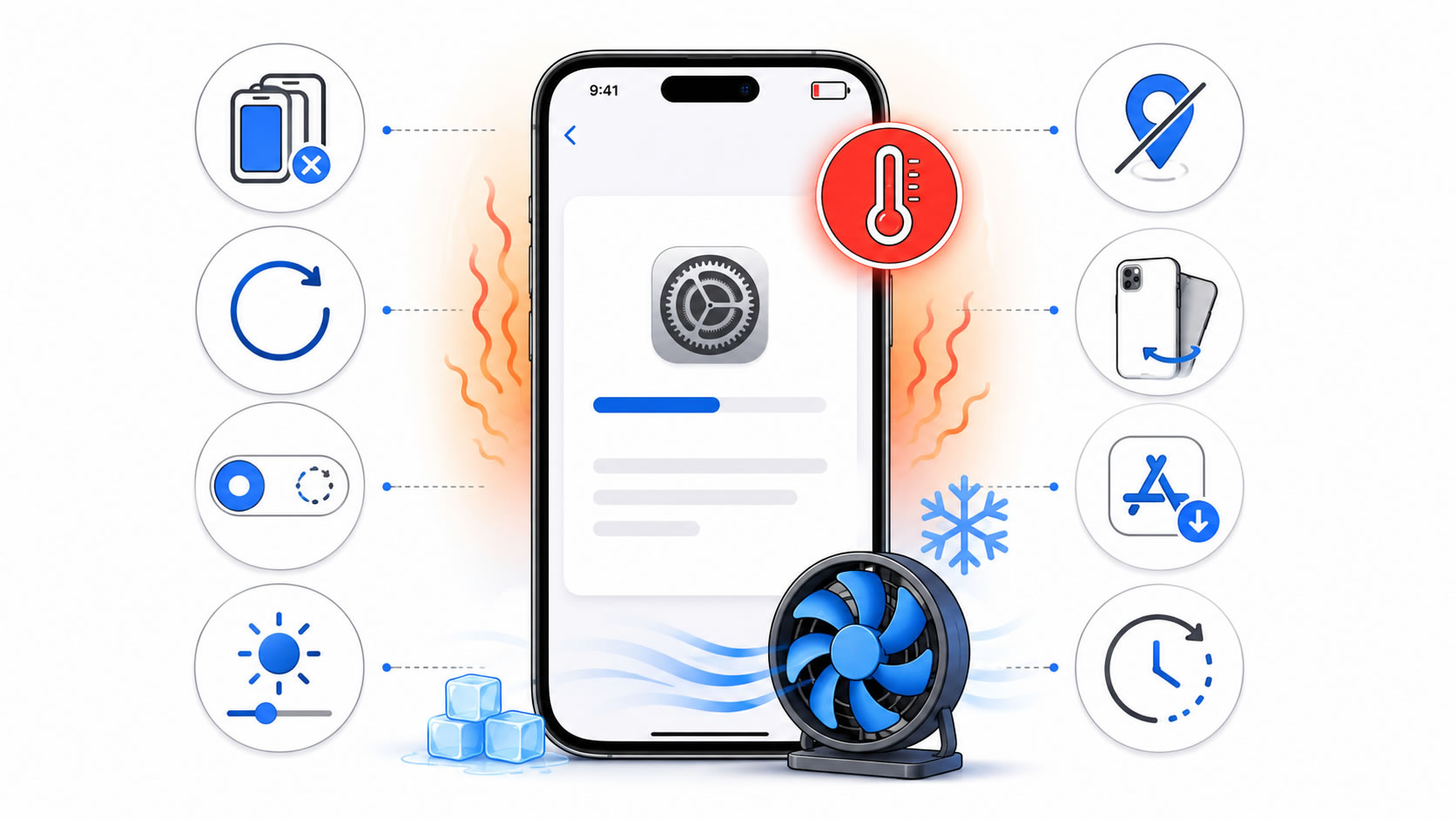
If your phone is actively overheating right at this second, we need to treat the symptoms before we cure the disease. Here is what you should do immediately to protect your battery’s long-term health.
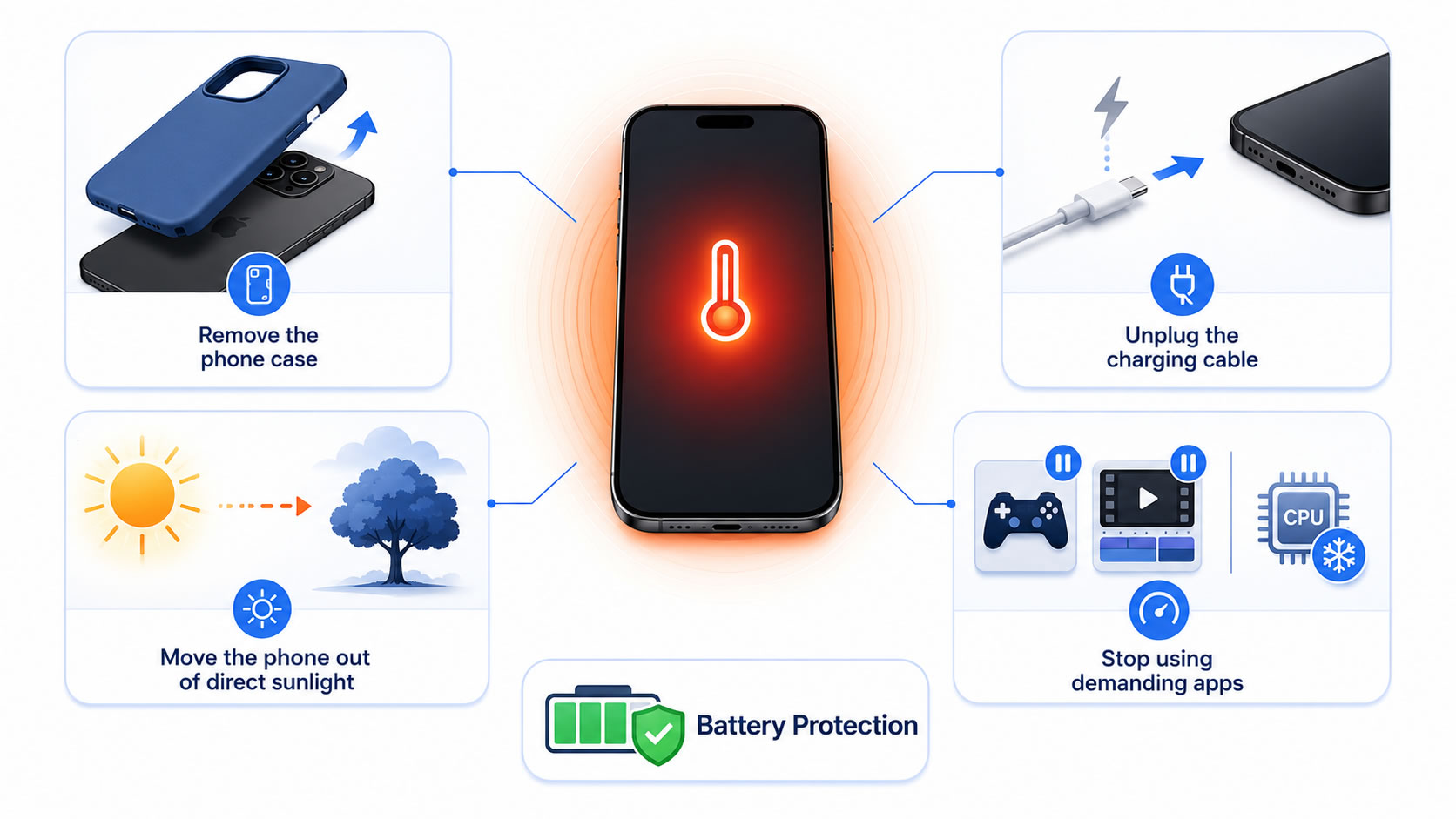
- Take the case off. Your iPhone relies on its metal frame to dissipate heat. A thick, rubbery case traps that heat right against the battery. Strip it down.
- Unplug it from the charger. Charging generates heat naturally. Combining the heat of an iOS update with the heat of a fast charger is a recipe for a thermal warning. Let it cool down before giving it more juice.
- Get it out of the sun. It sounds obvious, but leaving a warm phone on a sunny car dashboard or a windowsill will only make things worse. Move it to a cool, shaded area.
- Stop using heavy apps. Put down the intense 3D games and close the video editing apps for a few hours. Give the processor a break.
Deep Dive: Fixing the Root Cause
Okay, the phone is physically cooler now. But we need to make sure it doesn’t heat right back up the second you open Instagram. Often, the culprit isn’t Apple’s new software itself, but how your older apps are reacting to it.
1. Update All Your Third-Party Apps
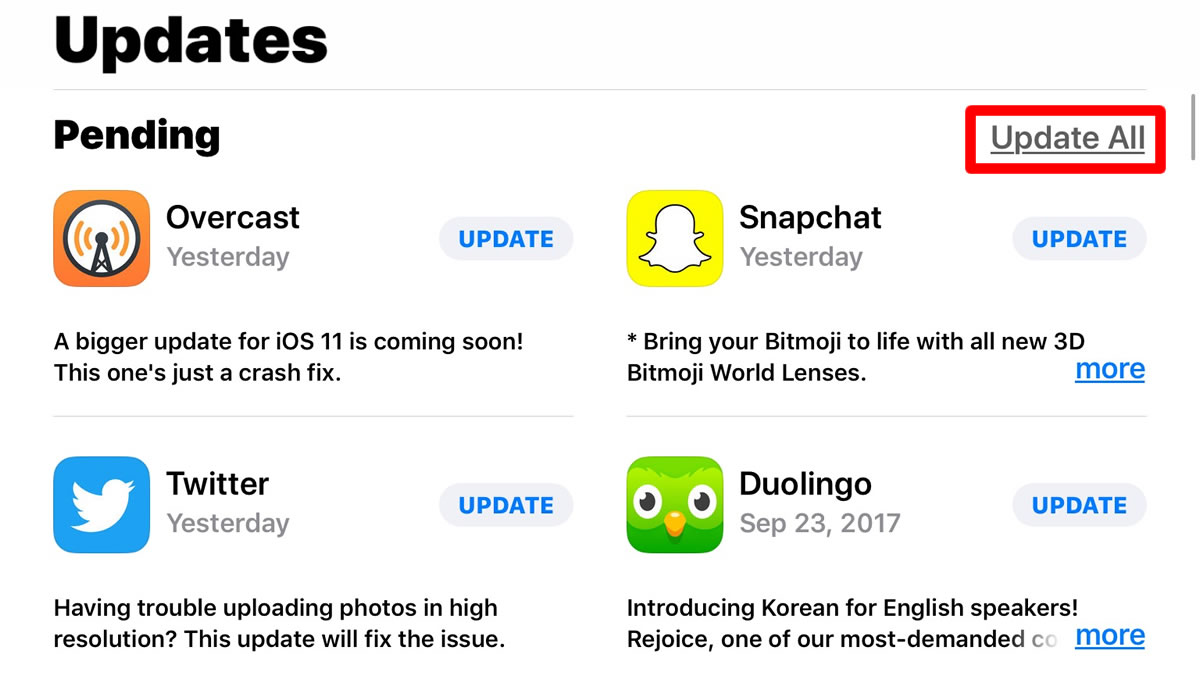
Here is the thing about major iOS updates: they change the rules of the road. If app developers haven’t updated their code to match the new operating system, those apps can glitch out in the background, spinning their wheels and draining your processor.
Open the App Store, tap your profile picture in the top right corner, and pull down to refresh the page. Tap Update All. You’d be surprised how often a single outdated app is the secret villain behind an overheating phone.
2. Hunt Down the Battery Hogs
Your iPhone actually keeps a very detailed ledger of exactly what is draining your power (and consequently, causing heat).
Go to Settings, then scroll down to Battery. Look at the list of apps using battery power over the last 24 hours. Do you see an app that you barely use taking up 30% or 40% of your battery? That’s your culprit. If it’s a non-essential app, delete it. If you need it, try uninstalling and reinstalling it to clear out any corrupted cached data.
3. Turn Off Background App Refresh
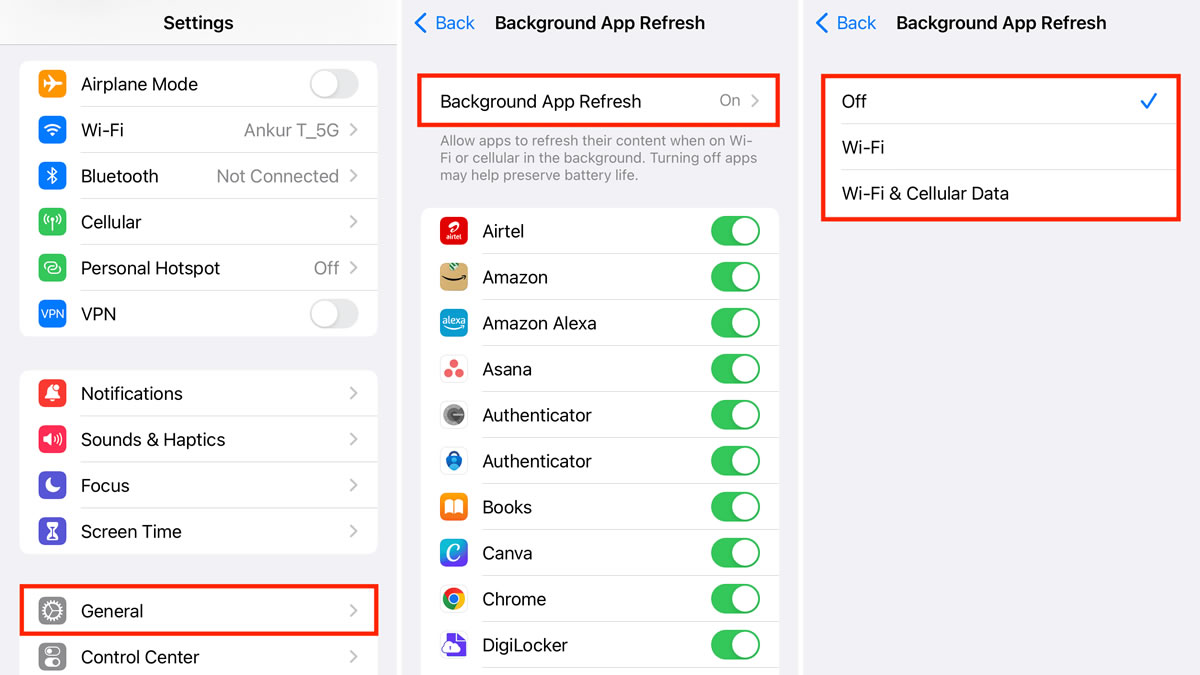
This feature is a notorious resource drain. It allows apps to constantly check for new data over Wi-Fi or cellular networks, even when you aren’t using them. After an update, turning this off gives your phone’s processor some much-needed breathing room.
Navigate to Settings > General > Background App Refresh. You can either turn it off completely (which I highly recommend doing at least temporarily) or toggle off the specific apps that really don’t need to be updating constantly. Does your calculator app need to refresh in the background? Definitely not.
System Tweaks for Better Thermal Management
Sometimes, the iPhone just needs a little bit of manual optimization after a big software shift. Making a few quick adjustments to your settings can drastically reduce the workload on your device’s logic board.
- Disable Unnecessary Location Services: GPS tracking is incredibly taxing. Go to Settings > Privacy & Security > Location Services. Change apps that don’t need your exact whereabouts to “While Using” or “Never.”
- Lower Screen Brightness: The display is one of the biggest heat generators. Swipe down from the top right to access the Control Center and drag the brightness slider down to a comfortable, but lower, level.
- Force Restart Your iPhone: It is the oldest IT trick in the book, but it works. A force restart clears the RAM and stops rogue background processes dead in their tracks. Press and quickly release Volume Up, do the same for Volume Down, then press and hold the side power button until the Apple logo appears.
Normal Heat vs. Actual Overheating
It is easy to get paranoid when your expensive device feels unusually warm. But there is a distinct difference between “working hard” and “dangerously hot.” Here is a quick reference guide to help you figure out where you stand.
| Scenario | Temperature Feel | Is This Normal? | Action Required |
| First 48 hours post-update | Warm to the touch, especially near the Apple logo. | Yes, completely normal. Indexing is happening. | None. Let it do its thing. |
| Charging while playing a heavy game | Very warm, uncomfortable to hold for long. | Expected, but not ideal for battery health. | Stop playing or unplug the phone. |
| Browsing Safari after 3 days post-update | Hot to the touch, battery draining rapidly. | No. Background processes are stuck or glitching. | Update apps, check battery settings, force restart. |
| Screen goes dark, “Temperature Warning” appears | Device is locked, painfully hot. | No. Thermal limits have been breached. | Turn it off immediately. Place in a cool area. |
The Last Resort: When to Start Over
Let’s say you’ve tried absolutely everything. You waited a week, updated your apps, turned off background refresh, and even force-restarted the device. But the phone is still doubling as a hand warmer.
At this point, you likely have a deeply corrupted file tangled up within the iOS software itself.
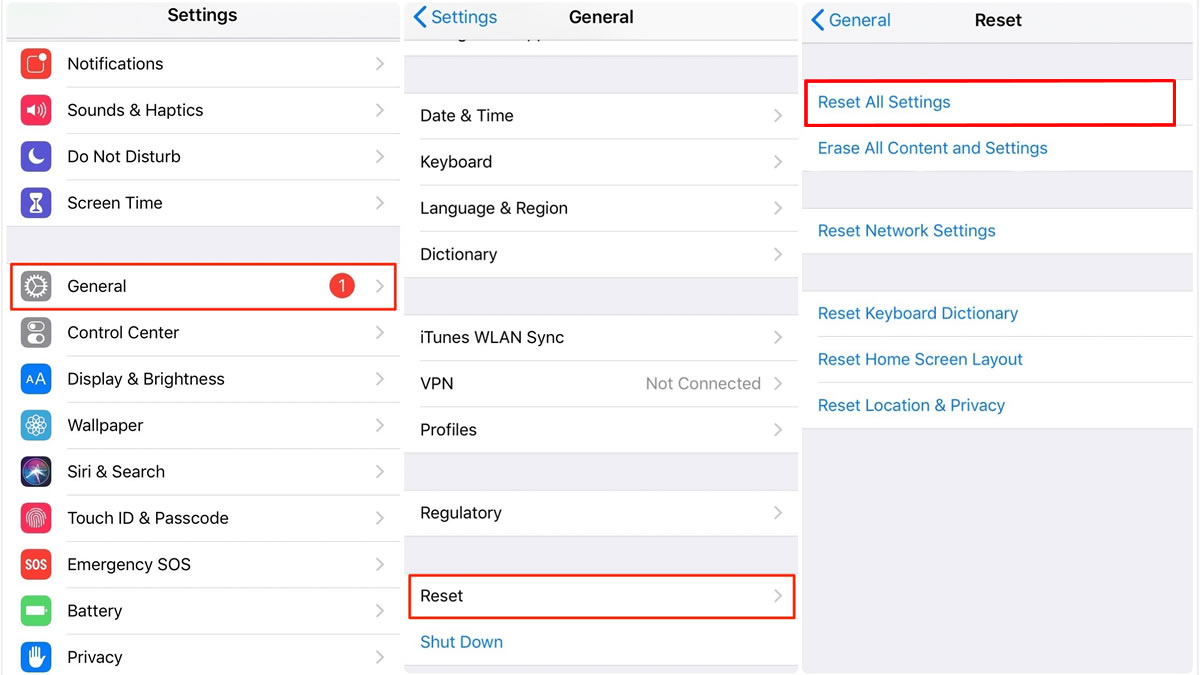
The next step is to Reset All Settings. This won’t delete your photos, messages, or apps, but it will wipe your Wi-Fi passwords, Bluetooth connections, and customized preferences. Go to Settings > General > Transfer or Reset iPhone > Reset > Reset All Settings.
If even that fails, you might be looking at a completely fresh factory reset, or it could genuinely be a hardware issue—like a degraded battery that just happened to reach its breaking point right around the time you updated. In that scenario, it is officially time to book an appointment at the Genius Bar. Let Apple’s diagnostics run the show.
Wrapping Up
Dealing with an overheating iPhone is wildly frustrating, especially when it happens right after you were just trying to keep your software current. But remember the golden rule: give it a few days.
Software updates are messy, complicated processes. More often than not, your phone just needs a little time to organize its digital closet. Keep it out of the sun, strip off the heavy case, manage those rogue apps, and your iPhone will almost certainly cool down and get back to normal before you know it.
Expand Your Knowledge:
 How to Fix That iPhone Battery Drain After the iOS 26 Update
 How to Fix iPhone Overheating
 Which iPhone models will receive the iOS 16 update?
 iOS 18 Update: Eligible iPhone Models Announced
 iPhone 15 Pro Elevates Video Recording Experience with iOS 17.2 Update
 iOS 17.2 Update Set to Resolve Wi-Fi Issues on iPhones
 Apple Rolls Out iOS 17.4 Update: Discover the Latest Features for iPhones
 Apple Releases iOS 17.5 Update: Discover the Latest Features for iPhones
 Apple Unveils iOS 17.1.1 Update: What’s New?
 How to Fix iPhone Not Syncing with iTunes