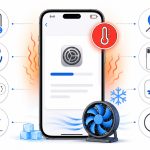







Nothing kills your vibe faster than grabbing your iPhone after the iOS 26 update only to watch the battery percentage drop like it’s got somewhere better to be. I’ve been there—phone was solid before the update, now it’s barely making it to lunch. The thing is, this happens pretty much every big iOS release. Your phone’s just quietly doing a ton of housekeeping in the background: reindexing all your photos, resyncing iCloud stuff, updating apps, and figuring out the new settings.
It usually calms down after a couple of days, but if it’s still chewing through battery like crazy after that, don’t ignore it. Good news? You can fix most of it without a full reset or buying a new battery. Let’s walk through it, step by step.
Why Is Your iPhone Battery Suddenly Dying After iOS 26?
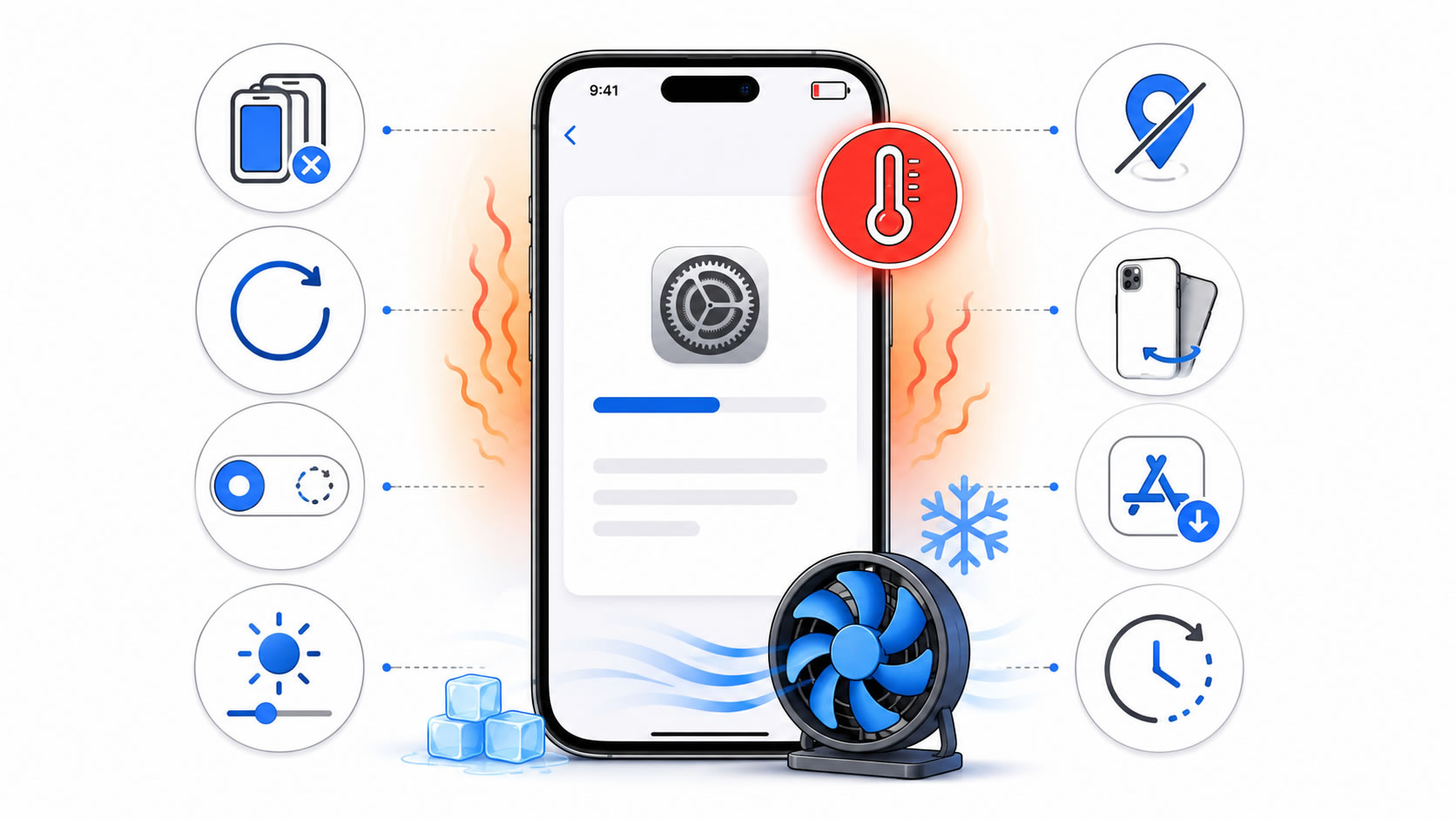
A few things usually team up to cause this. Right after the update, your iPhone runs a bunch of background processes for a day or two. That makes the phone a little warmer than normal, and yes, it kills battery life temporarily. I’ve noticed it on my own 16 Pro Max with every single major update.
Then you’ve got apps that haven’t quite caught up yet. Some start refreshing way too often, hammer location services, or just crash in the background like they’re throwing a tantrum. New or tweaked settings don’t help either—Background App Refresh, Location Services, widgets, Live Activities, Always-On Display (if you have it), and push email can all wake the phone up constantly.
Oh, and poor signal? Total battery killer. Your iPhone keeps searching for a better connection and burns power like it’s going out of style. So yeah, it’s usually a mix of the system settling in and some settings that need tweaking.
Quick Fixes to Try First (Don’t Skip These)
Start simple, seriously. First, just restart your iPhone. Hold the side button and volume down, slide to power off, wait 30 seconds, then turn it back on. Clears out so many weird post-update glitches.
Next, go to Settings > General > Software Update and see if Apple pushed out a small iOS 26 patch. They do this all the time—tiny updates that fix exactly the battery and heat issues people complain about.
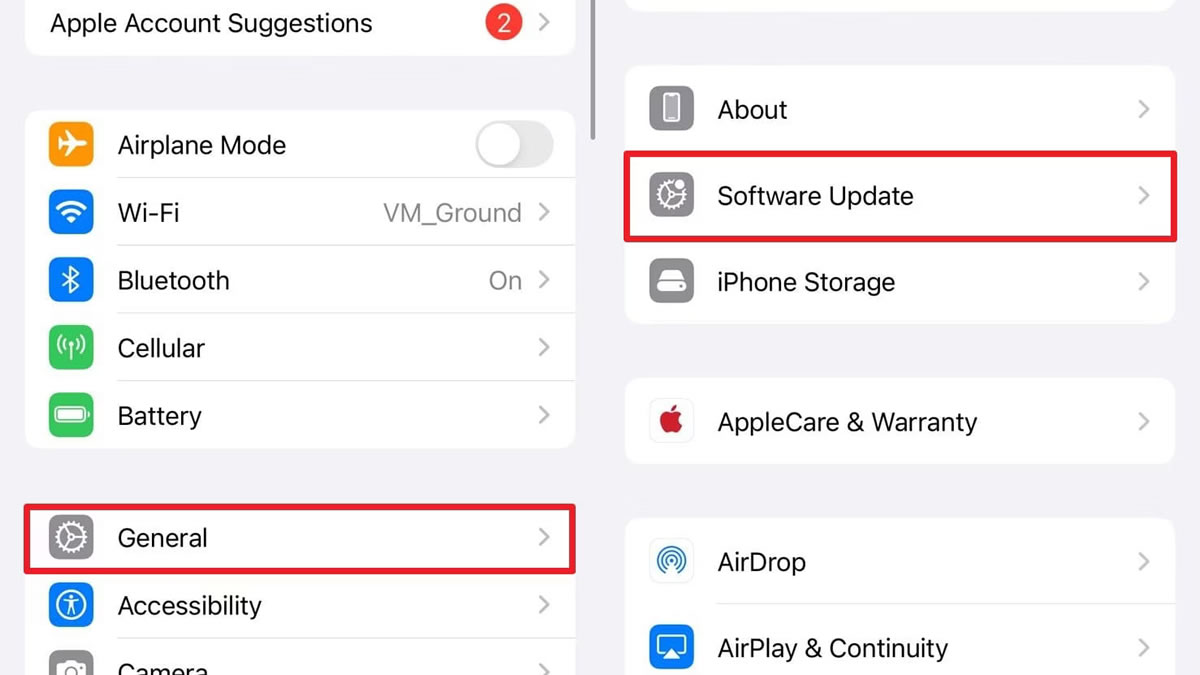
After that, open the App Store and update everything. Outdated apps go a little nuts after a major iOS jump. Once that’s done, head straight to Settings > Battery. This screen is gold—it shows you exactly who’s using the most power in the last 24 hours. If one app is sitting there with ridiculous background activity, either update it again, limit it, or delete it for a day to test.
Detailed Steps That Actually Make a Difference
Alright, let’s get into the good stuff.
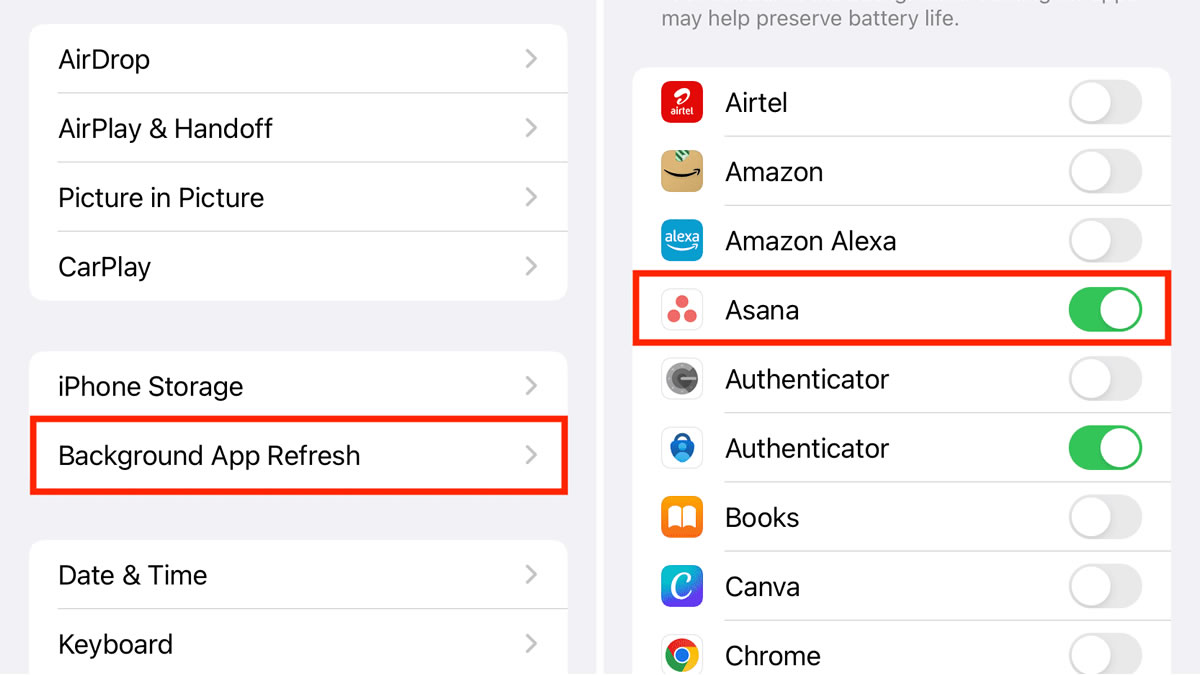
Open Settings > Battery again and scroll through the last 24 hours and 10 days. Look for anything acting suspiciously. If an app is killing it in the background, go to Settings > General > Background App Refresh and turn it off for the guilty ones. You can even flip the whole thing off if you’re desperate for better battery—I do this sometimes, and it helps more than you’d think.
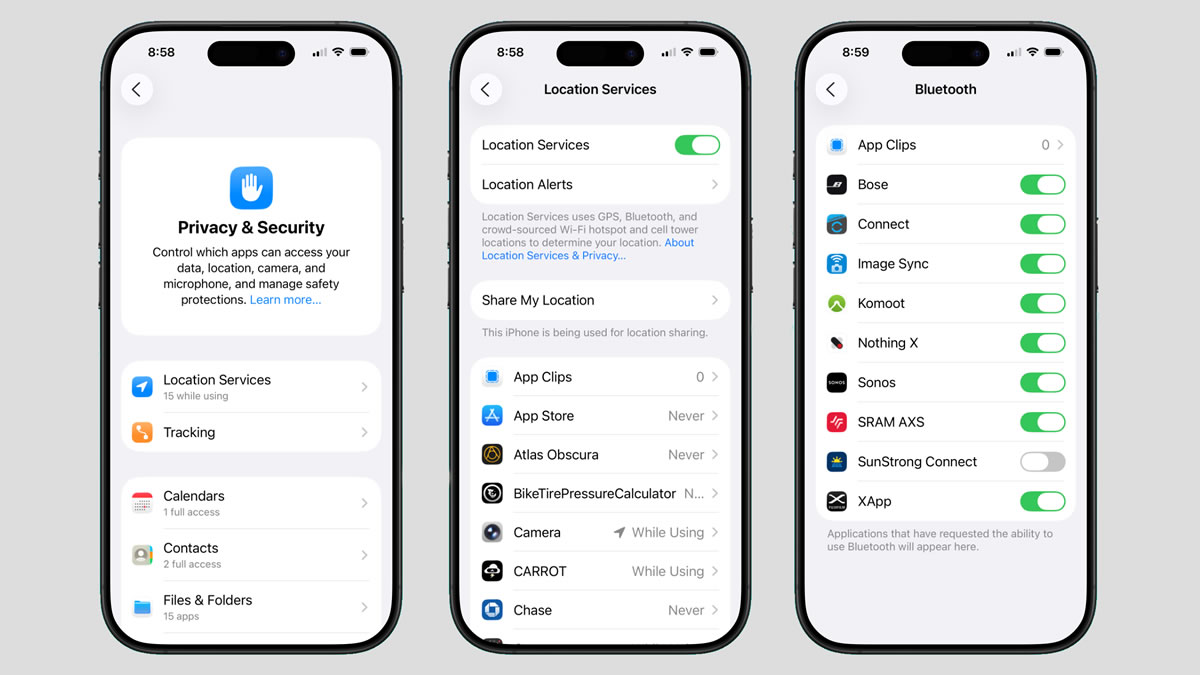
Next, tackle location services because they’re sneaky. Head to Settings > Privacy & Security > Location Services. Scroll down and change anything that doesn’t absolutely need “Always” to “While Using the App” or even “Never.” Weather, maps, and delivery apps get a pass. Everything else? Nope.
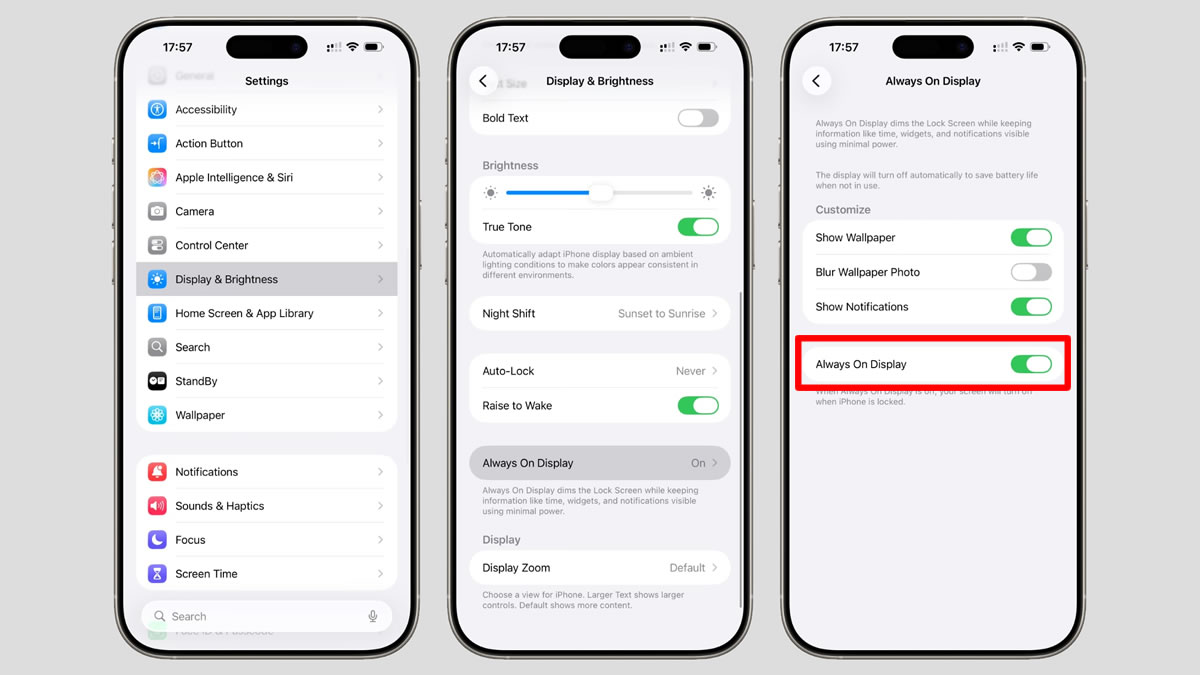
Now the display—biggest culprit for a lot of people. Drop your brightness a bit, turn on Auto-Brightness, and shorten the Auto-Lock time in Settings > Display & Brightness. If your phone has Always-On Display, turn that off for a few days and see what happens. You’ll probably be shocked at how much it saves.
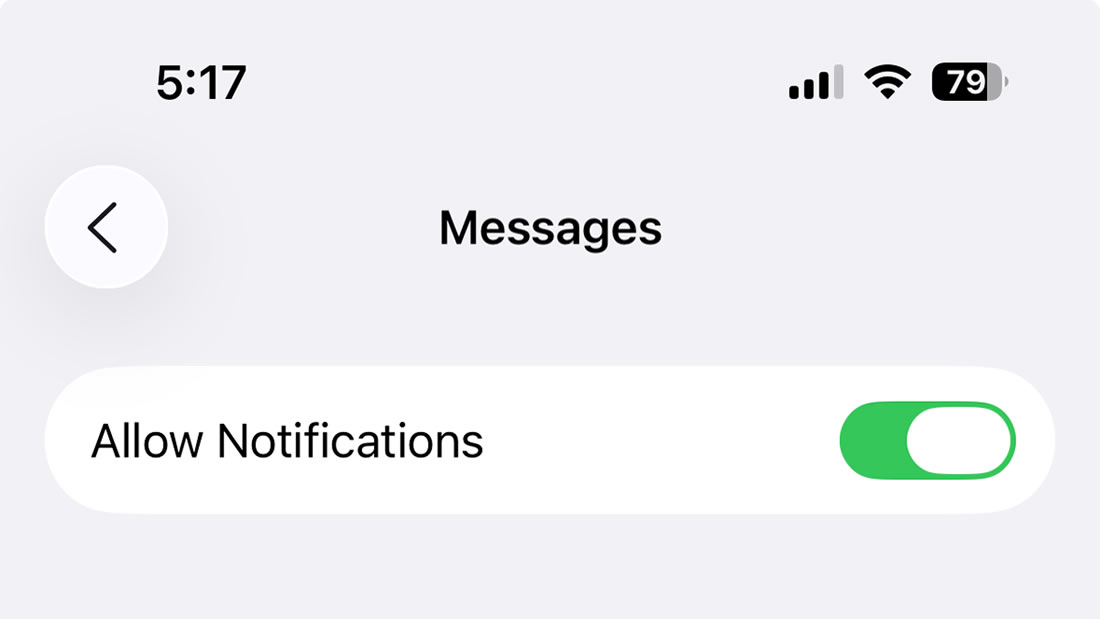
Notifications are another quiet drainer. Go to Settings > Notifications and turn off the ones from apps you barely open. Every little ping lights up the screen and wakes the phone. Finally, when you’re in a pinch, just flip on Low Power Mode from the Battery settings or Control Center. It’s a lifesaver.
When Should You Actually Call Apple Support?
If you’ve done all this and the battery is still tanking after three to five full days, it’s time to talk to Apple. Same if the phone gets hot a lot, shuts down randomly, charges super slow, or throws up any battery health warnings.
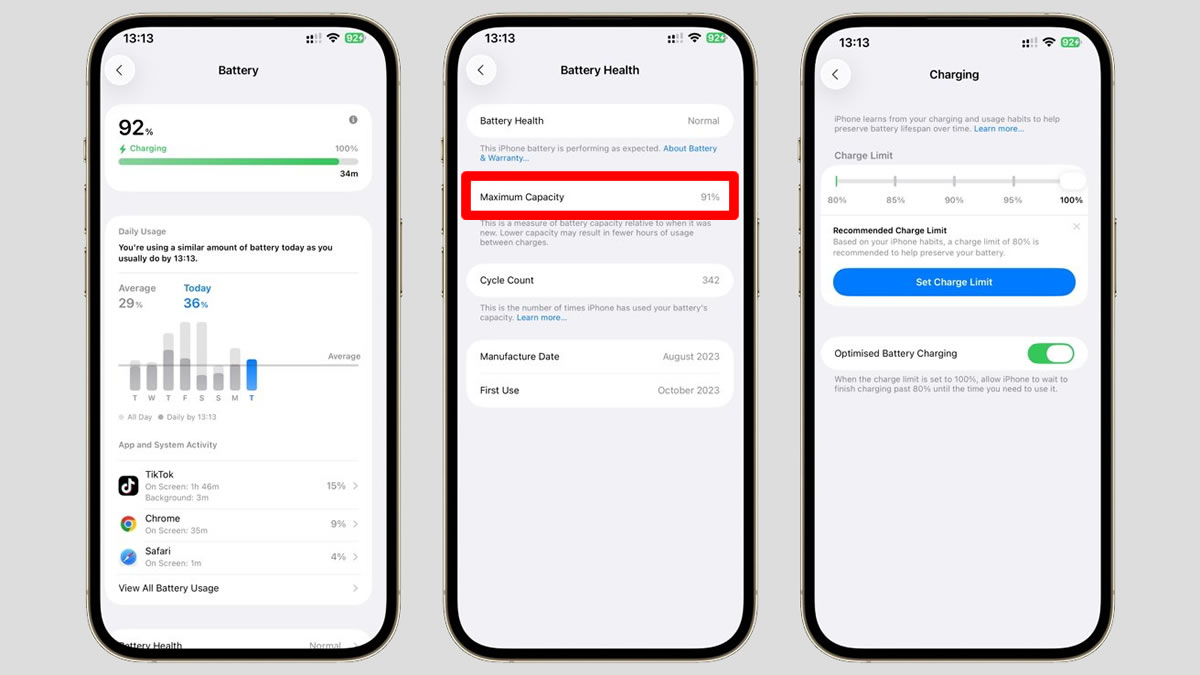
While you’re in Settings > Battery > Battery Health & Charging, check the Maximum Capacity number. If it’s dropped way more than it should have, the issue might actually be hardware instead of the iOS 26 update. Apple Support can run diagnostics over the phone or at a store—no need to panic yet.
Quick FAQ
Why does my iPhone battery suck so much worse after iOS 26?
Mostly because the phone is doing a ton of background work—reindexing photos, syncing iCloud, updating apps, all that. It settles down, but not always fast enough.
How long should I wait before freaking out?
Usually 24 to 72 hours. If it’s still bad after several days, start tweaking the settings as we talked about.
Should I just reset the whole iPhone?
Not yet. Try the restart, app updates, background limits, and Battery screen first. A reset is kind of a last resort—most people fix it without it.
There you go. These steps have saved my battery (and my sanity) more times than I can count after updates. Let me know in the comments if a particular step worked for you—or if something else weird is happening. I’m always testing this stuff so I can keep the advice fresh.
Expand Your Knowledge:
 How to Fix iPhone Battery Drain
 iOS 26.1 Update: Apple Adds Clearer Design, Smarter Controls, and More AI Languages
 Which iPhone models will receive the iOS 16 update?
 iOS 18 Update: Eligible iPhone Models Announced
 iPhone 15 Pro Elevates Video Recording Experience with iOS 17.2 Update
 iOS 17.2 Update Set to Resolve Wi-Fi Issues on iPhones
 Apple Rolls Out iOS 17.4 Update: Discover the Latest Features for iPhones
 Apple Releases iOS 17.5 Update: Discover the Latest Features for iPhones
 Apple Releases Critical watchOS 10.1.1 Update: Resolving Significant Battery Issue
 iOS 27 Battery Life Upgrade: Apple’s Quiet Cleanup Could Make iPhone Feel Faster