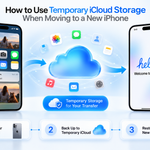




Buying a new iPhone can reveal a familiar problem: your current iCloud plan has too little room for a backup. Apple offers eligible buyers temporary storage for the move. Here is how to use it and avoid losing track of the restore deadline.
Create the temporary backup
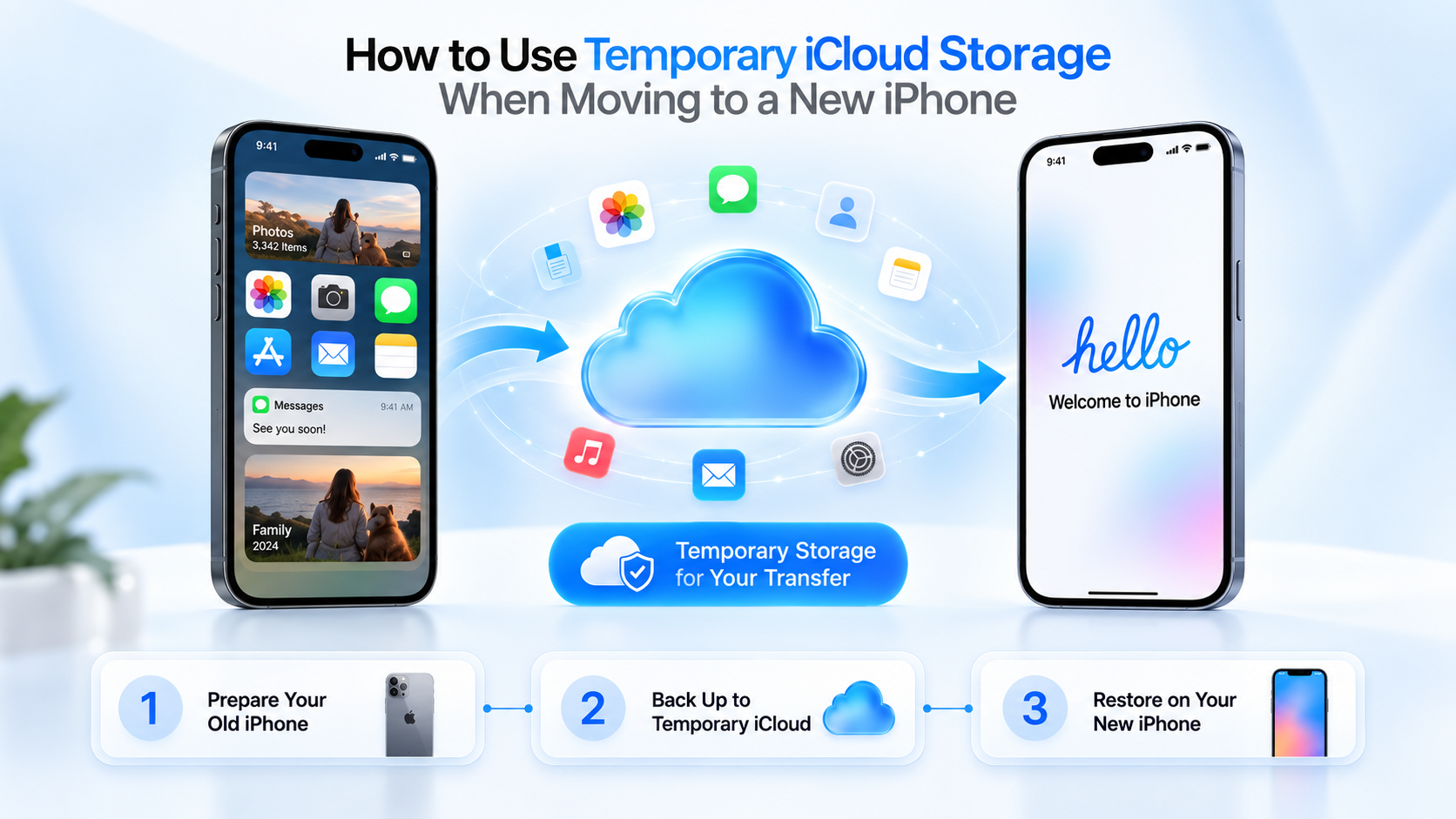
Update your old iPhone and have your Apple Account login ready. Open Settings → General → Transfer or Reset iPhone → Get Started under Prepare for New iPhone. Enable backup for transfer if prompted, accept the extra storage offer and wait for completion. If no offer appears, Apple says your existing storage is sufficient.
Apple’s temporary storage guide gives you 21 days to restore. If delivery is delayed, choose Keep My Backup Longer for another 21 days; contact Apple Support for more time. Keep the old phone intact until restoration succeeds. After restoration, the temporary backup remains available for seven days.
Understand what is in the backup
A backup and iCloud syncing handle different parts of your data. According to Apple’s explanation of iCloud Backup, the backup stores information that is not already syncing to iCloud, along with settings and your Home Screen layout.
If iCloud Photos or Messages in iCloud is enabled, those items sync separately instead of being duplicated in the daily backup. That distinction matters when checking the new phone: completing a backup restore is not the same as seeing every synced photo immediately. Review the apps and information you rely on before retiring the old device.
Restore during setup
During the new phone’s setup, select the iCloud backup restoration option, sign in and choose the recent backup. Once the move is complete, arrange a regular backup method for future use.
Is a direct transfer an alternative?
Yes. Quick Start also supports transferring directly from the old device. Both phones remain occupied until that transfer finishes. With the iCloud route, apps and data can download in the background. Either way, keep the devices powered and allow time for migration instead of starting just before you need to leave.
Expand Your Knowledge:
 How to Enable or Disable iCloud on iPhone
 How to Transfer Photos from iPhone to Mac Without iCloud
 How to stop iOS from sending more iCloud promotion messages on your iPhone or iPad
 What is iCloud and how you can Benefit from It
How to Restore an iPad with iCloud in 5 Simple Steps
What is iCloud and how you can Benefit from It
How to Restore an iPad with iCloud in 5 Simple Steps
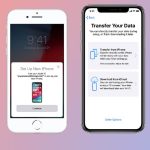 How to Transfer Data from Old iPhone to New iPhone
 How to Keep your iPhone Battery Healthy
 How to Download a Ringtone on iPhone
 How to Disable Find My iPhone
 How to Deactivate SharePlay on Your iPhone