

Moving to an iPhone 18 Pro is easier when the old phone is still nearby, but Wallet deserves its own check. A Quick Start transfer can bring over your apps and settings; payment cards, transit passes and keys may need separate steps. Here is how to transfer Wallet to a new iPhone without finding out at the station gate that an essential card is missing.
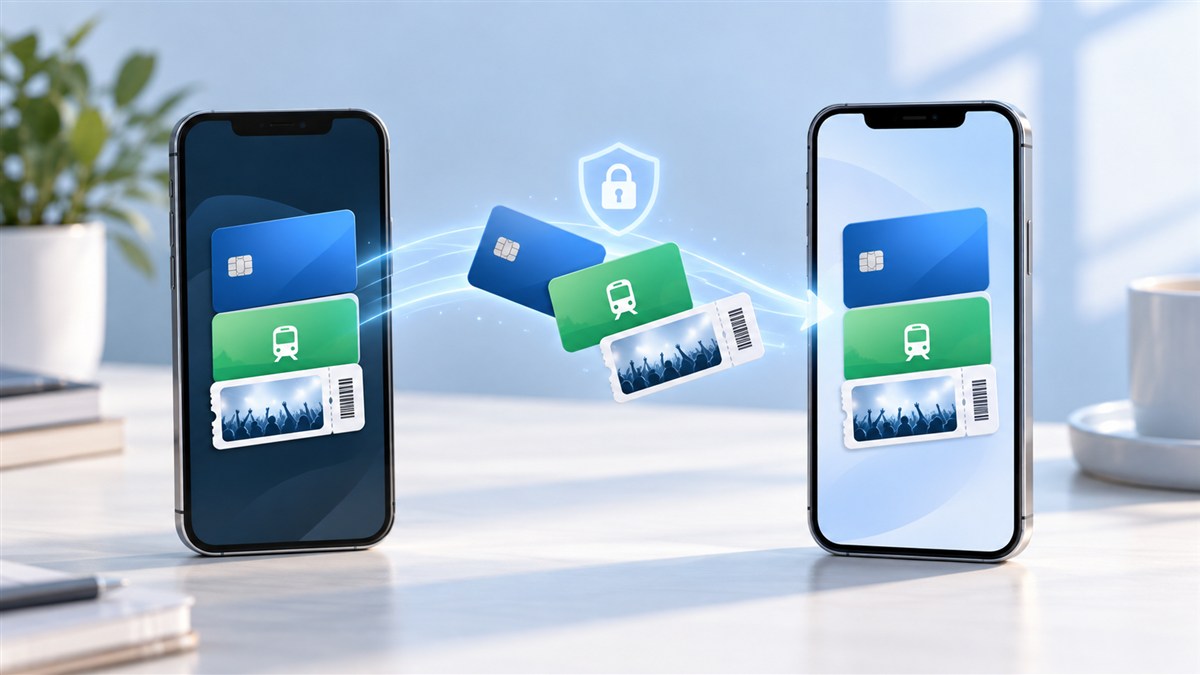
Start with the old iPhone
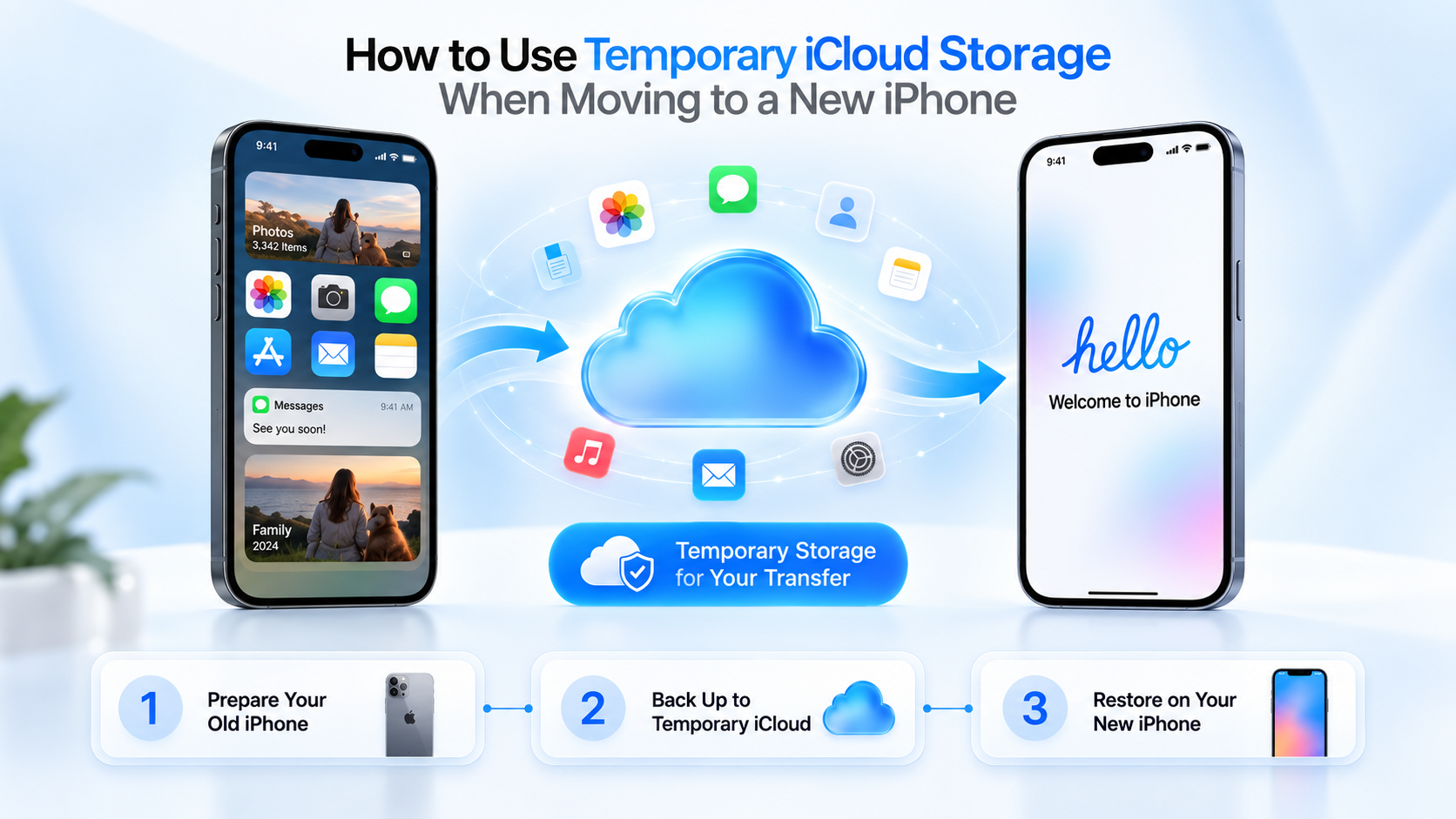
Keep both iPhones charged, connected to Wi-Fi and signed in to the Apple Account you plan to use. Update the old phone if an update is available. Follow Apple’s Quick Start instructions to set up the iPhone 18 Pro. Do not erase or trade in the old device until you have tested the items you rely on.
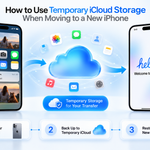
If your backup needs more space, our guide to temporary iCloud storage for a new iPhone explains another way to complete the move. That backup helps with your data, but it does not mean every Wallet credential is ready to use.
Add payment cards on the new phone
Open Wallet on the iPhone 18 Pro, tap the plus button, and choose Debit or Credit Card. If Apple offers a Previous Cards list, select the card you want and follow the prompts. Your bank may require a text, app approval or another identity check before Apple Pay works. Apple’s Apple Pay setup guide covers these steps and explains why card availability can vary by issuer and region.
Move a transit card before your next trip
Eligible transit cards can move during setup. In Setup Assistant on the new iPhone, tap Wallet, choose the transit cards and tap Continue. Keep the old phone nearby and online. If setup is already complete, open Wallet on the new phone, tap Add and choose Cards Found For You. Follow the prompts. Apple says you only need to remove a card manually from the old device when the phones are not near each other. Its transit card guide explains both routes. Keep another way to pay until the transfer works.
Check passes and digital keys individually
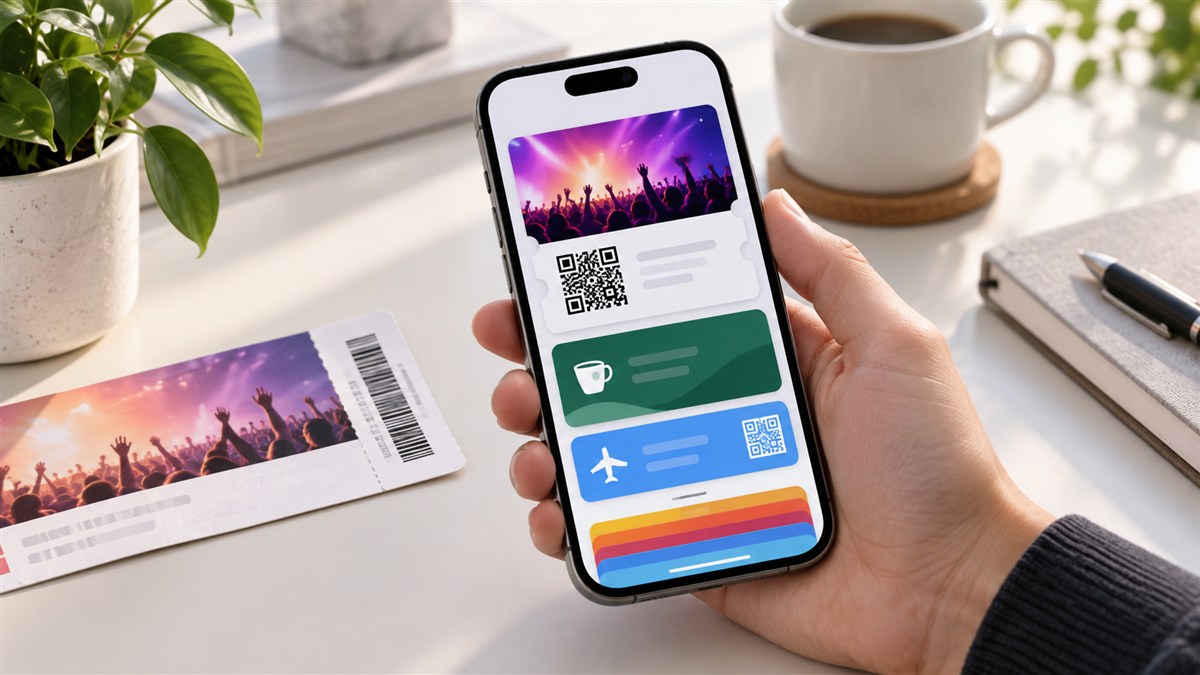
Event tickets, loyalty cards and boarding passes do not all transfer in the same way. Open the airline, venue or retailer app on the new iPhone if a pass is missing. For a car key, follow the car maker’s process and Apple’s digital car key guidance; access may need to be shared or paired again. You can also review our iOS 27 custom pass guide if you added a pass yourself rather than through an issuer.
Before clearing the old iPhone, try one low-stakes payment where possible, check the transit balance and confirm any key works at the vehicle. A few minutes of verification can save a much longer recovery later.
Expand Your Knowledge:
 iPhone 18 Pro Rumors Point to Apple’s Boldest Pro Upgrade in Years
 iPhone 18 Pro Face ID Reboot Fix Is Coming, Apple Says
 iPhone 18 Pro Max Has Four Regional Models: SIM, 5G and Battery Differences
 Foldable iPhone May Launch After iPhone 18 Pro in Apple’s Split Release Plan
 How to Transfer Your Contacts from an Android Phone to an iPhone
 How to Transfer Photos from iPhone to Mac Without iCloud
 How to Create a Custom Pass in iOS 27 Wallet
 Insight into iOS 18 and iPadOS 18 Device Compatibility Revealed
 How to Transfer Data from Old iPhone to New iPhone
 Apple Releases iOS 18, iPadOS 18: Everything You Should Know