


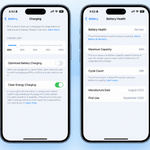
Apple released iOS 27.0.1 on September 28, but an update can still stall on an individual iPhone. If the download will not start, verification fails or the progress bar seems frozen, work through the checks below before trying a more disruptive fix. Apple lists connection, storage and update-server issues among the common causes.
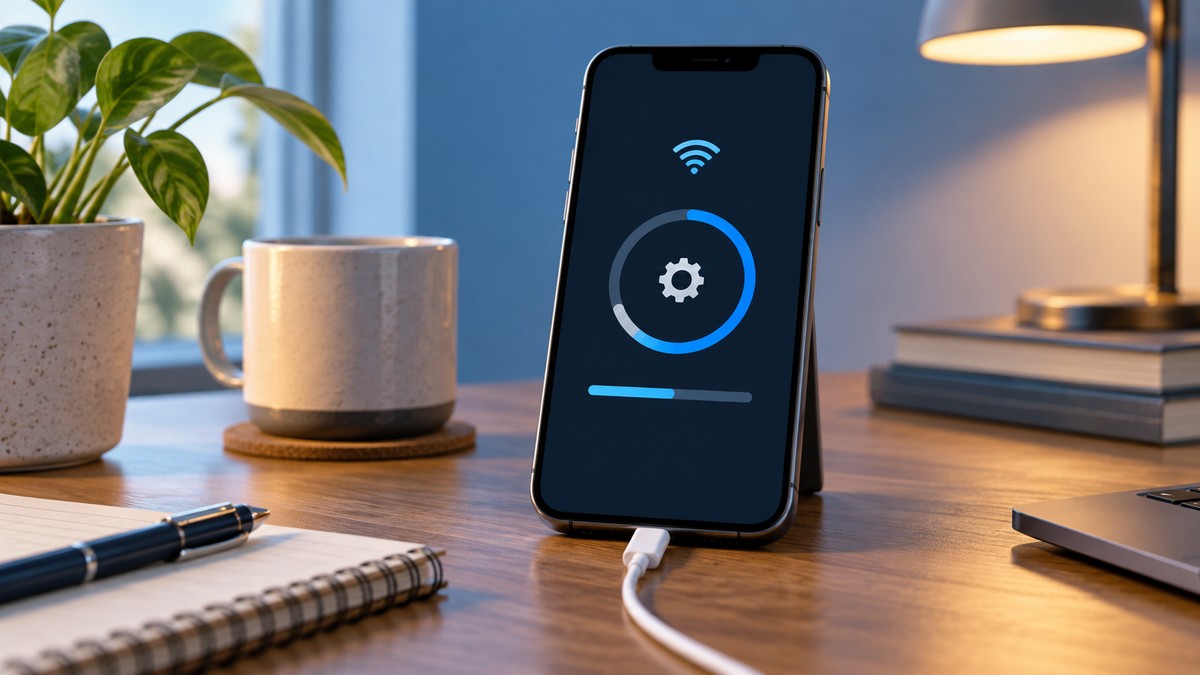
Check the basics before restarting the iOS 27.0.1 update
Open Settings, then General, then Software Update. Make sure the phone has a reliable internet connection and enough free storage. Keep it connected to power while installing. Apple lists iOS 27.0.1 for iPhone 11 and later, but your device may show a different available update if it follows another software branch.
If the download is merely slow, give it time. A busy network and a large download can make progress look uneven. Connect to Wi-Fi and pause other downloads if you can. Do not interrupt an installation simply because its progress bar pauses for a few minutes.
If verification fails
An “Unable to Check for Update” or verification alert often points to a network or server connection problem. Retry on the same network once. If the alert returns, try another trusted Wi-Fi connection. Apple also recommends a Mac or iTunes when the phone still cannot reach the update service.
Delete a failed download and try again
When the update has downloaded but will not install, remove that downloaded copy rather than repeating the same attempt. Go to Settings, General and iPhone Storage. Find the iOS update in the app list, open it and tap Delete Update. Return to General and Software Update to download the current version again. Apple documents these steps in its update troubleshooting guide.
This action deletes the update file, not your photos or messages. Still, a recent backup is sensible before any major troubleshooting. If the update does not appear in iPhone Storage, skip the deletion step and move to a computer-assisted update.
When to use a computer
Connect the iPhone to a Mac or a Windows PC with a suitable cable. Use Finder on a current Mac, or the Apple Devices app or iTunes on Windows, to check for and install the update. Keep the cable connected until the process finishes. Apple’s support guide explains the computer route when wireless attempts keep failing.
A phone stuck on the Apple logo is a different case from a slow download. If its progress bar has not moved for a long time, follow Apple’s instructions for that screen before considering recovery mode. Recovery steps can affect data, so read the prompts carefully.
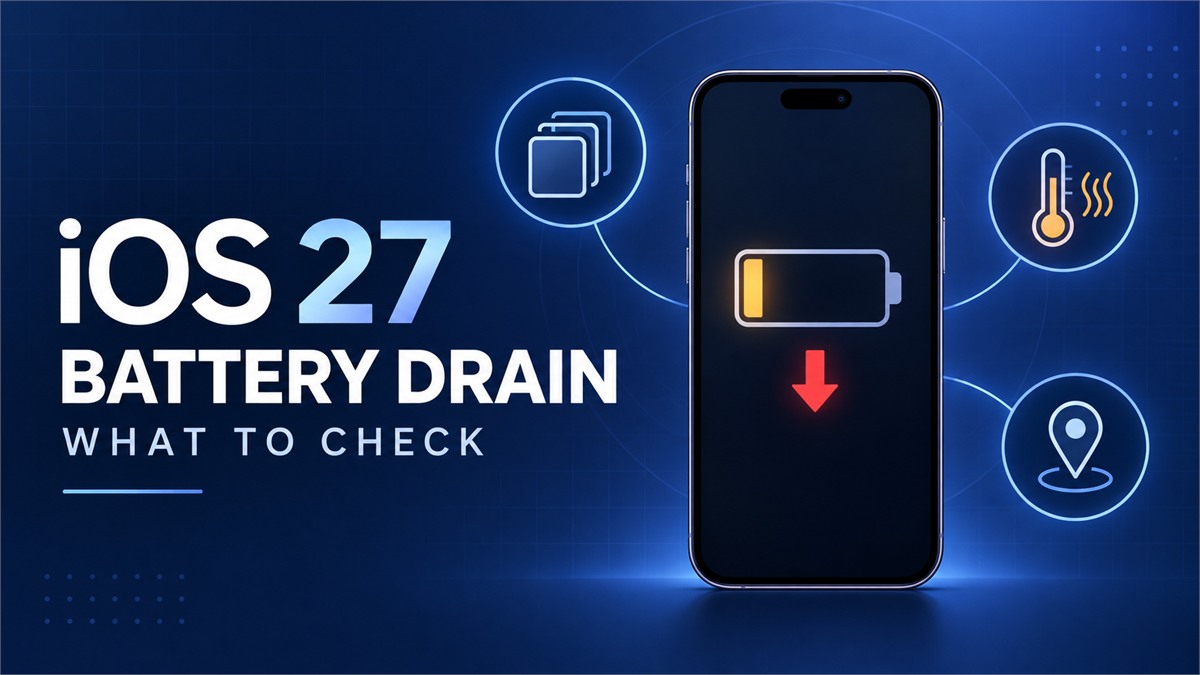
Once the update succeeds, give the phone some time to settle. If battery life remains poor afterward, our iOS 27 battery drain guide helps you identify the next checks without treating every short-term change as a fault.
Expand Your Knowledge:
 iOS 27 Battery Drain: What to Do When It Does Not Settle
 How to Create a Custom Pass in iOS 27 Wallet
 How to Fix iPhone Overheating After an iOS Update
 How to Fix That iPhone Battery Drain After the iOS 26 Update
 iOS 27.2 Public Beta Arrives With a Preview of Apple’s New Health App
 iPhone Stuck in Recovery Mode? Here’s How to Fix It
 iOS 27 Battery Life Upgrade: Apple’s Quiet Cleanup Could Make iPhone Feel Faster
 Apple Unveils iOS 17.1.1 Update: What’s New?
 Which iPhone models will receive the iOS 16 update?
 Apple Music to Receive New Features in iOS 18 Update