


Hold Assist in iOS 27 lets your iPhone watch for a live agent while you wait on a support call. This guide explains how to start it, return to the conversation and fix missing alerts. Set up the feature before your next long call, so you know which controls to expect.
Before you use Hold Assist in iOS 27
Apple supports the feature on iPhone 12, iPhone SE (third generation) and later models. However, availability also depends on language and region. Apple’s current availability list includes English in several countries, plus selected French, German, Japanese and other language variants. Turkish is not listed.
Start with these checks:
- Confirm your iPhone model and installed iOS version.
- Check Apple’s list for your language and region.
- Keep the ringer audible and leave Do Not Disturb off during the call.
Start Hold Assist in iOS 27: step-by-step
Follow the controls in Apple’s iOS 27 call guide:
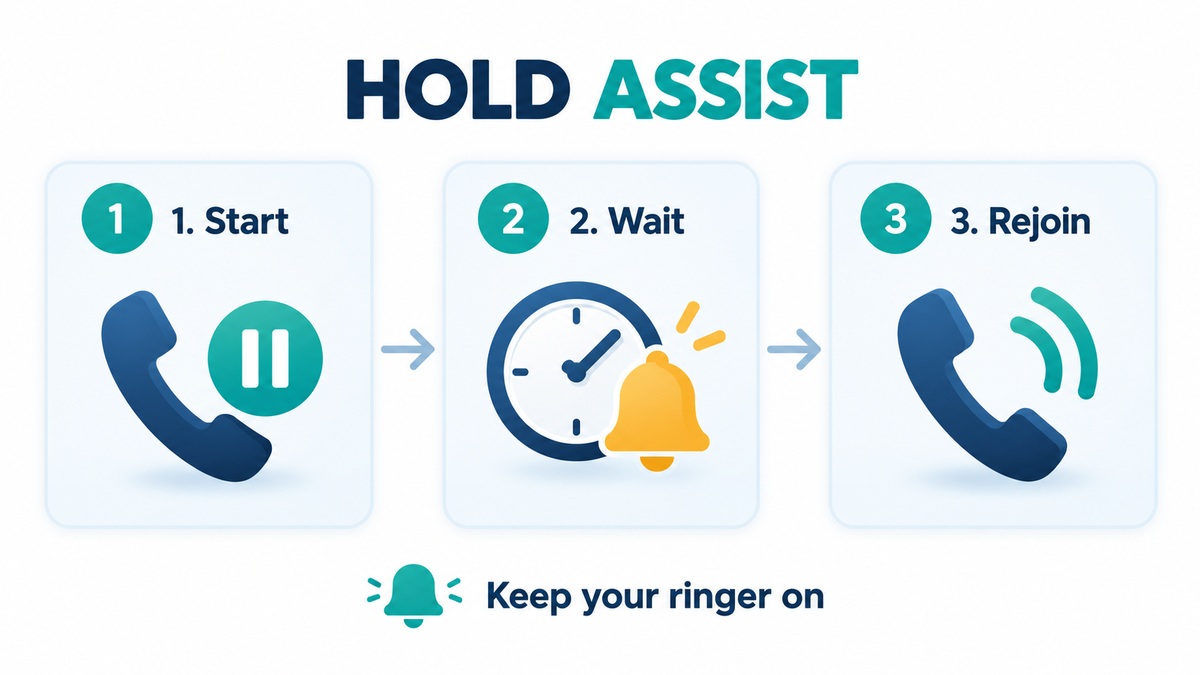
- Make your call in Phone and wait until the business puts you on hold.
- Tap More, then Hold Assist.
- You can use another app while waiting. Return through the green call indicator when needed.
- When the agent becomes available, check the alert and any transcript of the part you missed.
- Tap Answer Call to rejoin the conversation.
After rejoining, confirm that you can hear the agent and that they can hear you. Keep your case or booking details nearby; the alert is a prompt to resume your existing call, not a reason to place another one.
Enable hold-music detection
For automatic detection, open Settings > Apps > Phone and turn on Hold Assist Detection. Still check the call controls when you enter a queue. Knowing the manual route helps if the automatic prompt does not appear.
Troubleshoot missing options or alerts
Missing Hold Assist in iOS 27? Check support
First, compare your model, language and region with Apple’s requirements. Then look under More during the active call. Do not assume that changing an unrelated Siri setting will enable a feature that your configuration does not support.
Apple’s optional wait-time prediction has separate Apple Intelligence requirements and is limited to the United States. Our Siri AI availability guide explains the wider compatibility questions. Basic Hold Assist support does not itself require an Apple Intelligence-capable iPhone.
You did not hear the alert
Apple warns that Silent mode or Do Not Disturb can prevent an audible alert. Check both before trying again. On an iPhone with a Ring/Silent switch, move it forward for ring mode. If your Action button controls Silent mode, press and hold it to switch modes.
Alternatively, compatible models offer Settings > Sounds & Haptics > Silent Mode. Turn Silent mode off. Apple’s ringer instructions explain the model-specific controls. For an important call, stay near the phone until you have confirmed that Hold Assist in iOS 27 alerts you reliably.
Expand Your Knowledge:
 iOS 27 Battery Drain: What to Do When It Does Not Settle
 iOS 27.0.1 Update Stuck? How to Get It Installed
 How to Create a Custom Pass in iOS 27 Wallet
 iOS 27 Screen Time: How Families Can Set Healthy Limits
 How to Upgrade Shared Albums in iOS 27: Step-by-Step Guide
 iOS 27 Liquid Glass Tint Slider: What It Changes
 iOS 27.2 Public Beta Arrives With a Preview of Apple’s New Health App
 How to Record a Phone Call on an iPhone
 iOS 27 Battery Life Upgrade: Apple’s Quiet Cleanup Could Make iPhone Feel Faster
 iPhone 5 Overheating Problems – Is Your Device Too Hot to Hold?