




You might open the AirPods settings to change the sound on your iPhone. But Custom EQ is not confined to that iPhone. Apple stores the setting on the AirPods, which means it carries across to other paired devices. Before adjusting it, bear in mind that you are choosing a sound for the headphones, not just for the music playing on the phone.
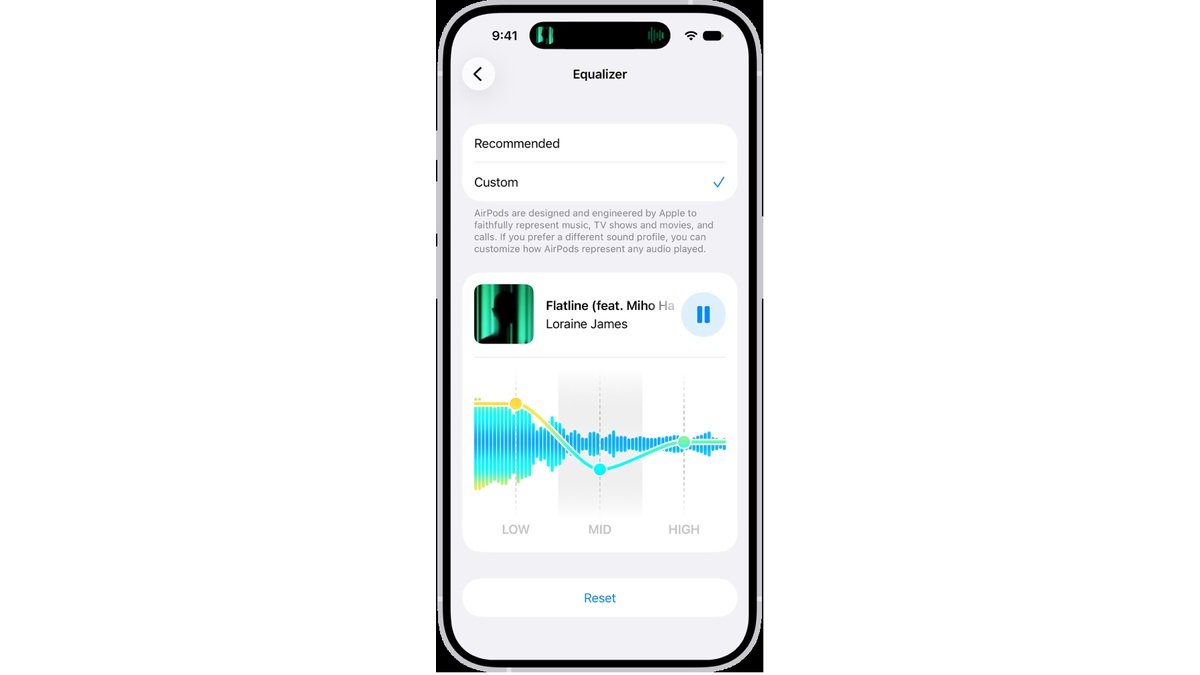
What is different about AirPods Custom EQ?
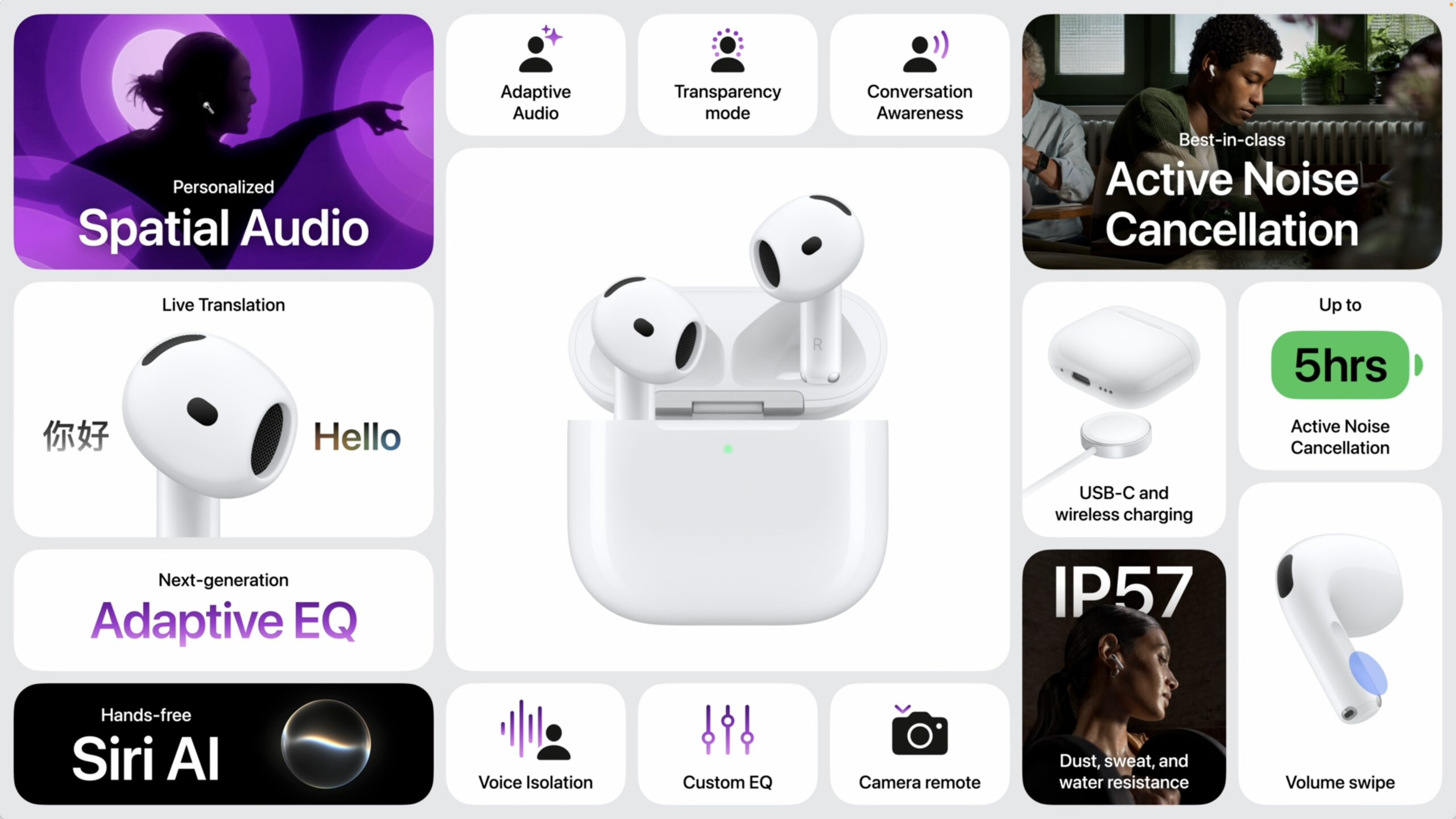
Low, Mid and High are the three controls. Apple also supplies Recommended, which turns the custom adjustment off. This is available on AirPods 4 or later, AirPods Pro 2 or later, and AirPods Max 2. There is no obligation to use it. If you prefer the original sound, keep Recommended.
The shared setting is useful when you switch devices. You do not have to make the same adjustment on each one. It can also catch you out: the profile you chose for music will still be there when you start a spoken podcast somewhere else.
Make one change and compare it
Put on the AirPods and connect them to your iPhone. Apple’s guide gives the following sequence:
- Open Settings. Tap your AirPods name near the top.
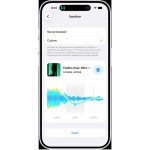
- Tap Audio & Routing, then Equalizer.
- Choose Custom and move a Low, Mid or High slider.
Start with one control. Listen to a familiar passage, move the slider a little, then replay it at the same volume. Now try some speech. What sounds good with one recording may be less appealing with another.
Try another paired device too
The profile follows the AirPods, so check how it sounds there. If you dislike the result, go back to Equalizer and choose Recommended. That is also the first setting to revisit if another device suddenly sounds different after your adjustment.
If the setting is missing
Our AirPods 5 comparison covers the two current models; supported older pairs can use AirPods Custom EQ as well. Check your model and firmware rather than assuming you need new headphones. Apple’s firmware notes describe the feature in 9A348. The current AirPods 5 listing is 9A350.
To check yours, open Settings > Bluetooth, tap the Info button beside the AirPods and scroll to About. For an earbud update, Apple says to keep Bluetooth on and use a Wi-Fi connection. Connect the earbuds, put them in their case and connect the case to power.
Close the lid and leave the case within Bluetooth range for at least 30 minutes. Then open it, reconnect and check the version again. AirPods Max have separate update instructions. If updating fails, reset your exact model using Apple’s instructions and retry.
Expand Your Knowledge:
 AirPods Max is Not Like the Others
 AirPods 5 Are Now on Sale: What the Extra $20 Gets You
 Apple’s Upcoming AirPods Pro Might Come with an Integrated Temperature Sensor
 How to Turn Off In-App Purchases On iOS Devices
Fixing Crashing Apps on iOS Devices
How to Turn Off In-App Purchases On iOS Devices
Fixing Crashing Apps on iOS Devices
 How to Pin Locations in Google Maps on iOS Devices
 How to Create a Custom Pass in iOS 27 Wallet
 Apple’s Expensive Mishap: Accidentally Shipping 60 iPhone 15 Pro Max Devices
 Apple’s September 12 Event: An In-Depth Preview