






No bars, no Wi-Fi and a message to send: this is where Messages via satellite can help. Set it up before the trip, not after you lose coverage. Below are the eligibility checks, a practice connection and the steps for sending a short text using Apple’s current instructions.
Check the requirements before leaving
Apple’s Messages via satellite support page lists iPhone 14 or later, an active SIM and availability in the United States, Canada, Mexico and Japan. The minimum is iOS 18 in the U.S., Canada and Japan, or iOS 18.4 in Mexico. Availability also depends on where the phone was purchased; check the regional restrictions on Apple’s page.
Turn on iMessage while you still have an internet connection if you want to use it later by satellite. SMS support depends on your carrier and may involve fees. Ordinary satellite messaging is not the emergency service: in an emergency without coverage, use Emergency SOS via satellite instead.
Practice with the connection demo
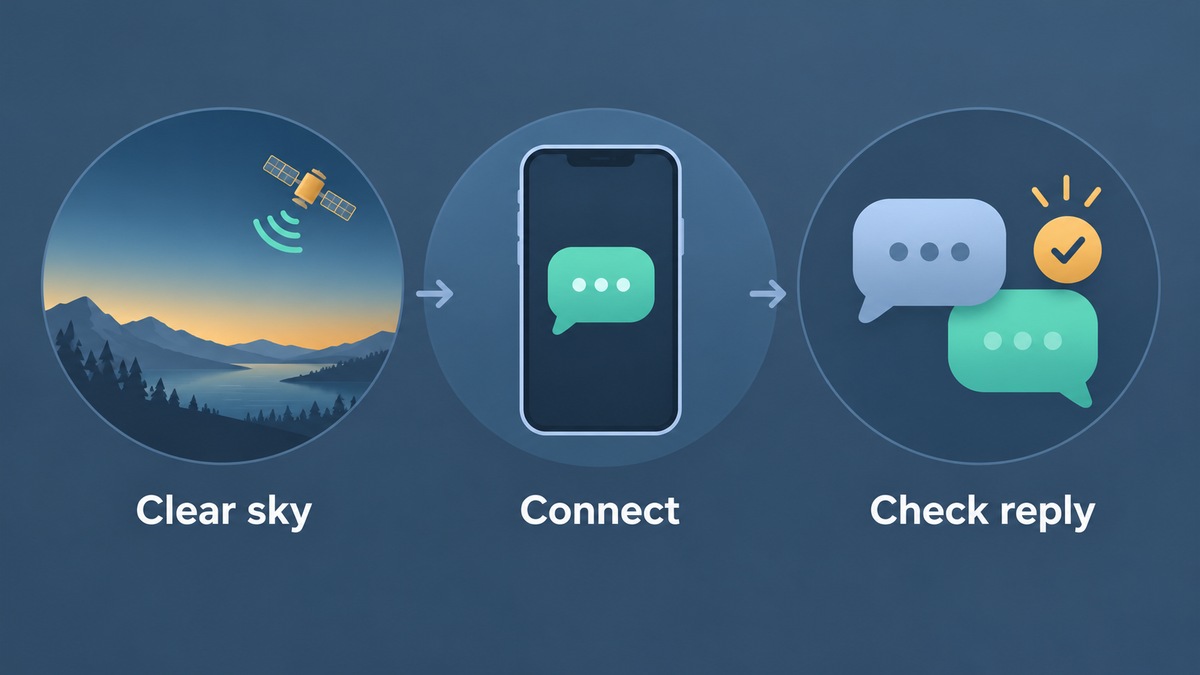
- Go outside to an open area with a clear view of the sky and horizon.
- Open Settings, then Apps, then Messages.
- Tap Satellite Connection Demo and follow the directions.
- Hold the phone normally. Follow any left or right guidance instead of lifting it above your head.
Apple’s Connection Assistant instructions also give a Control Center route: swipe down from the top right, tap the Cellular button, then Satellite and Try Demo. Choose Try Connecting to Satellite. This is a rehearsal, so it should not be mistaken for a message delivery test.
Send a text when coverage disappears
- Open Messages after the phone detects that you are off the grid.
- Follow the satellite prompt and start accepting messages when asked.
- Follow the connection directions, keeping the phone out of your pocket or backpack.
- Open the conversation, type a short message and send it. Keep following any connection guidance while it sends.
As an alternative, open Control Center, tap Cellular, then Satellite and choose Messages via satellite. Settings also offers Satellite when there is no cellular or Wi-Fi coverage.
Check the reply, not just the connection
Brief your contact before leaving. When they reply in iMessage, they may also need to tap Send via Satellite beneath the bubble. Apple’s iPhone messaging guide explains that workflow. Do not stop checking at “connected”: look for the reply in the conversation too.
If the option is missing or a text stalls
With normal coverage, Settings does not show Satellite and Control Center opens the demo. That is expected. Trees and buildings can slow or block a connection; move to a clearer position and follow the guidance. Do not expect photos, videos or group messages to work through this feature.
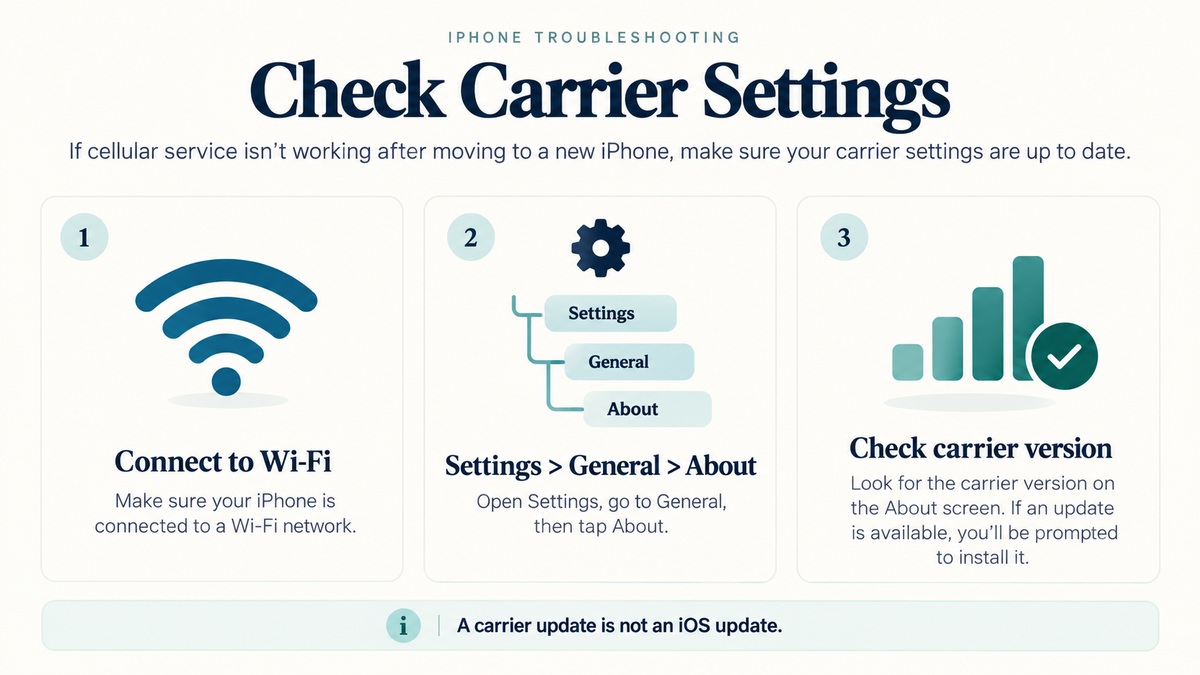
If No Service continues in a place that should have cellular coverage, follow our carrier settings and No Service checks. Satellite is a fallback for being off the grid, not a repair for an ongoing carrier problem.
Expand Your Knowledge:
 How to stop iOS from sending more iCloud promotion messages on your iPhone or iPad
 How to Block Text Messages From a Number on iPhone With iOS 7
 How to Transfer Data from Old iPhone to New iPhone
 How to Keep your iPhone Battery Healthy
 How to Download a Ringtone on iPhone
 How to Disable Find My iPhone
 How to Deactivate SharePlay on Your iPhone
 How to Unlock your iPhone with your Apple Watch
 How to Fix an iPhone That Won’t Turn On
 How to Download Offline Maps on Your iPhone