




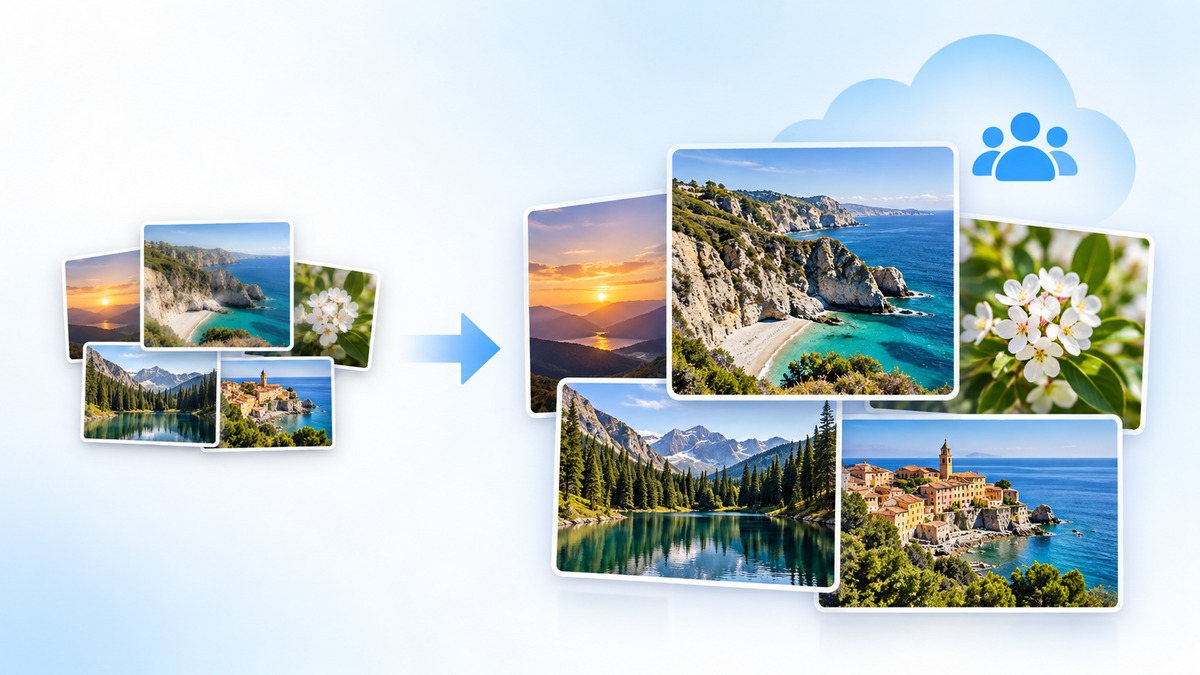
To upgrade Shared Albums in iOS 27, open an album you created on an older version of iOS and use its upgrade command in Photos. This guide walks through the exact taps, the checks to make before you start, and the recovery path if you need the older copy later. You do not need to upgrade albums created in iOS 27.
Before you upgrade Shared Albums in iOS 27
Update your iPhone to iOS 27, or your iPad to iPadOS 27. Make sure you created the album on an older software version. New albums made in version 27 or on iCloud.com already use the updated format. Tell participants about the change first: people on older software must update their devices or use iCloud.com to interact with an upgraded album.
Check the album owner’s free iCloud space, too. Existing items in the upgraded album do not count toward storage, but new photos and videos added afterward do. This matters if several people plan to contribute original-resolution videos.
Upgrade an older album on iPhone or iPad
- Open the Photos app and tap Collections.
- Scroll down to Shared Albums, then tap Shared Albums to see the album list.
- Open the older shared album that you created and want to upgrade.
- Tap the More button in that album.
- Tap Upgrade Shared Album.
- Follow the remaining onscreen instructions, then reopen the album to check that it is available.
Those menu names and the six-step route come from Apple’s upgrade instructions. Upgrade one album at a time; the command does not convert every album in your library. Afterward, new uploads can be shared at original resolution. Features such as filters and emoji reactions depend on regional availability.
Check access after the upgrade
Open the upgraded album on another device running version 27, or visit iCloud.com. Ask one participant to confirm they can see and contribute to it. A participant using version 26 or earlier may see a read-only album; updating their device or using iCloud.com restores interaction, according to Apple’s troubleshooting guide.
If the upgrade option or album is missing
First, verify the device runs iOS 27 or iPadOS 27 and that you opened an album you created before version 27. If the album itself is missing or fails to sync, test your internet connection and check whether it opens at iCloud.com. Then go to Settings → Apps → Photos and make sure Shared Albums is on. Apple also advises checking the album owner’s iCloud storage when content will not sync.
Recover the older album copy
Apple keeps an archived copy of the previous album for six months after the upgrade. To recover it on iPhone or iPad:
- Open Settings and tap your name.
- Tap iCloud → Photos.
- Under Sharing, tap Shared Albums.
- Tap Archived Shared Albums.
- Tap Recover, then tap Recover again to confirm.
The recovered older copy appears alongside the upgraded album in Photos. You can resend invitations to previous participants. If you are also moving to another iPhone, our temporary iCloud storage transfer guide covers the separate device-backup process; that allowance does not remove the new album’s storage requirement.
Expand Your Knowledge:
 How to Disable Journaling Suggestions on iPhone: A Step-by-Step Guide
 A Step-by-Step Guide to Updating and Installing iPadOS 17 on Your iPad
 Troubleshooting iPhone GPS Not Working: A Step-By-Step Guide
 Using Walkie-Talkie on Your Apple Watch: A Step-by-Step Guide
 iOS 27 Battery Life Upgrade: Apple’s Quiet Cleanup Could Make iPhone Feel Faster
 iOS 27 Battery Drain: What to Do When It Does Not Settle
 iOS 27.0.1 Update Stuck? How to Get It Installed
 How to Create a Custom Pass in iOS 27 Wallet
 iOS 27 Screen Time: How Families Can Set Healthy Limits
 Simplified Guide to iPhone StandBy Mode in iOS 17