




Missed taps are frustrating enough without guessing which fix to try. If your iPhone touchscreen stops responding after an update, start with a repeatable test. A frozen app, a charging accessory and a damaged screen can need different responses. The timing alone does not establish that iOS caused the fault.
Before you start
The restart sequence below is for an iPhone with Face ID. Older Home-button models use different combinations. Know your passcode, and note which app, screen area and charging setup are involved. If touch still works, back up the phone before installing another update.
Choose one touch test and stick with it. Open Settings, scroll, and try the area that missed taps earlier. Then change one thing and repeat. If you swap the cable, remove the case and update iOS together, you will not know which change helped.
Step 1: Restart a frozen Face ID iPhone
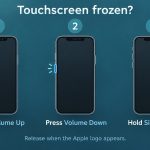
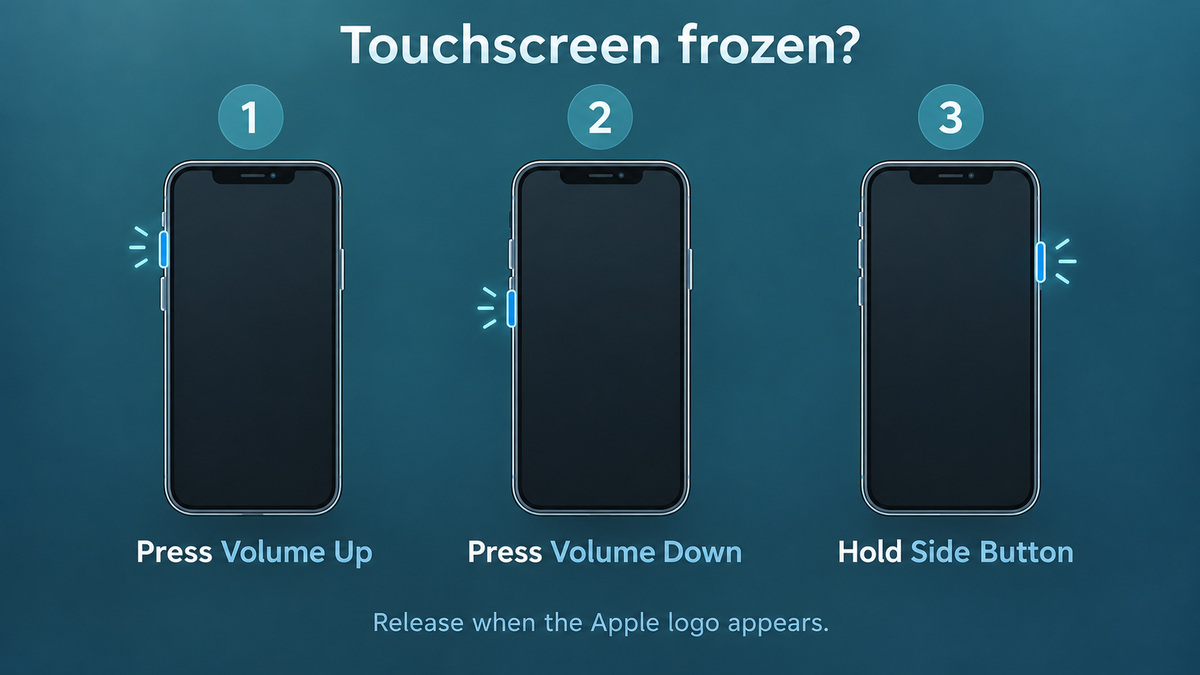
If normal on-screen controls will not respond, follow Apple’s force-restart sequence:
- Press and quickly release the volume up button.
- Press and quickly release the volume down button.
- Hold the side button until the Apple logo appears. This can take longer than 10 seconds.
Press the volume buttons in sequence; do not hold all three together. Our iPhone 11 restart guide illustrates the same button order for that model. If the phone remains black and will not turn on, Apple recommends charging it for an hour before trying again.
Step 2: Test the iPhone touchscreen without accessories
Apple’s touch troubleshooting guidance recommends these checks for intermittent or overly sensitive response:
- Make sure the screen is clean and free of water or debris.
- Disconnect USB-C or Lightning accessories and repeat the same touch test.
- If removing an accessory helps, try a different outlet, cable or charger.
- Remove the case or screen protector, then test the previously affected area again.
What should you see afterward?
The expected result is reliable response during the same action that failed earlier. A restart that helps briefly is useful information, but it does not prove a lasting repair. Note whether the fault returns in one app, across several apps or only while charging.
Step 3: Check software, then choose the next route
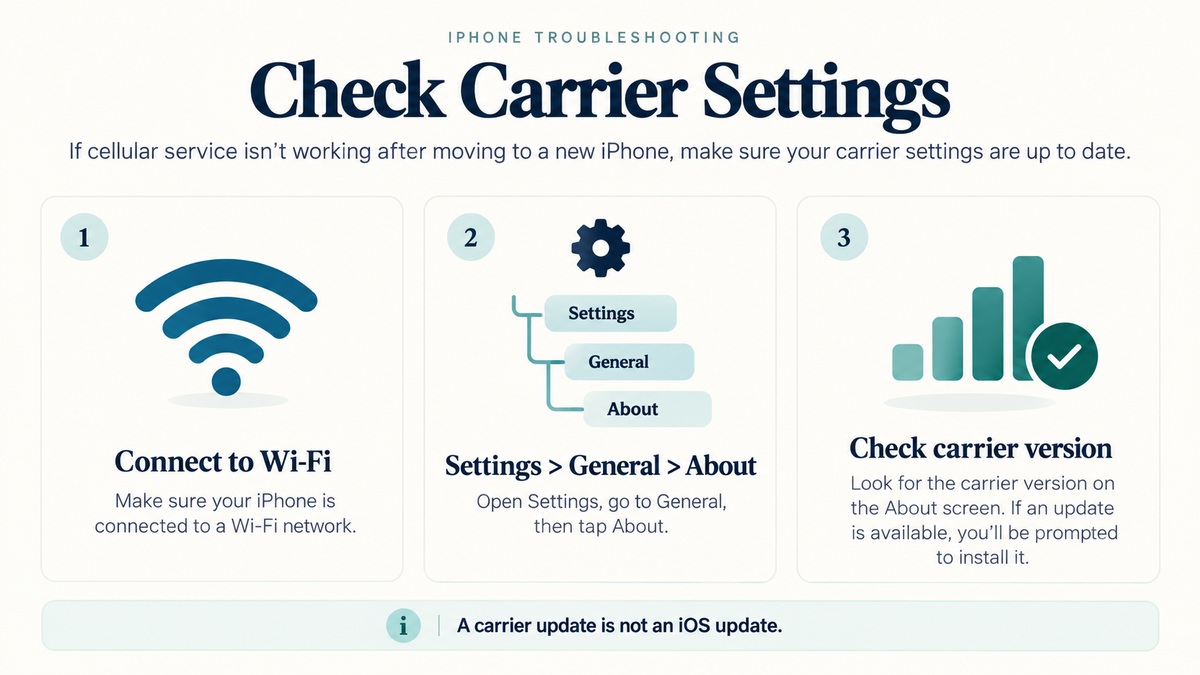
Once touch is usable, open Settings > General > Software Update. Apple’s update instructions say to back up first, connect to power and Wi-Fi, and select Download and Install if an update is available. Follow the displayed prompts; do not assume a particular patch exists for your device.
Still missing taps after these checks? Contact Apple Support for service. Tell them the model, installed iOS version, affected screen area and whether charging changes the behavior. Keep your notes handy. Repeating a restart is unlikely to explain a fault that returns under exactly the same conditions.
Expand Your Knowledge:
 How to Fix iPhone Touchscreen Not Responding
 The iDevice Touchscreen – Patents, Problems and New Technology
 How to Fix iPhone Overheating After an iOS Update
 How to Update iPhone Carrier Settings and Check No Service
 How to Fix That iPhone Battery Drain After the iOS 26 Update
 iOS 27.0.1 Update Stuck? How to Get It Installed
iPhone Software Update
iOS 27.0.1 Update Stuck? How to Get It Installed
iPhone Software Update
 Which iPhone models will receive the iOS 16 update?
 iOS 18 Update: Eligible iPhone Models Announced
 iPhone 15 Pro Elevates Video Recording Experience with iOS 17.2 Update